> ## Documentation Index
> Fetch the complete documentation index at: https://docs.mindosoftware.com/llms.txt
> Use this file to discover all available pages before exploring further.
# Quick Chat — Test the AI agent and leave feedback
> How to use Quick Chat to test your AI agent, evaluate its responses, and leave positive or negative feedback that creates tickets for our team
**Quick Chat** is a testing environment inside Mindo that lets you chat with your AI agent without sending messages to real customers. You can verify that it responds correctly and, if something isn't right, leave feedback so our team can improve it.
## Demo video
## Before you start
* You need a **Mindo account** with access to the dashboard.
* Your AI agent must be **created and active**.
## Opening Quick Chat
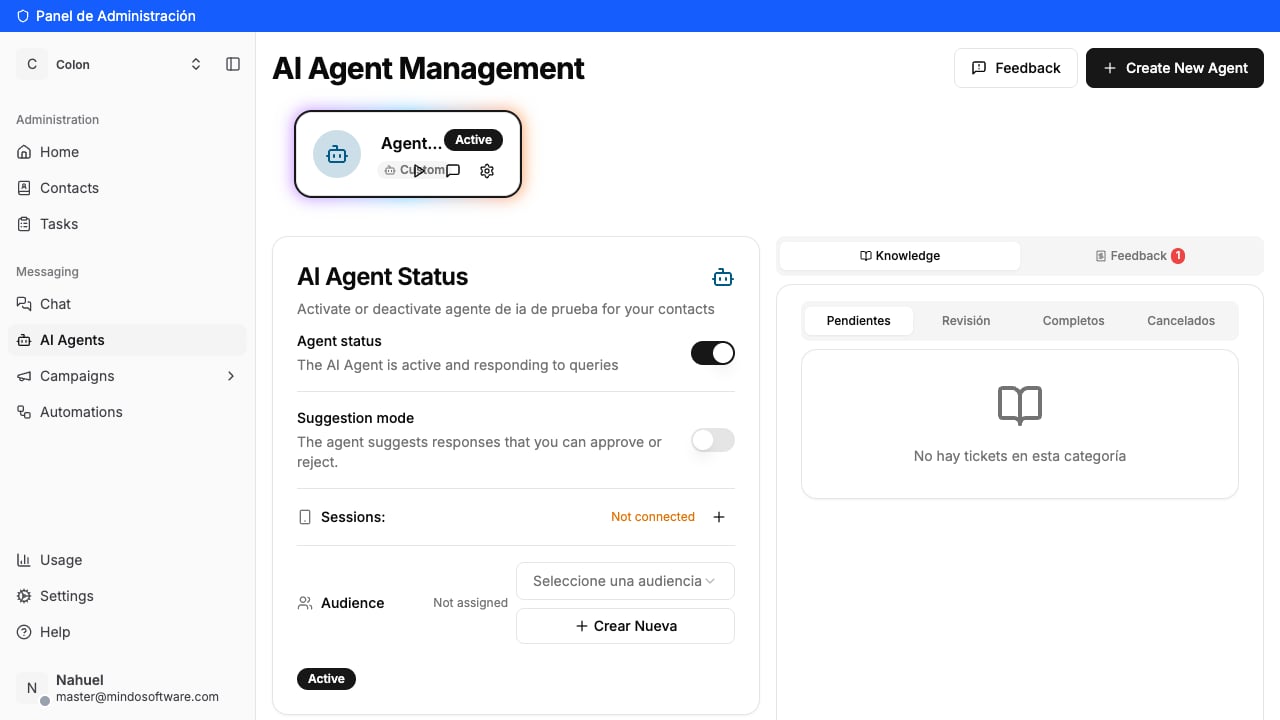
In the left sidebar, under the **Messaging** section, click **AI Agents**. You'll see your agent with its status (active or inactive) and three buttons: **Test agent**, **Quick Chat**, and **Settings**.
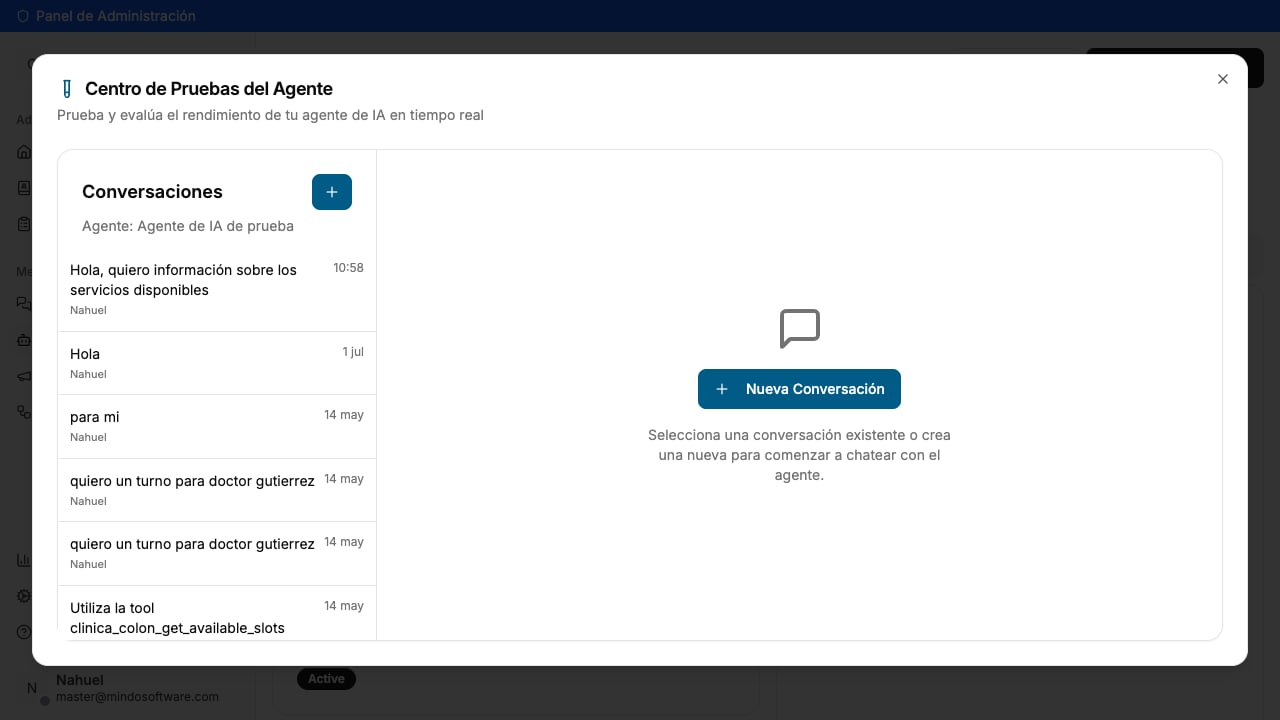
The **Agent Testing Center** opens. On the left you'll see a list of previous conversations (if any), and on the right a button to create a new one.
**Test agent** and **Quick Chat** open the same testing window. You can use either one.
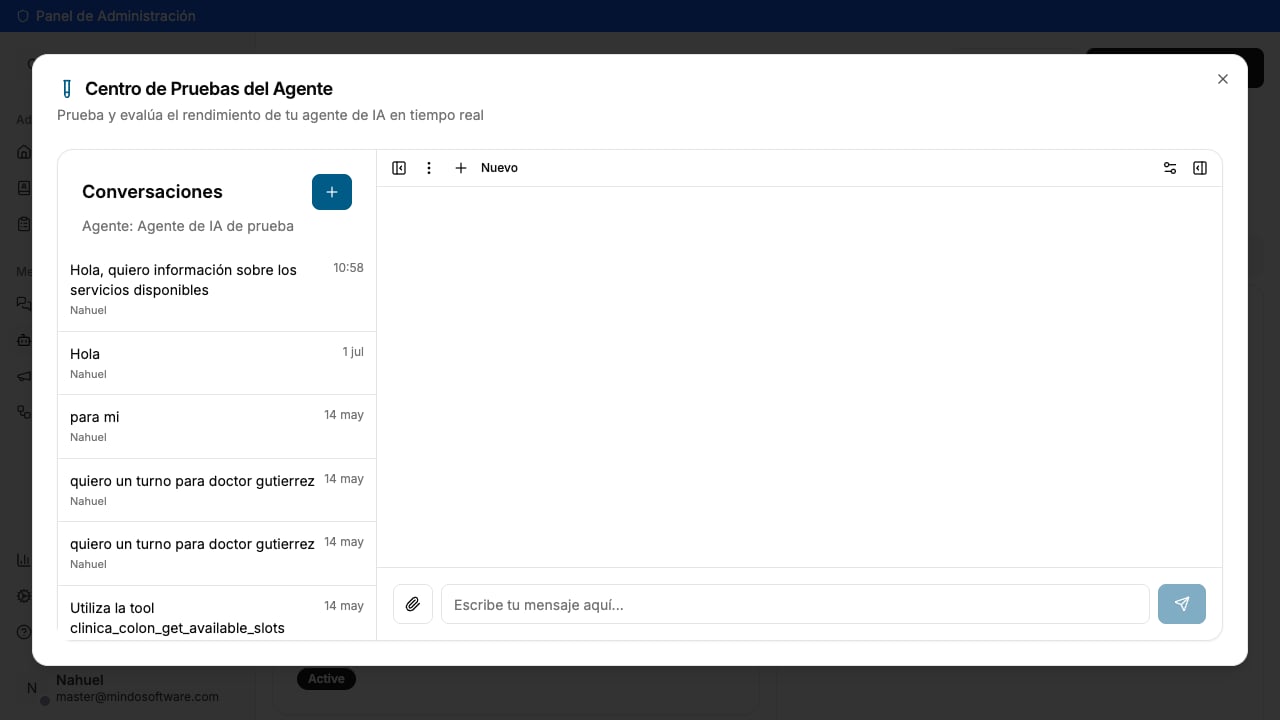
Click **New Conversation** to start a fresh test. An empty chat opens with the text field ready for you to type.
## Testing the agent
Type a message in the text field as a customer would. For example: *"Hi, I'd like information about available services"*. Press **Enter** and wait for the response.
The agent processes your message and responds in seconds, just as it would with a real customer on WhatsApp.
## Leaving feedback
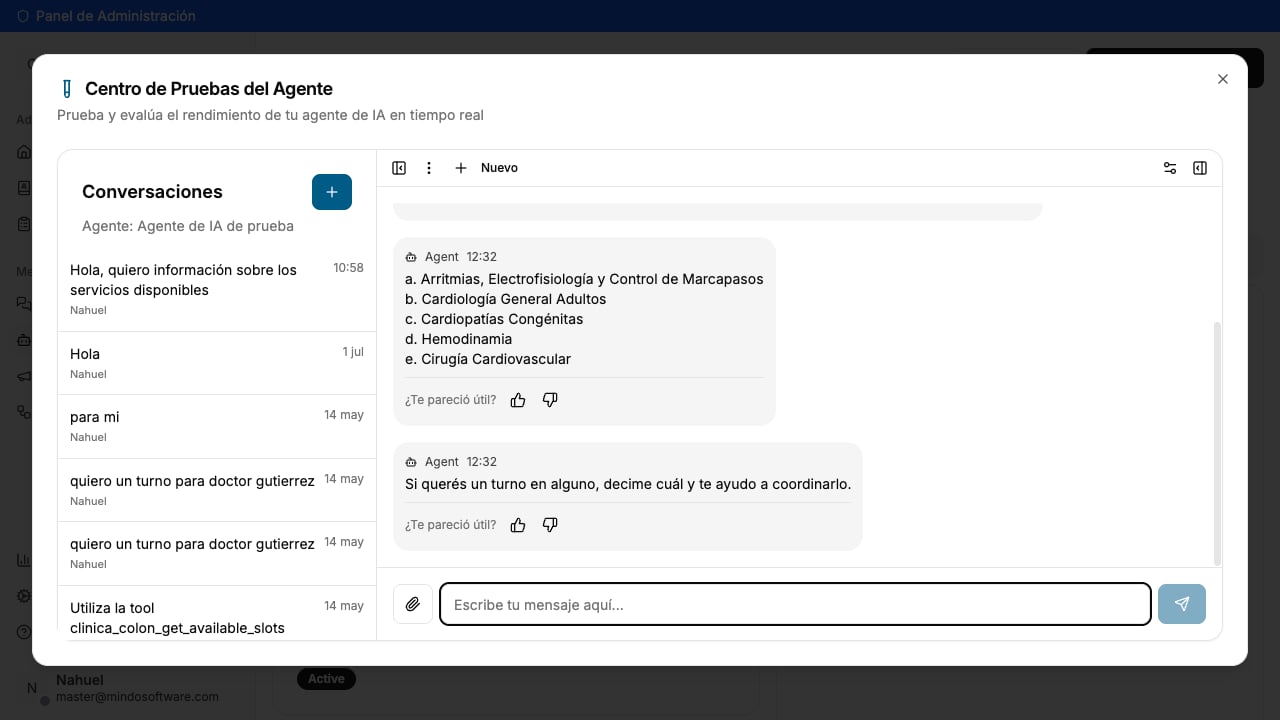
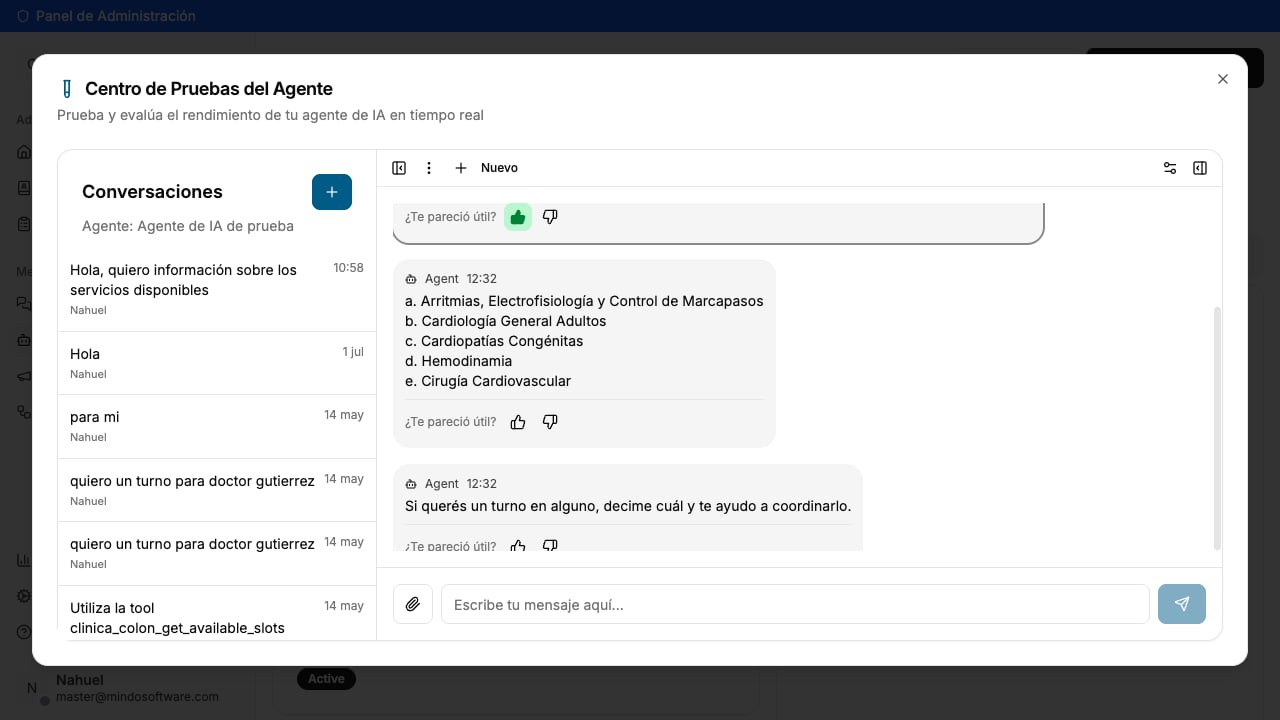
Below each agent response you'll see the question **"Was this helpful?"** with two icons: a thumbs up and a thumbs down.
### Positive feedback
If the response was correct and helpful, click the **thumbs up** button. This helps us know the agent is responding well on that topic.
### Negative feedback
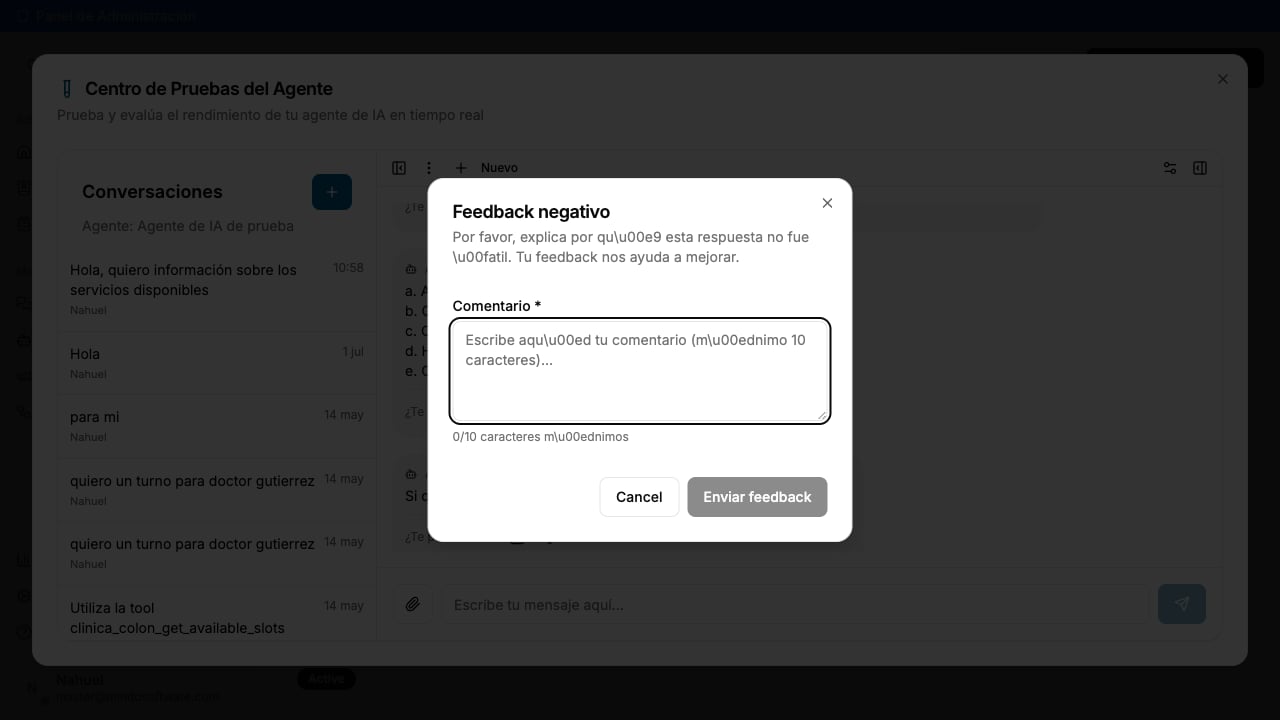
If the response was incorrect, incomplete, or not what you expected, click the **thumbs down** button. A form opens where you briefly explain what went wrong.
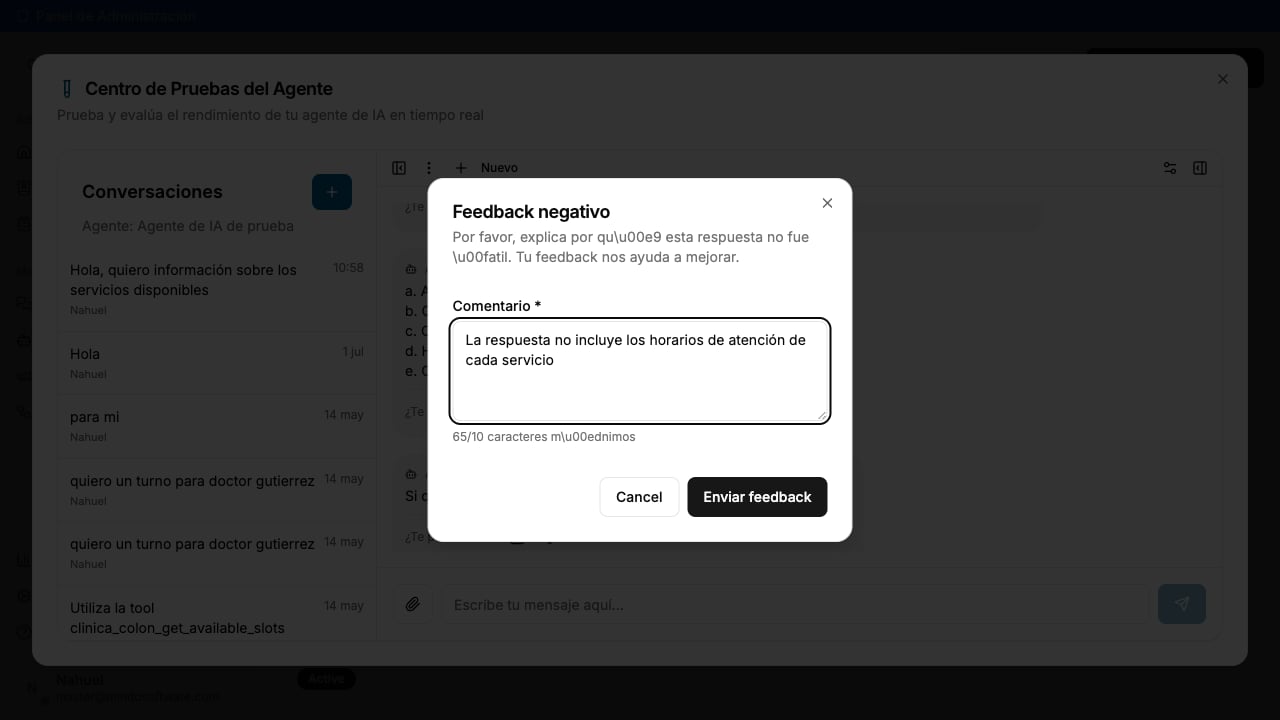
Type your comment (minimum 10 characters) describing the issue and click **Submit feedback**.
## What happens with negative feedback?
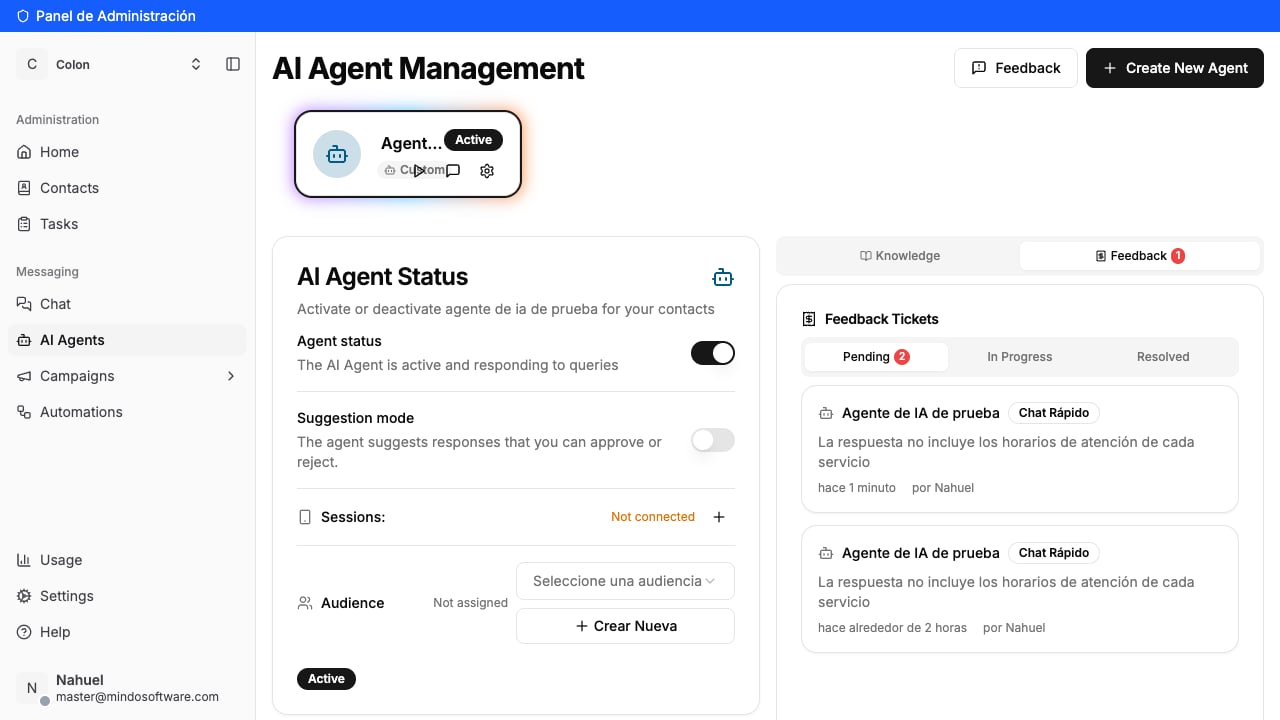
Each negative feedback automatically creates an **internal ticket** that our team reviews manually. You can see these tickets in the **Feedback** tab inside your agent's section.
Tickets go through three stages:
| Status | Meaning |
| --------------- | -------------------------------------------------------- |
| **Pending** | The ticket has been created and is awaiting review. |
| **In Progress** | Our team is working on the improvement. |
| **Resolved** | The issue has been fixed and the agent has been updated. |
You don't need to do anything else after submitting feedback. Our team reviews each ticket, analyzes the agent's response, and makes the necessary adjustments to improve its behavior.
## Frequently asked questions
No. It's a testing environment. Messages you send there don't reach any real contacts — they only serve to test your agent.
We recommend testing it every time you make changes to its configuration, policies, or the information you provide. This way you make sure its responses remain accurate.
Our team reviews tickets continuously. Resolution time depends on the complexity of the adjustment, but they are generally resolved within a few business days.
Yes. Every time you open Quick Chat, you'll see a list of all your previous conversations on the left. You can click any of them to review it.
Yes. The clip button to the left of the text field lets you send images, PDFs, or videos, just as a customer would on WhatsApp.
 ## Leaving feedback
Below each agent response you'll see the question **"Was this helpful?"** with two icons: a thumbs up and a thumbs down.
### Positive feedback
If the response was correct and helpful, click the **thumbs up** button. This helps us know the agent is responding well on that topic.
## Leaving feedback
Below each agent response you'll see the question **"Was this helpful?"** with two icons: a thumbs up and a thumbs down.
### Positive feedback
If the response was correct and helpful, click the **thumbs up** button. This helps us know the agent is responding well on that topic.
 ### Negative feedback
If the response was incorrect, incomplete, or not what you expected, click the **thumbs down** button. A form opens where you briefly explain what went wrong.
### Negative feedback
If the response was incorrect, incomplete, or not what you expected, click the **thumbs down** button. A form opens where you briefly explain what went wrong.
 Type your comment (minimum 10 characters) describing the issue and click **Submit feedback**.
 ## What happens with negative feedback?
Each negative feedback automatically creates an **internal ticket** that our team reviews manually. You can see these tickets in the **Feedback** tab inside your agent's section.
## What happens with negative feedback?
Each negative feedback automatically creates an **internal ticket** that our team reviews manually. You can see these tickets in the **Feedback** tab inside your agent's section.
 Tickets go through three stages:
| Status | Meaning |
| --------------- | -------------------------------------------------------- |
| **Pending** | The ticket has been created and is awaiting review. |
| **In Progress** | Our team is working on the improvement. |
| **Resolved** | The issue has been fixed and the agent has been updated. |
Tickets go through three stages:
| Status | Meaning |
| --------------- | -------------------------------------------------------- |
| **Pending** | The ticket has been created and is awaiting review. |
| **In Progress** | Our team is working on the improvement. |
| **Resolved** | The issue has been fixed and the agent has been updated. |