> ## Documentation Index
> Fetch the complete documentation index at: https://docs.mindosoftware.com/llms.txt
> Use this file to discover all available pages before exploring further.
# Connect an API number
> Step-by-step guide to link your phone number to WhatsApp Business Platform using the built-in connection flow.
## Before you begin
Make sure you have the following ready:
* **A Facebook account** (personal or business) — you'll need it to authenticate.
* **The phone number** you want to use for WhatsApp Business. It can be an existing number or a new one. If you're already using it with the WhatsApp or WhatsApp Business app, the flow will ask for confirmation to migrate it.
* **Access to the number** to receive a verification code via SMS or call.
* **Your business name** as you want it to appear on WhatsApp when you message your customers.
## Step by step
From MINDO, go to **Settings** → **Channels** and click **+ Connect WhatsApp Business API**.
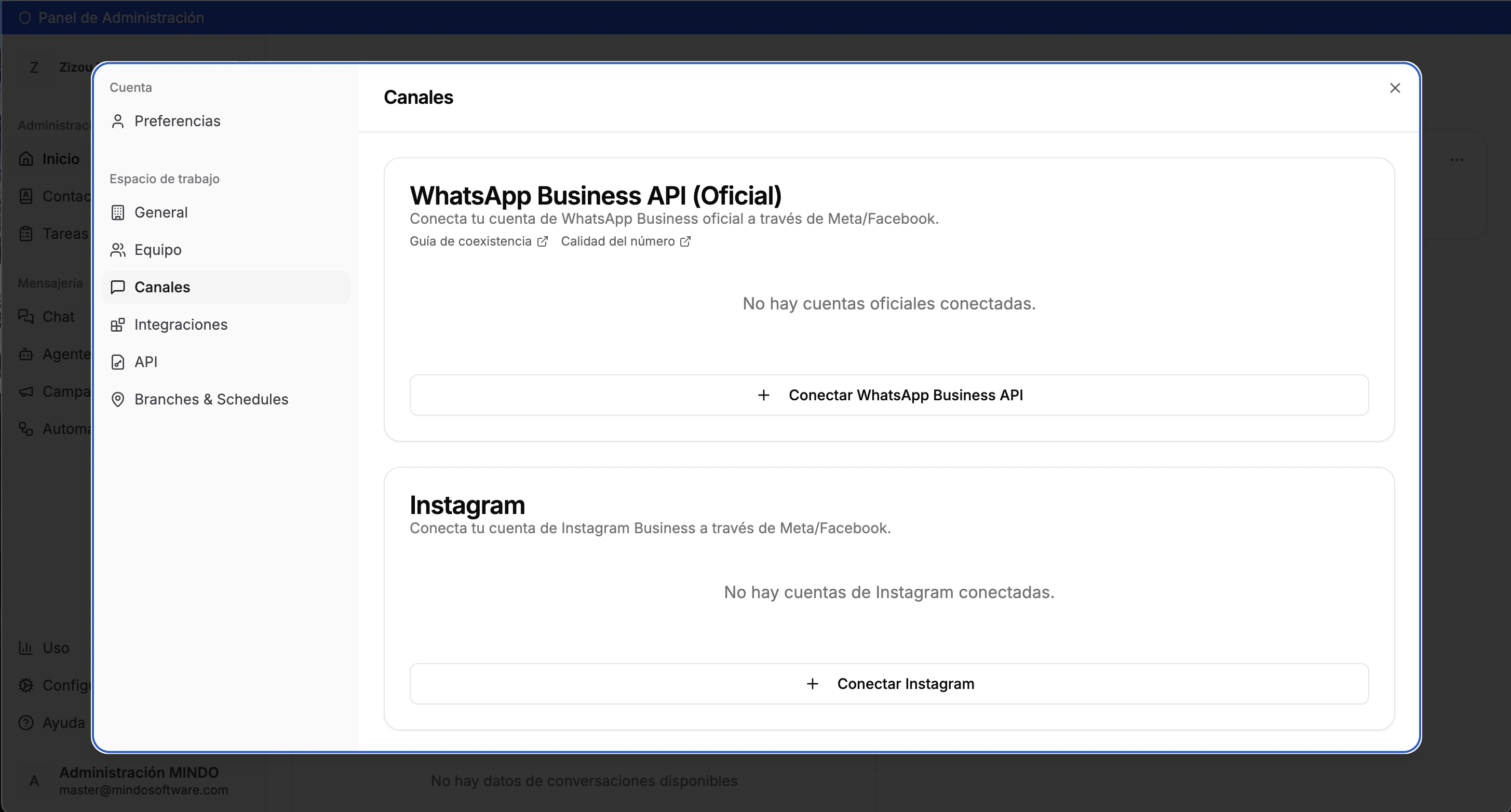 A new Meta/Facebook window will open.
* If you're already logged in, click **"Continue as \[your name]"**.
* Otherwise, enter your Facebook email and password.
A new Meta/Facebook window will open.
* If you're already logged in, click **"Continue as \[your name]"**.
* Otherwise, enter your Facebook email and password.
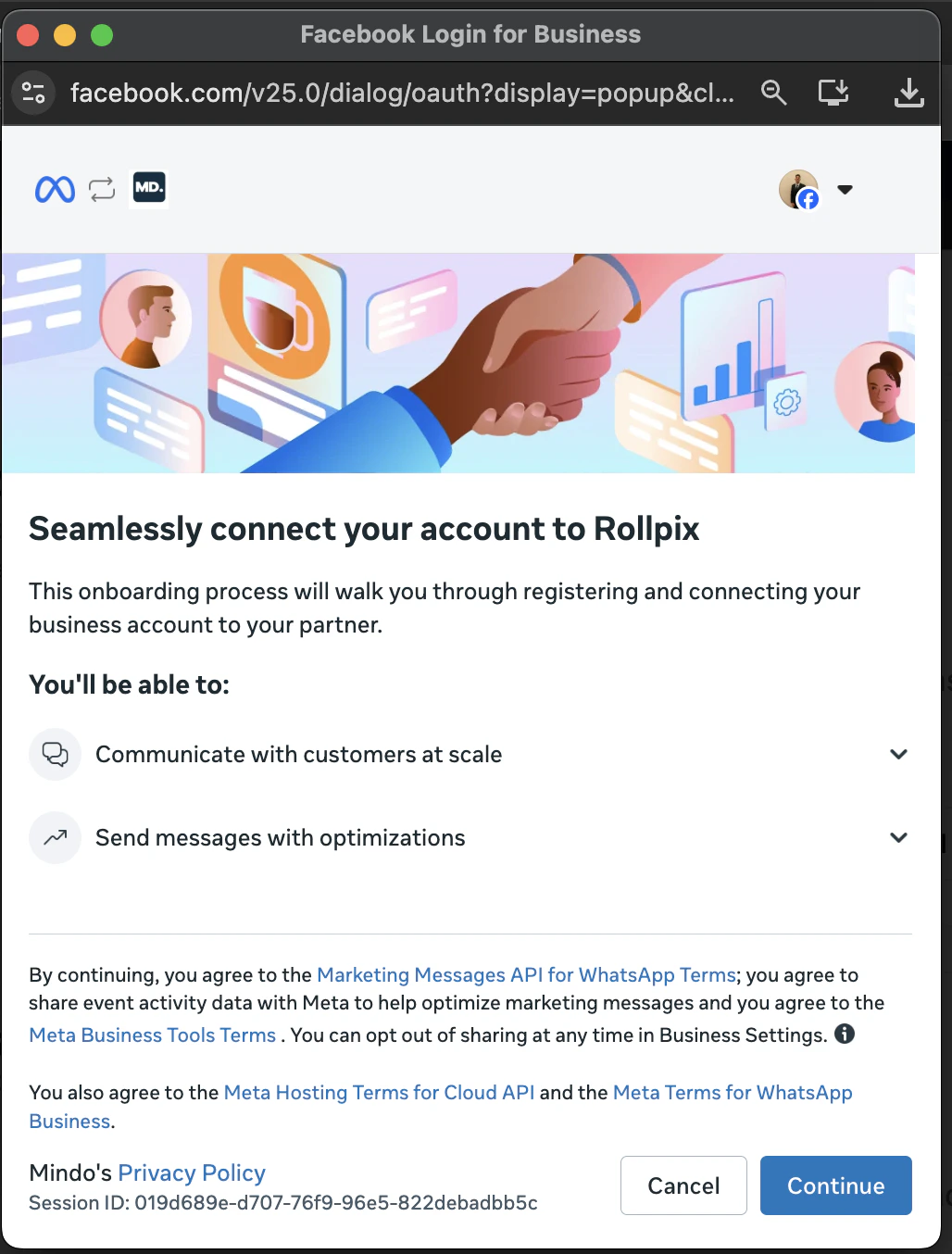 Use the Facebook account linked to your business. If you don't have one, you can use your personal account — you'll be able to create a new business portfolio later.
You'll see a screen showing the permissions the platform will receive. These generally include:
* Managing your WhatsApp Business account.
* Sending and receiving messages on your behalf.
Click **"Get Started"** to continue.
You have two options:
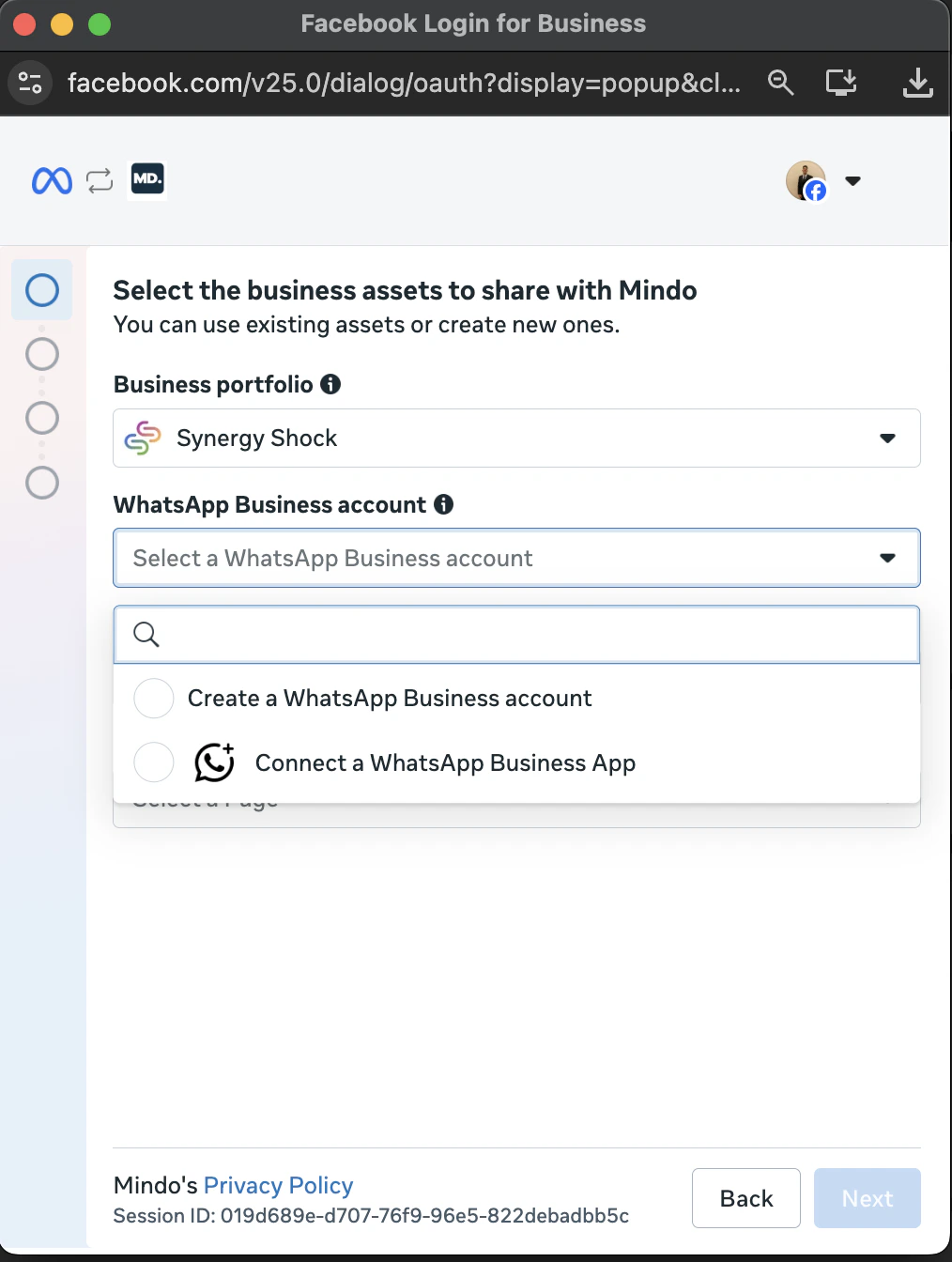
* **Select an existing one:** If you already have a business portfolio in Meta (for example, because you manage Facebook/Instagram ads), select it from the list.
* **Create a new one:** If this is your first time, fill in your business details: company name, address, website, etc.
Use the Facebook account linked to your business. If you don't have one, you can use your personal account — you'll be able to create a new business portfolio later.
You'll see a screen showing the permissions the platform will receive. These generally include:
* Managing your WhatsApp Business account.
* Sending and receiving messages on your behalf.
Click **"Get Started"** to continue.
You have two options:
* **Select an existing one:** If you already have a business portfolio in Meta (for example, because you manage Facebook/Instagram ads), select it from the list.
* **Create a new one:** If this is your first time, fill in your business details: company name, address, website, etc.
 Click **"Continue"**.
* **Select an existing one:** If you already have a WhatsApp Business account linked to your portfolio, choose it.
* **Create a new one:** Enter the name that will identify this account (usually your company name).
Click **"Continue"**.
1. Select the **country code** (e.g., +1 for the US).
2. Enter your full **phone number**.
3. Enter the **Display Name** — this is the name your customers will see when you message them. For example: "Zizou Mates", "Blanco Store", etc.
**About the Display Name:** Meta reviews the name to ensure it complies with their policies. Use your real business name, without unnecessary special characters, without all caps, and without generic words like "Marketing" or "Sales" alone.
**If your number is already on WhatsApp or WhatsApp Business App:** The flow will notify you and ask for confirmation to migrate the number to the API. Once confirmed, that number will stop working on the WhatsApp mobile app and will operate exclusively through the platform.
Meta will send you a **6-digit verification code** to confirm that you own the number.
You can choose to receive it via:
* **SMS** (text message)
* **Voice call**
Enter the code you receive and click **"Verify"**.
If you choose SMS and it doesn't arrive within 1-2 minutes, try the voice call option.
If everything went well, you'll see a success screen. The window closes automatically and you'll return to MINDO.
Your number is now connected. From here, the platform takes care of the rest of the technical setup.
## What happens next?
* **Meta reviews your business** to confirm it complies with WhatsApp policies. If there's an issue, they'll contact you within 24 hours.
* **Your number is active** and ready to send and receive messages through the platform.
* **You can access WhatsApp Manager** at [business.facebook.com](https://business.facebook.com) to view your account, set up your business profile (logo, description, hours, etc.), and manage message templates.
## Frequently asked questions
Yes, but once connected to the platform, that number will stop working on the WhatsApp mobile app. All chats are managed through the platform.
Yes. During the verification step, choose the "voice call" option to receive the code.
You can change it later from WhatsApp Manager, but each change requires a new approval from Meta, so it's better to choose carefully from the start.
Yes. It's a Meta requirement to authenticate your identity and link WhatsApp assets to a business portfolio.
Yes, you can have multiple numbers within the same WhatsApp Business account. Each number is connected individually by repeating this same process.
Usually between 3 and 5 minutes if you have everything ready.
Connecting the number is free. Costs are generated afterwards from conversations (messages sent/received), according to Meta's per-conversation pricing model.
Click **"Continue"**.
* **Select an existing one:** If you already have a WhatsApp Business account linked to your portfolio, choose it.
* **Create a new one:** Enter the name that will identify this account (usually your company name).
Click **"Continue"**.
1. Select the **country code** (e.g., +1 for the US).
2. Enter your full **phone number**.
3. Enter the **Display Name** — this is the name your customers will see when you message them. For example: "Zizou Mates", "Blanco Store", etc.
**About the Display Name:** Meta reviews the name to ensure it complies with their policies. Use your real business name, without unnecessary special characters, without all caps, and without generic words like "Marketing" or "Sales" alone.
**If your number is already on WhatsApp or WhatsApp Business App:** The flow will notify you and ask for confirmation to migrate the number to the API. Once confirmed, that number will stop working on the WhatsApp mobile app and will operate exclusively through the platform.
Meta will send you a **6-digit verification code** to confirm that you own the number.
You can choose to receive it via:
* **SMS** (text message)
* **Voice call**
Enter the code you receive and click **"Verify"**.
If you choose SMS and it doesn't arrive within 1-2 minutes, try the voice call option.
If everything went well, you'll see a success screen. The window closes automatically and you'll return to MINDO.
Your number is now connected. From here, the platform takes care of the rest of the technical setup.
## What happens next?
* **Meta reviews your business** to confirm it complies with WhatsApp policies. If there's an issue, they'll contact you within 24 hours.
* **Your number is active** and ready to send and receive messages through the platform.
* **You can access WhatsApp Manager** at [business.facebook.com](https://business.facebook.com) to view your account, set up your business profile (logo, description, hours, etc.), and manage message templates.
## Frequently asked questions
Yes, but once connected to the platform, that number will stop working on the WhatsApp mobile app. All chats are managed through the platform.
Yes. During the verification step, choose the "voice call" option to receive the code.
You can change it later from WhatsApp Manager, but each change requires a new approval from Meta, so it's better to choose carefully from the start.
Yes. It's a Meta requirement to authenticate your identity and link WhatsApp assets to a business portfolio.
Yes, you can have multiple numbers within the same WhatsApp Business account. Each number is connected individually by repeating this same process.
Usually between 3 and 5 minutes if you have everything ready.
Connecting the number is free. Costs are generated afterwards from conversations (messages sent/received), according to Meta's per-conversation pricing model.