> ## Documentation Index
> Fetch the complete documentation index at: https://docs.mindosoftware.com/llms.txt
> Use this file to discover all available pages before exploring further.
# Create a WhatsApp template
> How to create a WhatsApp template step by step —header, body with variables, footer and buttons— and submit it for Meta approval
Templates are WhatsApp-approved messages you can use to write to a customer, for example when more than 24 hours have passed since their last message. In this guide you'll learn how to **create a template** step by step, including its **header**, its **body with variables** and its **footer**, and how to submit it for approval.
## Demo video
## Before you start
* You'll need a **connected WhatsApp Business account**.
* Keep the text simple and clear. WhatsApp (Meta) reviews templates before approving them.
## The parts of a template
A template is built from several parts (only the body is required; the rest is optional):
* **Header**: the title at the top, in bold. It can be text or a file (image, video or document).
* **Body**: the main message. Here you can use **variables** that get filled in on each send.
* **Footer**: a small gray line below the message, ideal for a signature or a note.
* **Buttons**: action buttons below the message (quick reply, a link or a phone number).
## Steps to create the template
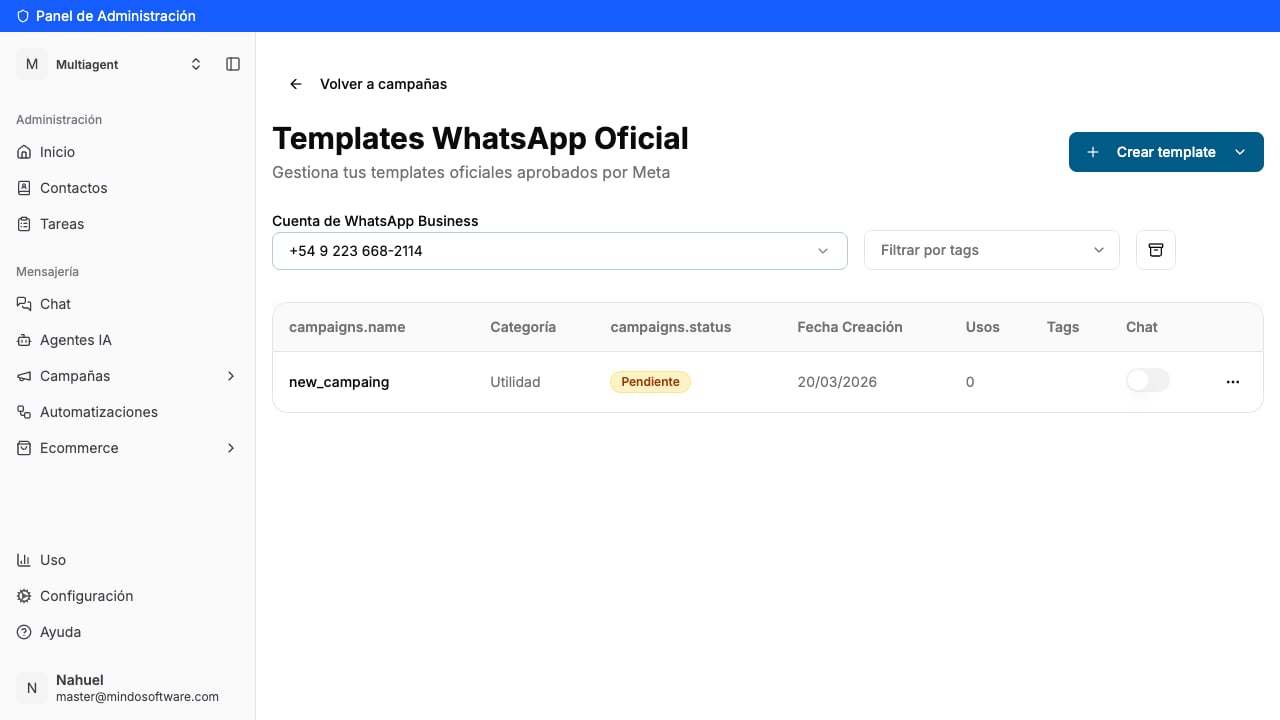
From **Campaigns**, open the official templates section. You'll see the list of your templates and, at the top right, the **Create template** button.
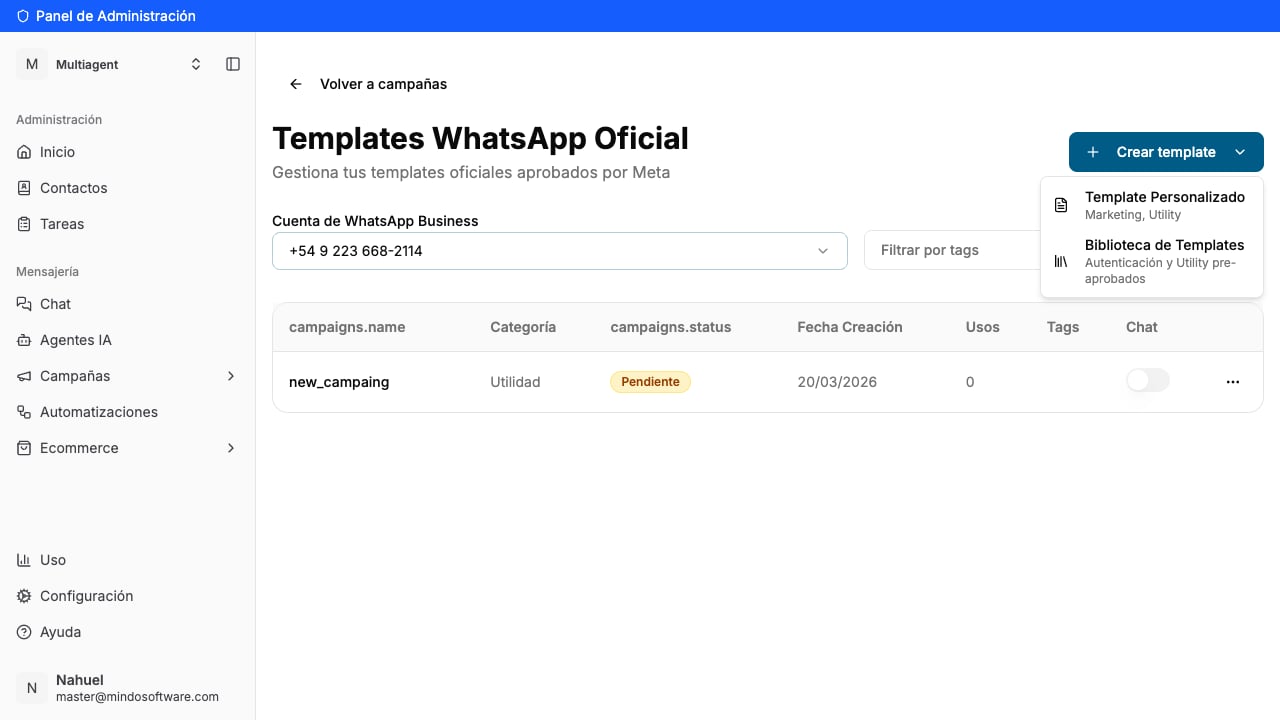
When you tap **Create template**, two options appear:
* **Custom Template**: you build it from scratch (Marketing or Utility).
* **Template Library**: you pick one already pre-approved by Meta.
In this example we choose **Custom Template**.
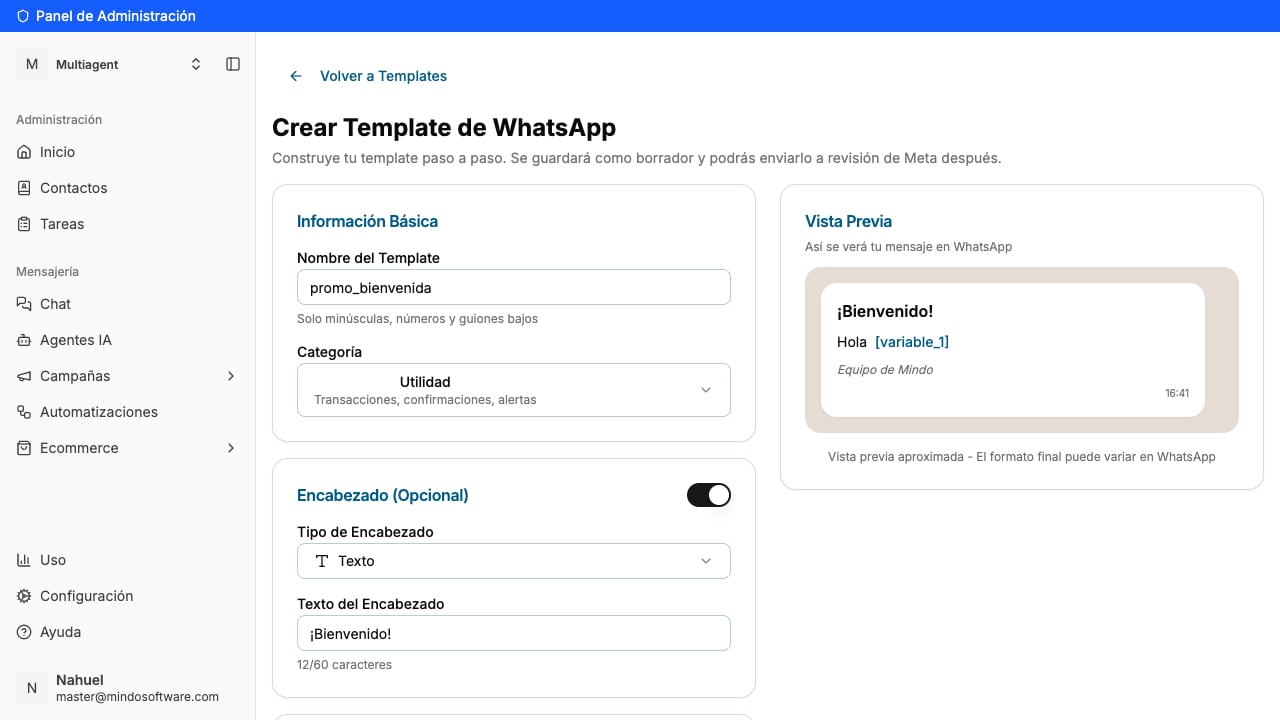
Give it a **name** (lowercase, numbers and underscores only, for example *promo\_bienvenida*) and choose the **category** (Utility or Marketing). On the right, the **Preview** shows you live how the message will look on WhatsApp.
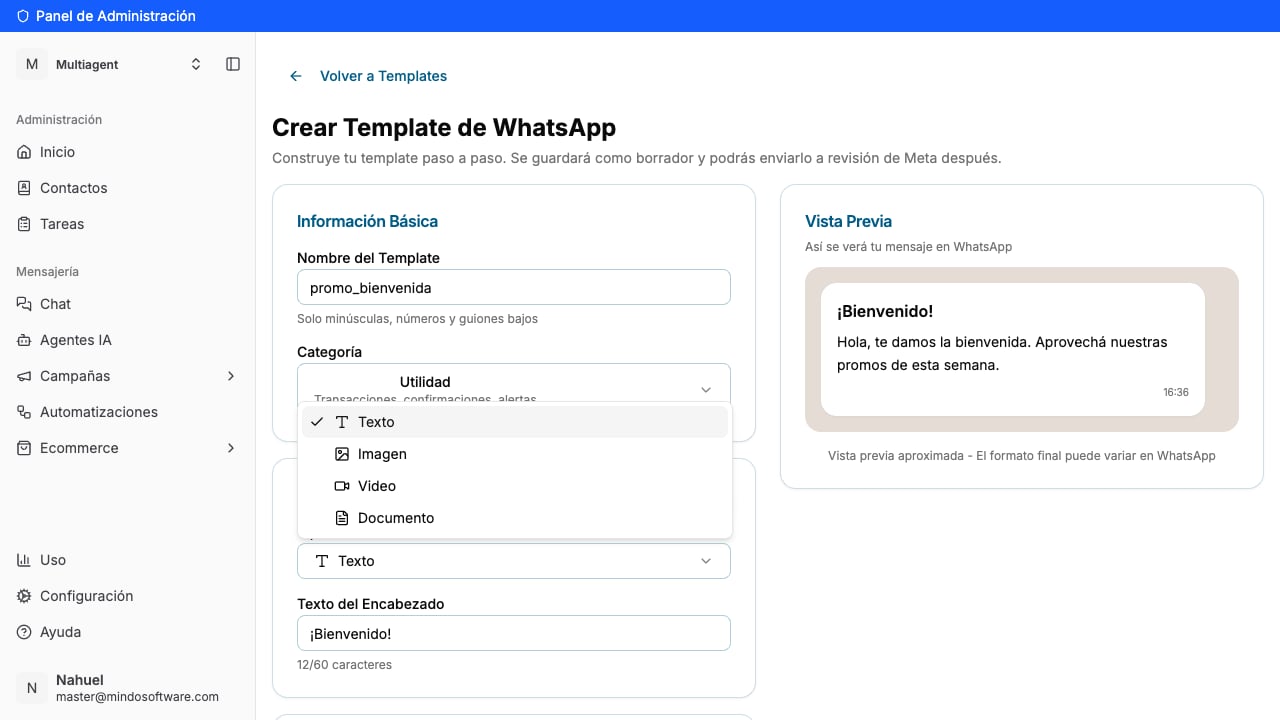
Turn on the **Header** switch and choose the **type**:
* **Text**: a short title (up to 60 characters), for example "Welcome!".
* **Image**, **Video** or **Document**: if you want the message to start with a file.
The header appears **in bold at the very top** of the message.
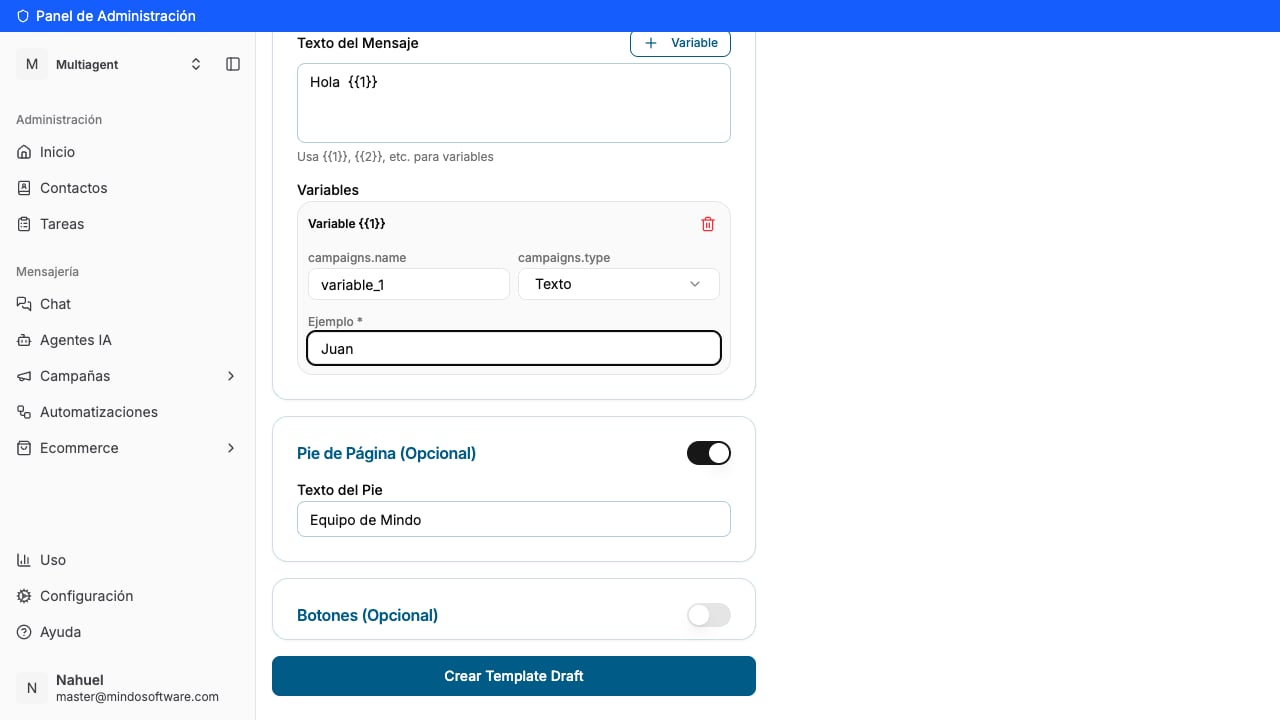
In **Message Body**, write the main text. If you want a part to be filled in later (like the customer's name), tap the **Variable** button: a `{{1}}` is inserted and an **Example** field appears where you must enter a sample value (for example "Juan"), which WhatsApp uses to review the template.
Further down, turn on the **Footer** and write its text (for example "Mindo Team"). It's a small line that appears in gray at the end of the message.
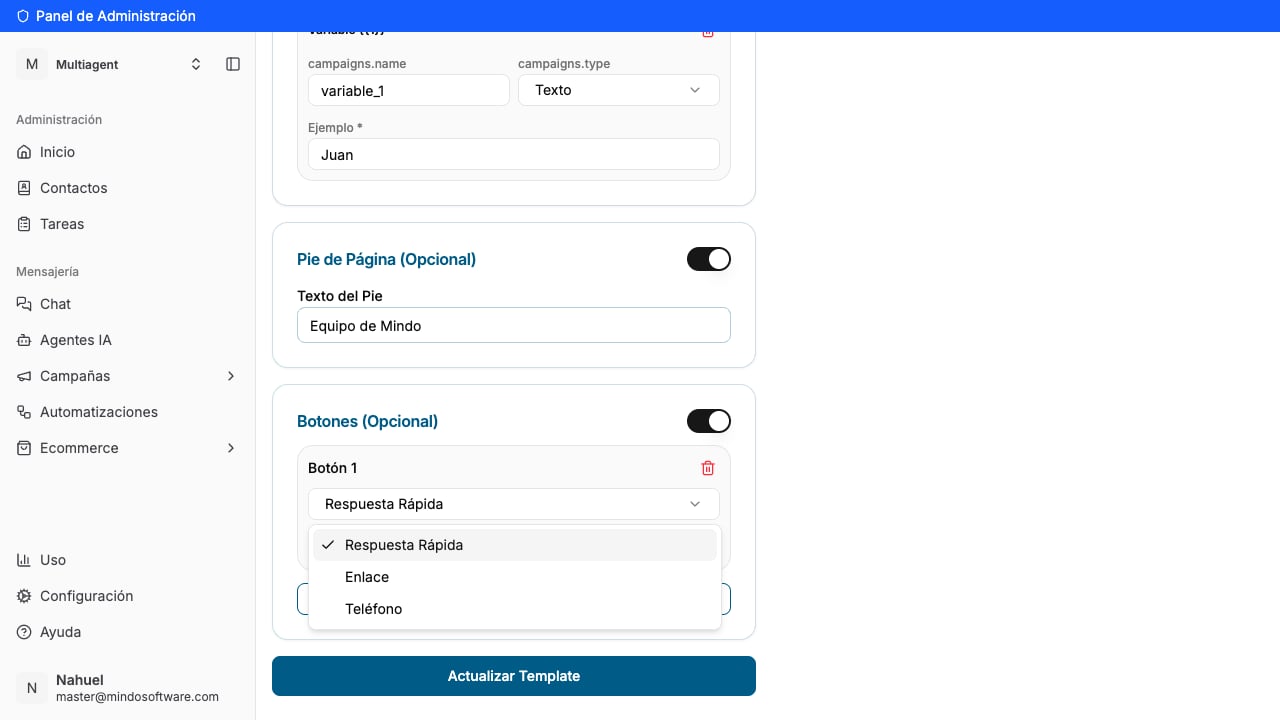
Turn on the **Buttons** section and tap **Add Button**. For each button you choose the **type**:
* **Quick Reply**: the customer replies with a tap (for example, "See deals").
* **Link**: opens a web page (you set the text and the URL).
* **Phone**: calls a number.
Write the **button text** and, when everything's ready, tap **Create Template Draft**.
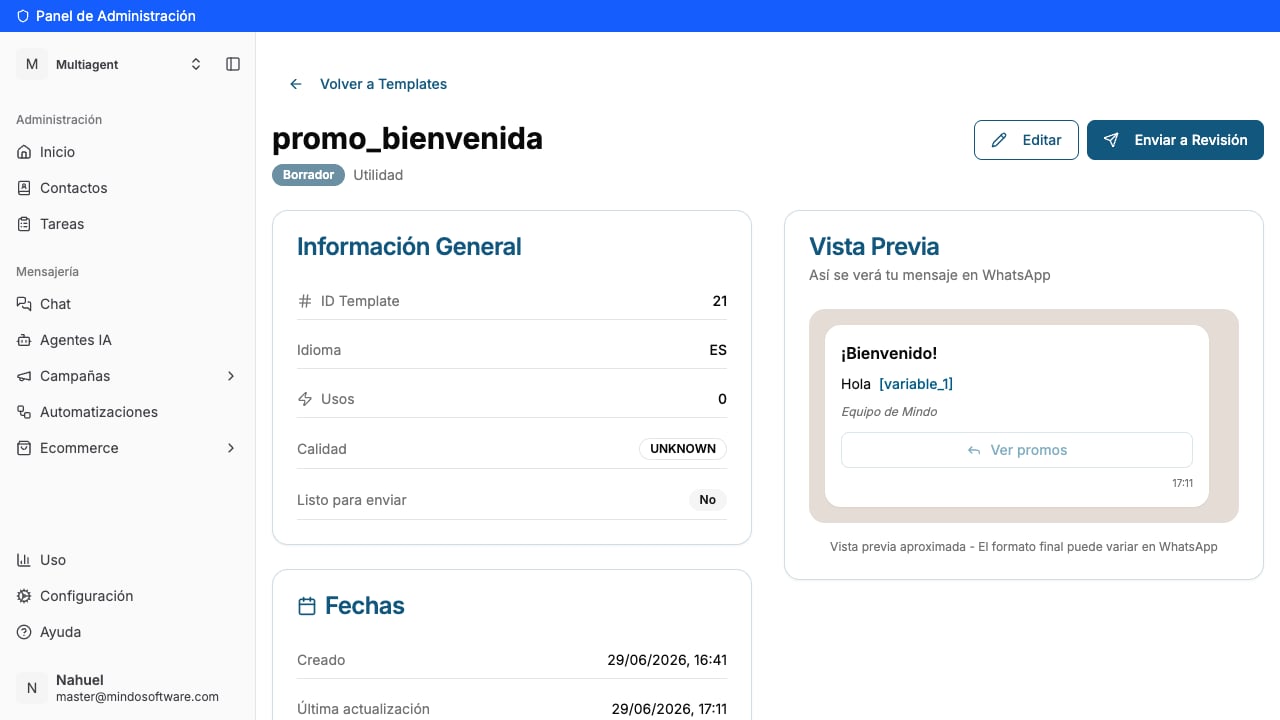
The template is saved with the **Draft** status. In the preview you'll see the **header** in bold at the top, the **body** in the middle, the **footer** in gray at the bottom and the **button** at the end. From here you can **Edit** it or, when it's ready, tap **Submit for Review** to send it to WhatsApp. Once Meta approves it, you'll be able to use it in your chats and campaigns.
## How do I know it worked?
You'll see the template with the **Draft** label and its preview with all its parts. After submitting it for review, its status changes to *Pending* and, once WhatsApp approves it, to *Approved*.
## Frequently asked questions
No. The only required part is the message **body**. The header and footer are optional: you add them only if you need them.
It's usually used for a **signature** (your company or team name) or a short **note**. It's a small gray text, with no variables.
When you want the message to be eye-catching: a product photo, a promotion banner or a document (for example, a PDF with an invoice or catalog).
Three: **Quick Reply** (the customer replies with a tap), **Link** (opens a web page) and **Phone** (calls a number). Buttons are also optional.
They're parts that change on each send (a name, a date, an amount). You insert them with the **Variable** button and, for each one, you load an **example** so WhatsApp understands what it's about.
All templates are reviewed by WhatsApp (Meta) before they can be used, to prevent spam. It usually takes from a few minutes to a few hours.
No. It stays saved as a **Draft** and you can keep editing it. You submit it for review only when it's ready.
Create your WhatsApp templates from the Mindo platform.