> ## Documentation Index
> Fetch the complete documentation index at: https://docs.mindosoftware.com/llms.txt
> Use this file to discover all available pages before exploring further.
# Turn the AI agent on and off
> How to enable or disable your AI agent with a single switch so it answers (or stops answering) your customers' WhatsApp messages
The **AI agent** is the assistant that answers your customers' WhatsApp messages on its own. Turning it on or off is as simple as flipping a switch: when it's **active**, it replies automatically based on its configuration; when it's **inactive**, it doesn't answer anything. In this guide we use an agent called **Vendedor** as an example.
## Demo video
## Before you start
* You need a **created agent** (in the example, "Vendedor").
* The agent needs a **connected WhatsApp session** in order to reply. Without a session, even if you turn it on, it won't receive or answer messages.
## Steps to turn the agent on
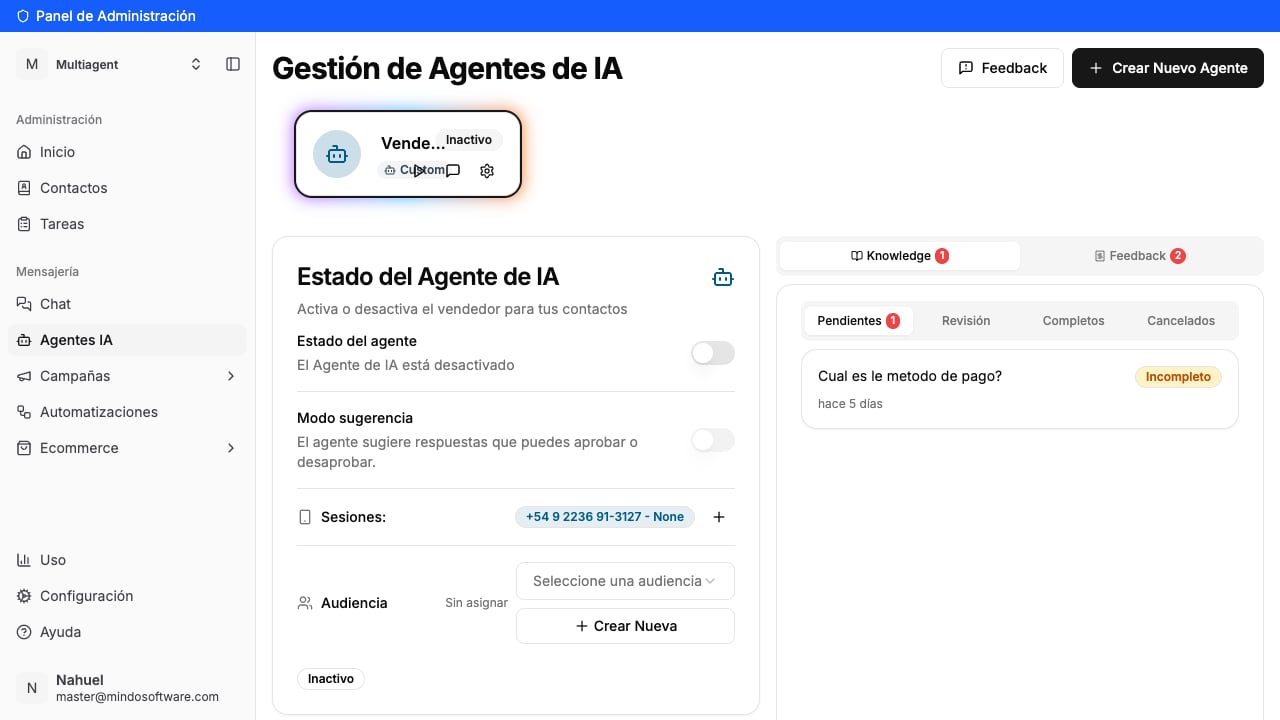
In the left-hand menu, open **AI Agents**. You'll see your "Vendedor" agent with the **Inactive** label, and on the left the **AI Agent Status** panel.
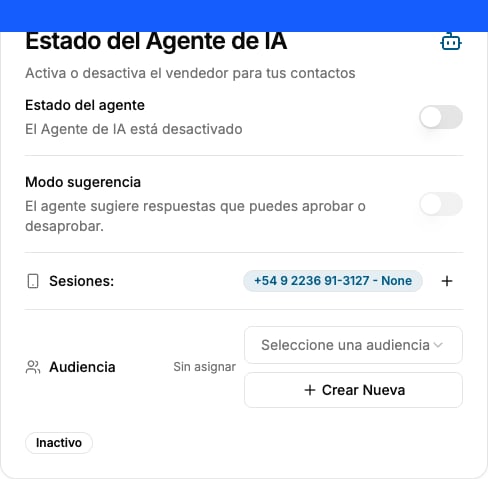
Inside that panel is the **Agent status** switch. When it's off, it reads **"The AI Agent is disabled"** and below you'll see the **Inactive** label.
Also make sure the **WhatsApp session** is already connected (the number must appear under "Sessions").
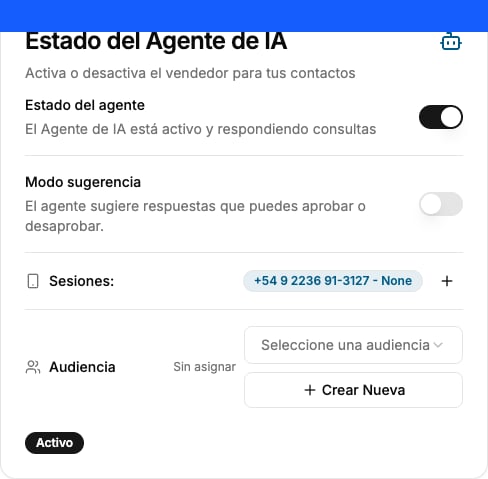
Click the switch. It fills with color and the text changes to **"The AI Agent is active and answering queries"**. The label below switches to **Active**.
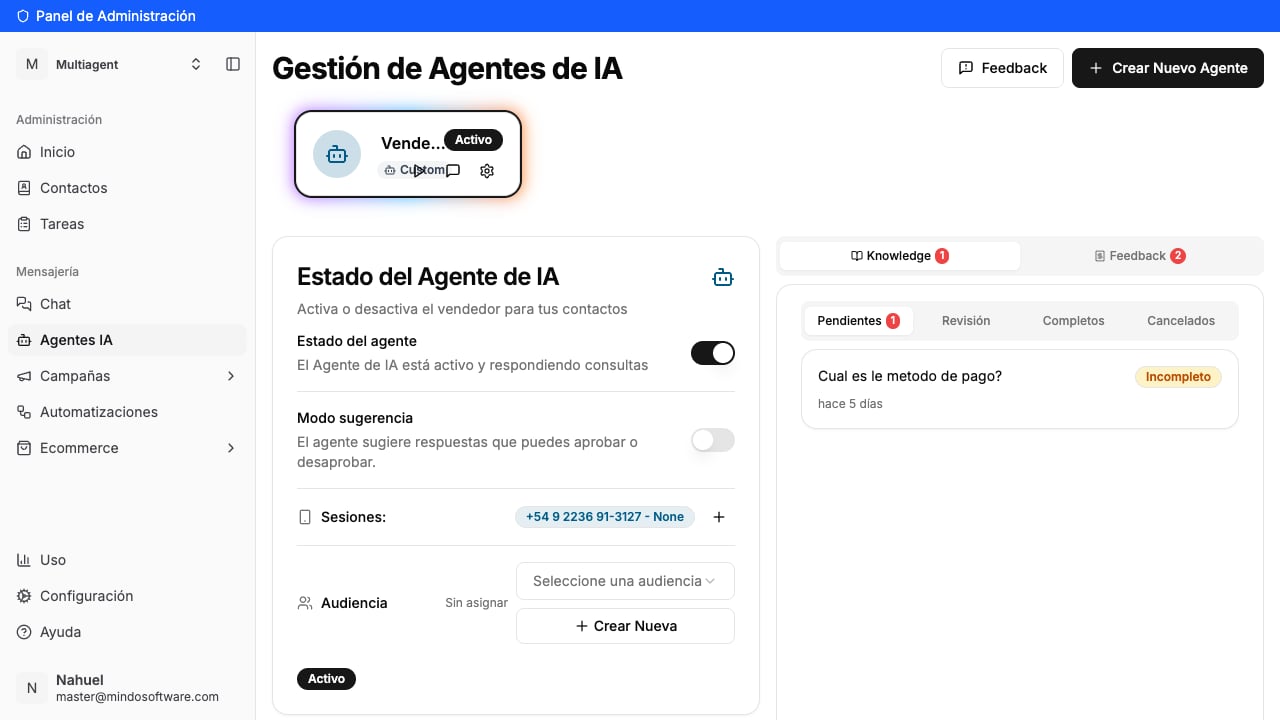
At the top, your "Vendedor" agent card now shows the **Active** label. From this moment, the agent answers the messages coming through the connected session on its own.
## How to turn the agent off
To turn it off, flip the **same switch** again. The text goes back to **"The AI Agent is disabled"** and the label returns to **Inactive**. From then on, the agent stops replying automatically and the chats are handled by your team.
## How do I know it worked?
The switch stays on, the text reads **"active and answering queries"**, and both the agent card and the panel show the **Active** label.
## Frequently asked questions
The agent starts automatically answering your customers' WhatsApp messages, based on how it's configured.
It lets you limit which contacts the agent replies to. If you leave it as "Unassigned", it applies generally. It's optional: you can turn the agent on anyway and adjust the audience later.
It's an alternative: instead of replying on its own, the agent **suggests** the response so you can approve or discard it before sending. Turn on this mode if you'd rather review every message before it goes out. More info in the [Suggestion mode](/en/guias/modo-sugerencia) guide.
Check that there's a **connected WhatsApp session** (the number must appear under "Sessions"). Without a session, the agent can't receive or answer messages.
Flip the same switch again and it goes back to **Inactive**.
Turn your AI agent on or off from the Mindo platform.