> ## Documentation Index
> Fetch the complete documentation index at: https://docs.mindosoftware.com/llms.txt
> Use this file to discover all available pages before exploring further.

# Automatic follow-up — Let your agent re-engage idle conversations

> How to enable and configure Follow-ups so your AI agent automatically messages back the customers whose conversation went quiet.

**Automatic follow-up** (the **Follow-ups** section) makes your agent message a customer again when the conversation goes idle —for example, someone asked about a product and never replied. That way you don't lose sales opportunities without having to watch every chat.

## Demo video

<iframe width="100%" height="400" src="https://www.youtube.com/embed/XsUvDSa34dw" frameBorder="0" allow="accelerometer; autoplay; clipboard-write; encrypted-media; gyroscope; picture-in-picture" allowFullScreen />

## Before you start

* You need an **AI agent** already created.
* You'll enable and configure follow-ups from that agent's settings.

## Steps

<Steps>
  <Step title="Open your agent's settings">
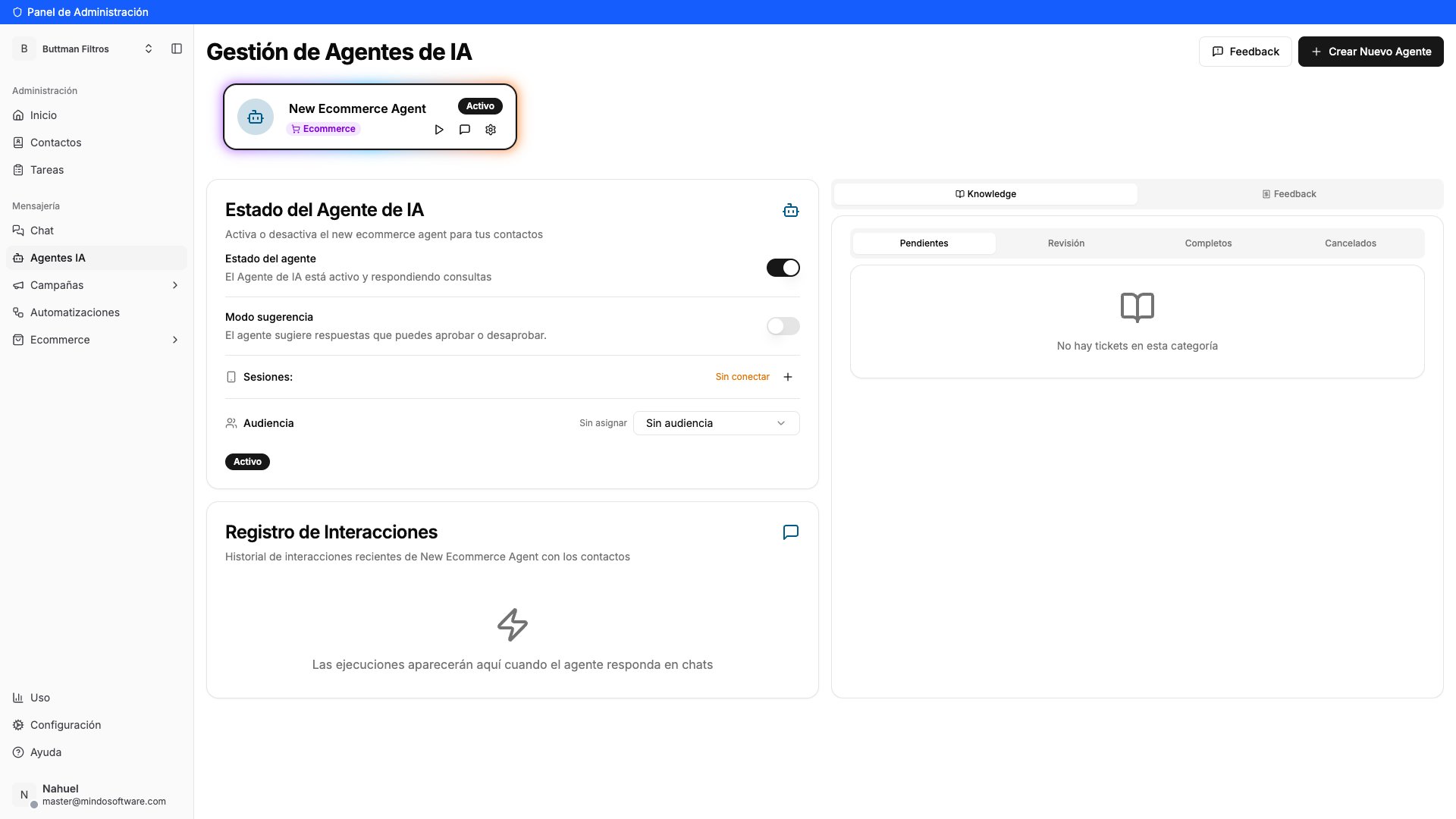
    Go to the **AI Agents** section from the left menu. On your agent's card, click the **gear** icon to open its settings.

    <Frame caption="AI Agents section with the active agent">
      <img src="https://mintcdn.com/mindo/MVDoQFUwAygE_ajA/images/seguimiento-automatico-01-agentes.png?fit=max&auto=format&n=MVDoQFUwAygE_ajA&q=85&s=1118ba90e399010e8a883462d44a2028" alt="AI Agents screen showing the agent with the gear icon to open settings" width="1920" height="1080" data-path="images/seguimiento-automatico-01-agentes.png" />
    </Frame>
  </Step>

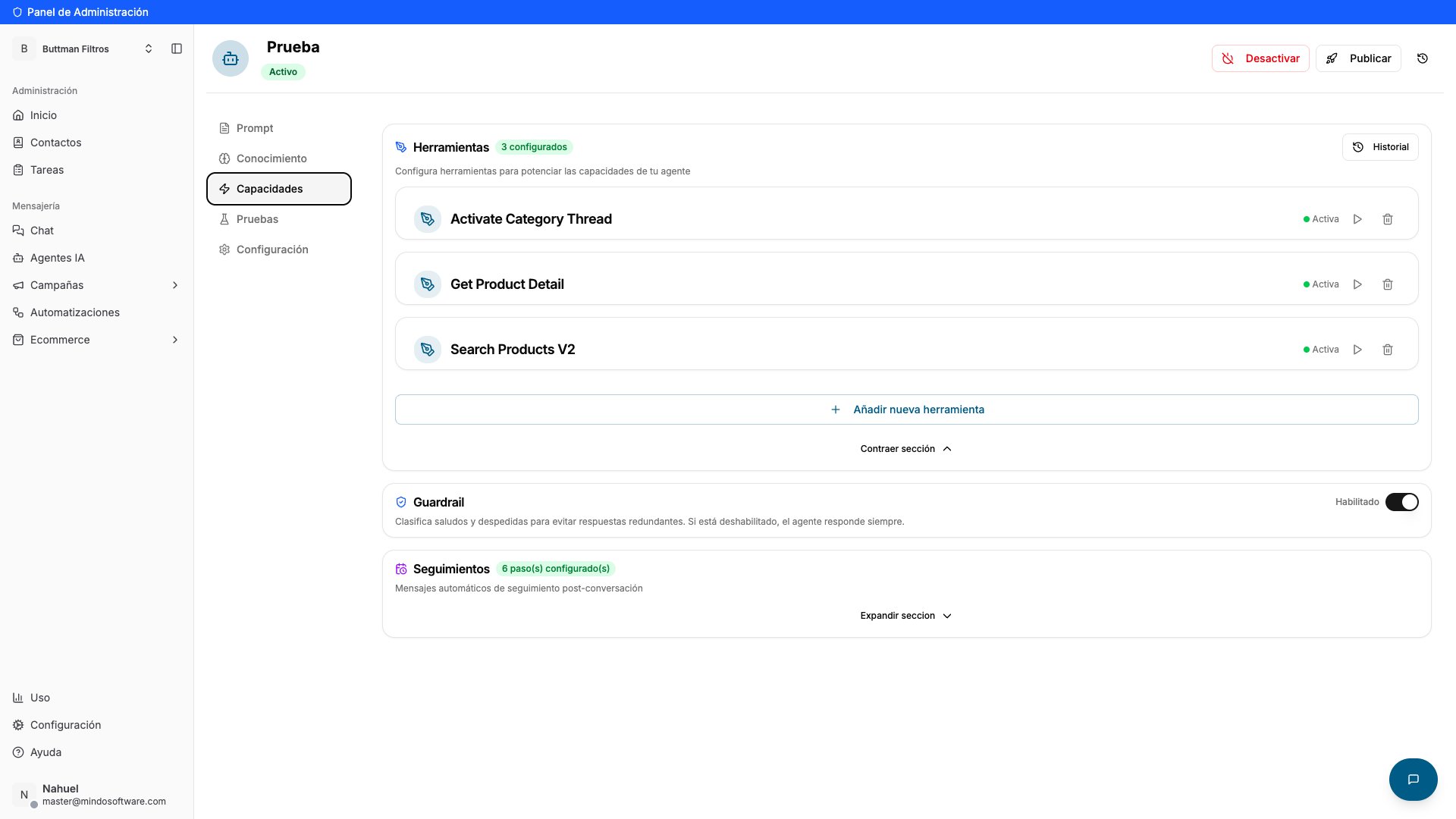
  <Step title="Go to the Capabilities tab">
    Inside the settings, open the **Capabilities** tab. Scroll down to the **Follow-ups** section ("Automatic follow-up messages post-conversation").

    <Frame caption="Capabilities tab with the Follow-ups section">
      <img src="https://mintcdn.com/mindo/MVDoQFUwAygE_ajA/images/seguimiento-automatico-02-capacidades.png?fit=max&auto=format&n=MVDoQFUwAygE_ajA&q=85&s=b9c88366854c7f2dd9cc161a8bc37664" alt="Capabilities tab showing the Follow-ups section" width="1920" height="1080" data-path="images/seguimiento-automatico-02-capacidades.png" />
    </Frame>
  </Step>

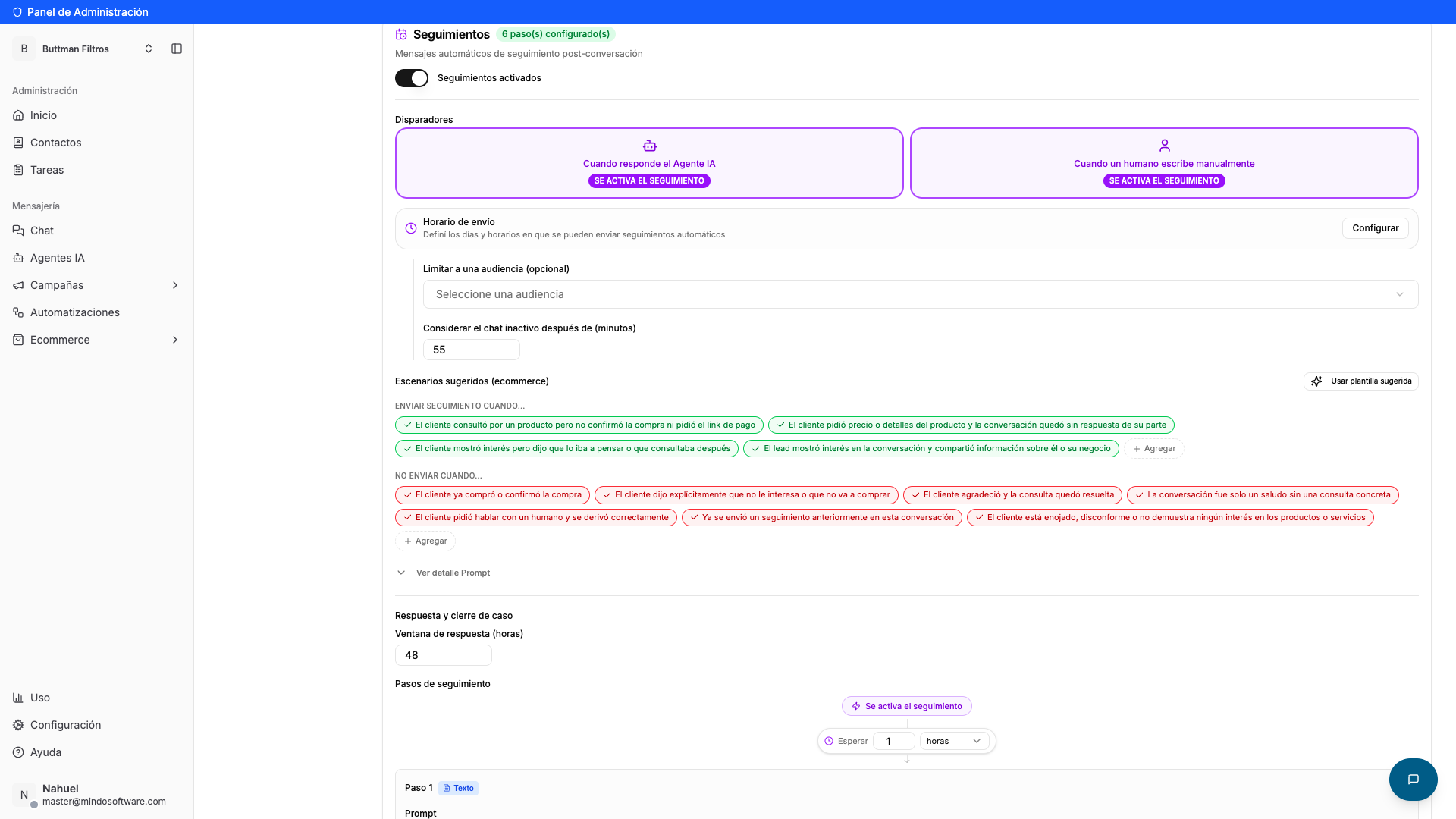
  <Step title="Enable and configure the follow-up">
    * Turn on the **Follow-ups enabled** switch.
    * Choose the **trigger**: when the follow-up fires —when the agent replies or when a teammate writes manually.
    * In **Consider chat inactive after (minutes)**, set how many minutes of silence must pass before the conversation is treated as idle.
    * Optional: define in which situations to **send** the follow-up (green scenarios) and in which **not** (red scenarios). You can also limit it to an audience and set a sending schedule.

    <Frame caption="Enable Follow-ups, triggers, inactivity time and scenarios">
      <img src="https://mintcdn.com/mindo/MVDoQFUwAygE_ajA/images/seguimiento-automatico-03-activar.png?fit=max&auto=format&n=MVDoQFUwAygE_ajA&q=85&s=ef6a7232868f3c66a529ad1162895582" alt="Follow-ups section with the switch, triggers, inactivity time and green/red scenarios" width="1920" height="1080" data-path="images/seguimiento-automatico-03-activar.png" />
    </Frame>
  </Step>

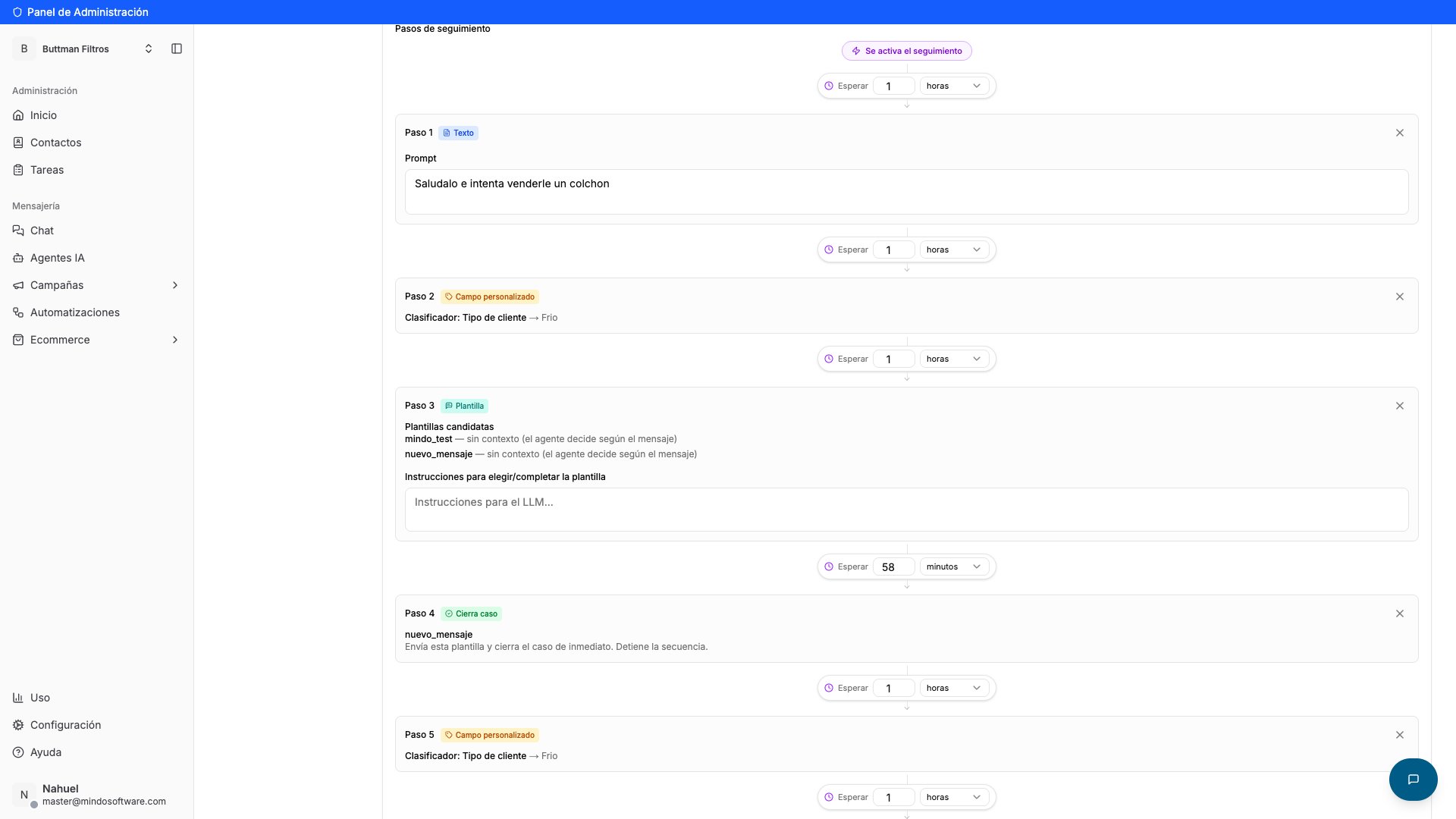
  <Step title="Review the follow-up steps">
    In **Follow-up steps** you see the sequence of messages the agent will send. Each step starts with a **wait** (for example, wait 1 hour) and an **action**: send a text, use a template, classify the customer or close the case. You can edit each step or add new ones.

    <Frame caption="The follow-up step sequence">
      <img src="https://mintcdn.com/mindo/MVDoQFUwAygE_ajA/images/seguimiento-automatico-04-pasos.png?fit=max&auto=format&n=MVDoQFUwAygE_ajA&q=85&s=faaaf84b2bf5301831eef6e0081ba1dc" alt="List of follow-up steps with waits and actions (text, template, close case)" width="1920" height="1080" data-path="images/seguimiento-automatico-04-pasos.png" />
    </Frame>
  </Step>

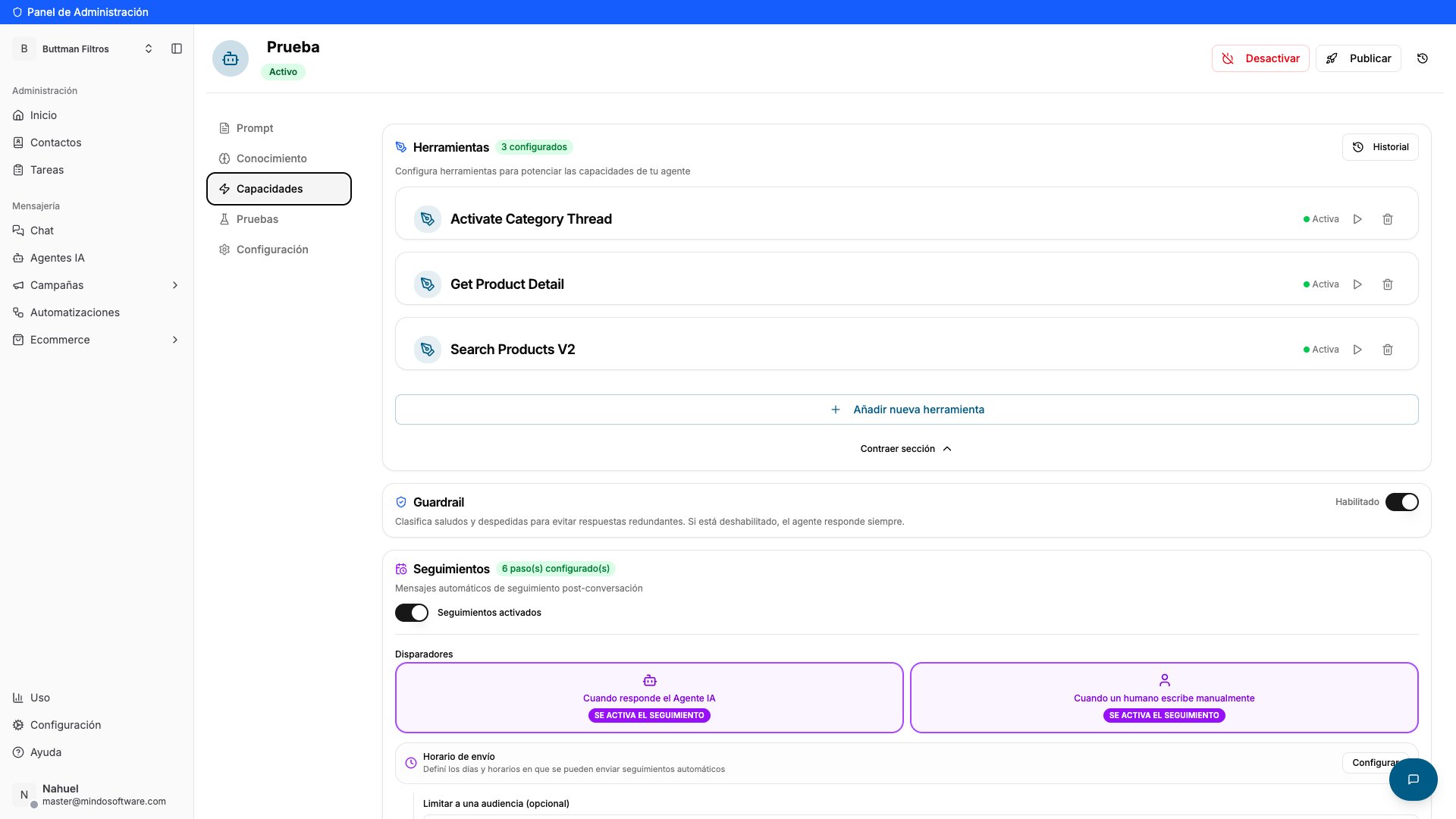
  <Step title="Publish your changes">
    When you're done, click **Publish** at the top right to save. From that moment the follow-up is active.

    <Frame caption="Publish button to save the changes">
      <img src="https://mintcdn.com/mindo/MVDoQFUwAygE_ajA/images/seguimiento-automatico-05-publicar.png?fit=max&auto=format&n=MVDoQFUwAygE_ajA&q=85&s=bde384278ac28bcec93d4b1eba0e3a6a" alt="Publish button at the top right of the agent settings" width="1920" height="1080" data-path="images/seguimiento-automatico-05-publicar.png" />
    </Frame>
  </Step>
</Steps>

## Result

Your agent will re-engage **only** the conversations that went unanswered, following the step sequence you configured. You don't need to do anything else: the follow-up runs automatically every time a chat goes idle.

## FAQ

<AccordionGroup>
  <Accordion title="Will it message everyone who doesn't reply?">
    Not necessarily. With the green and red scenarios you decide when to send the follow-up and when not to (for example, don't send it if the customer already bought or said they're not interested).
  </Accordion>

  <Accordion title="How long does it wait before writing?">
    Whatever you set in "Consider chat inactive after (minutes)". Only after that silence period is the conversation treated as idle and the follow-up begins.
  </Accordion>

  <Accordion title="Can I change the messages it sends?">
    Yes. Every step in the sequence is editable: you can change the text, pick a template, adjust the wait times, or add and remove steps.
  </Accordion>

  <Accordion title="Does the follow-up stop if the customer replies?">
    Yes. The follow-up is meant for idle conversations; if the customer writes back, the conversation is no longer idle.
  </Accordion>

  <Accordion title="Are the changes saved automatically?">
    No: remember to click **Publish** when you finish so the configuration becomes active.
  </Accordion>
</AccordionGroup>