Set your company’s policy to decide when a chat is marked as seen (read) in your inbox
Every team works differently. Some want a chat to keep showing as pending until the responsible person handles it; others prefer the “unread” mark to clear as soon as someone —or the AI agent— replies. Now each company defines its own policy for when a chat counts as seen.
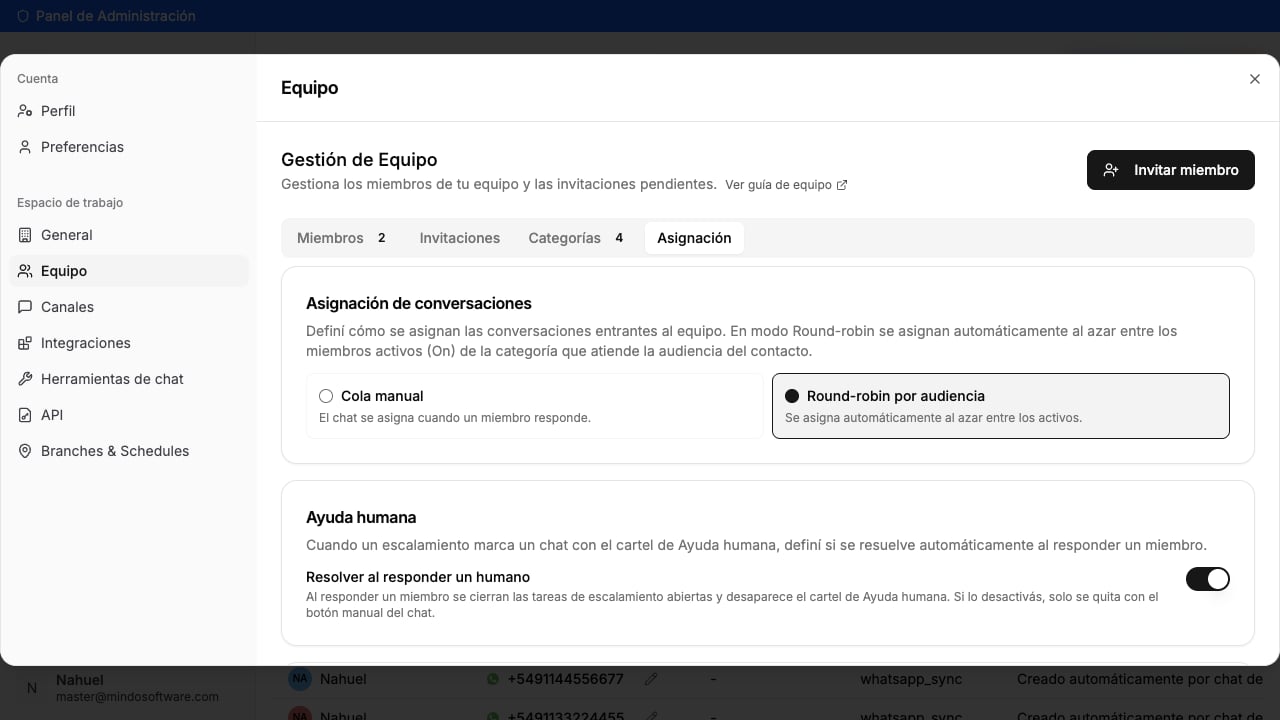
These options are only visible to company administrators, and they are a per-company setting: if you manage several companies, each one has its own. Every option saves itself when you select it (there is no “Save” button).
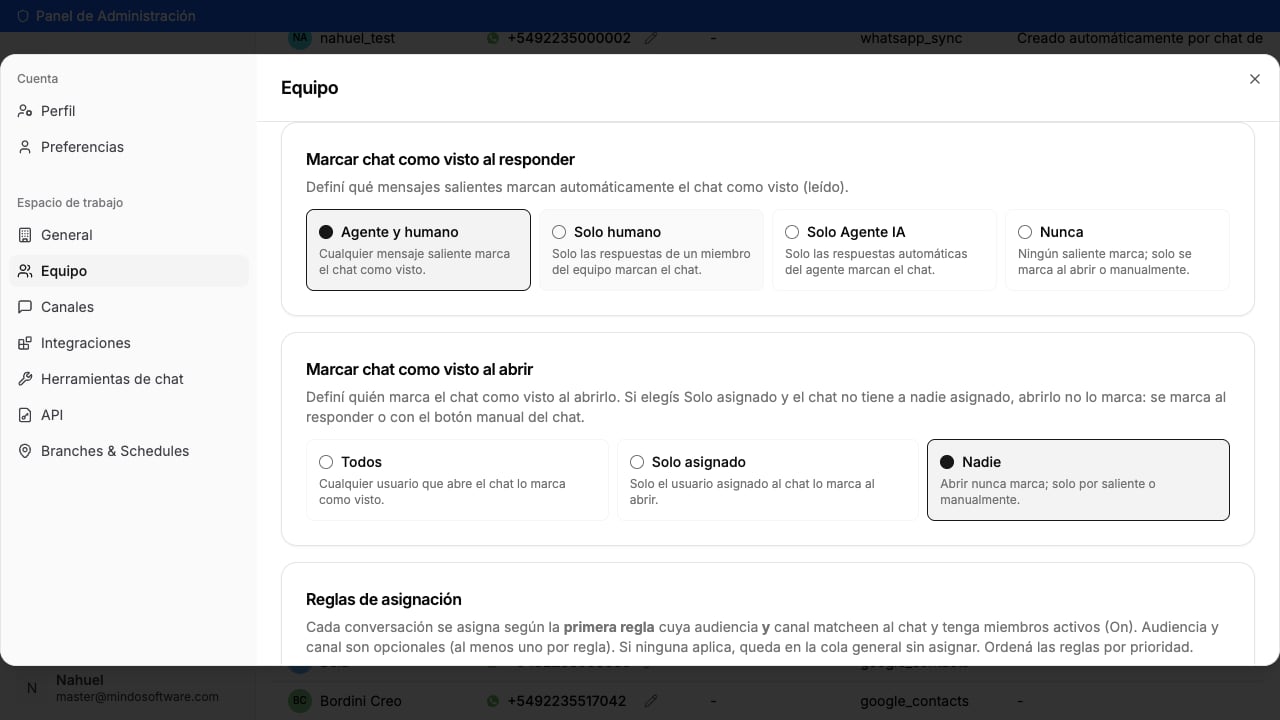
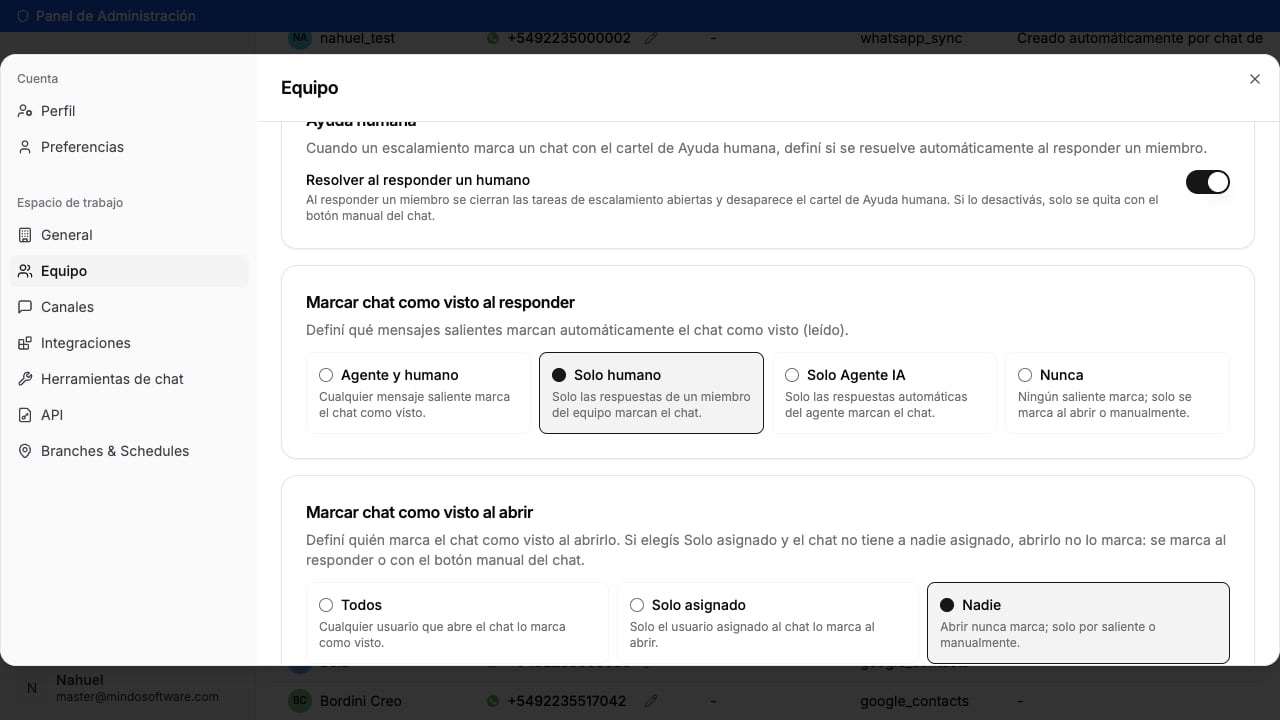
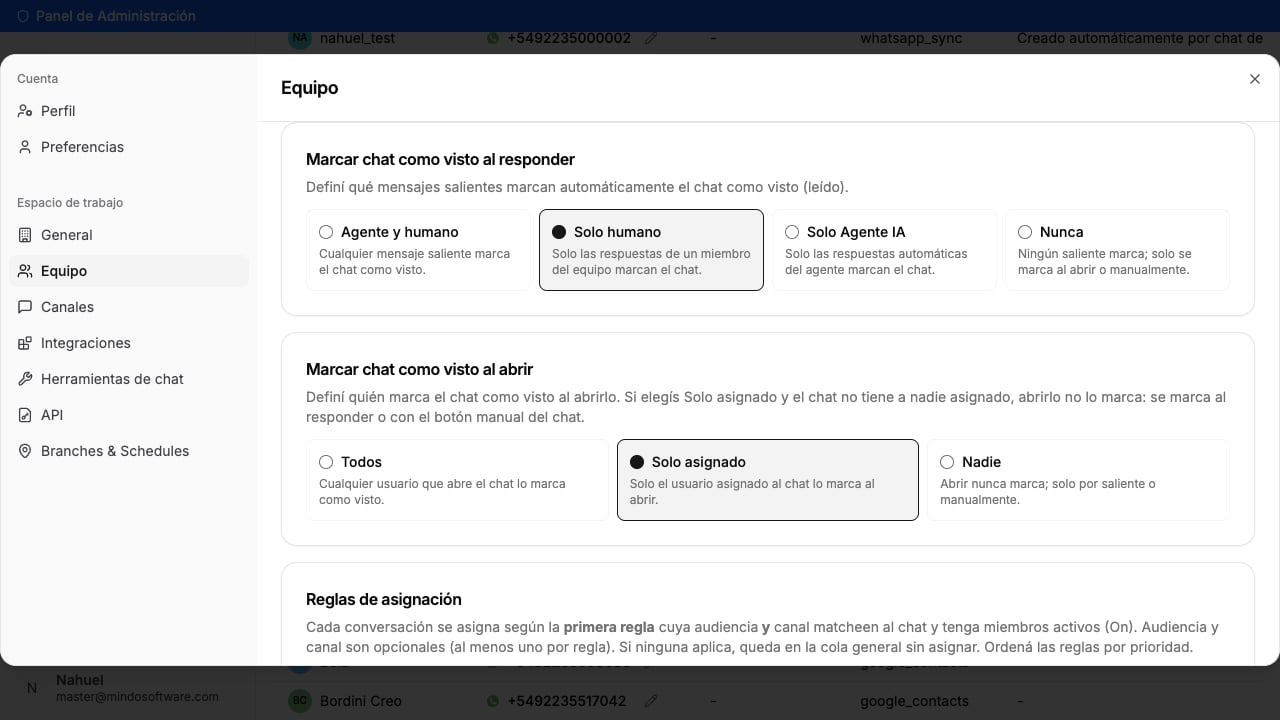
Defines which outgoing replies clear the “unread” mark:
On-reply options
Agent and human (default): any reply —from the AI agent or a person— marks the chat as seen.
Human only: only when a team member replies. If the bot answers, the chat stays pending. Ideal when you want to review everything the AI agent replies: even if the bot already answered, the chat stays pending so someone reads and checks what it said.
AI Agent only: only the bot’s automatic replies mark it as seen.
Never: no reply marks it; the chat only clears on open or with the manual button.
Everyone (default): any user who opens the chat marks it as seen.
Assignee only: only the user the chat is assigned to marks it. If someone else opens it, it stays unread.
Nobody: opening never marks it; it only clears with a reply or the manual button.
Special case: with Assignee only, if the chat has no one assigned, opening it doesn’t mark it (there’s no assignee to do it). That chat only clears when an outgoing reply is sent (if the on-reply option allows it) or when someone marks it manually.
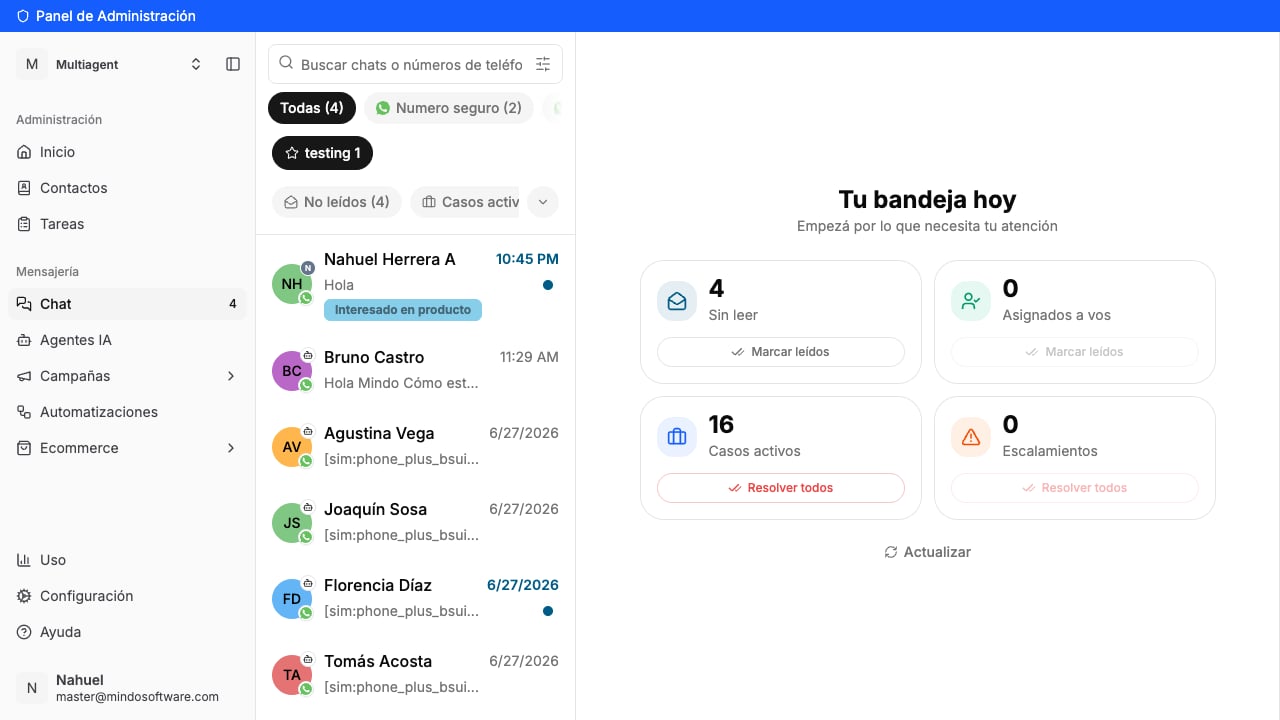
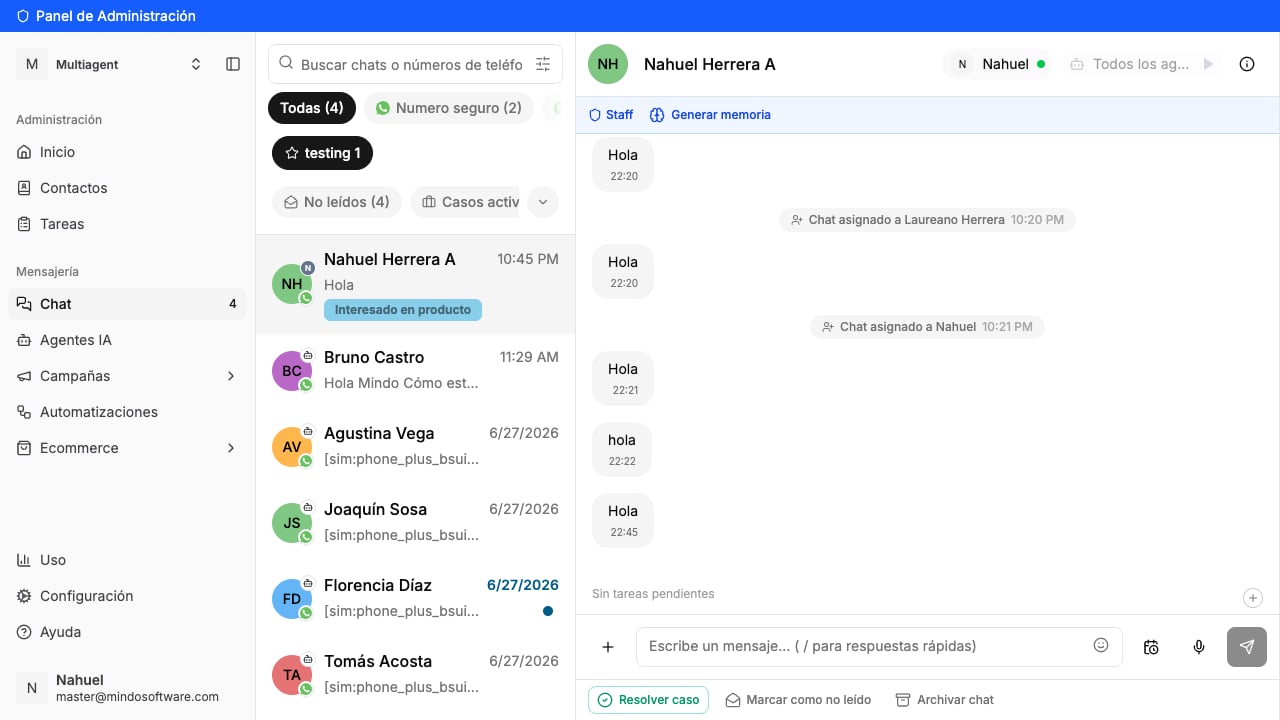
The indicator that changes is the chat’s “unread” mark: the blue dot in the list and the “Unread” filter. Depending on your policy, that dot clears sooner or later.
The unread indicator in the chat inbox
This has nothing to do with WhatsApp’s delivered/read ticks. It only affects the chat’s “unread” indicator inside your inbox.
No. It only affects the chat’s “unread” indicator inside your inbox. WhatsApp’s ticks are a separate thing and aren’t touched.
I want to review everything the AI agent replies. What do I set?
Choose Human only in “Mark chat as seen on reply”. That way, even if the bot already answered, the chat stays pending and no one leaves the AI’s reply unread. It only clears when a team member replies (or with the manual button).
I set Assignee only but an unassigned chat doesn't get marked on open. Is it broken?
No, it’s on purpose. If no one is assigned, there’s no “assignee” to mark it on open. That chat clears when an outgoing reply is sent (if the on-reply option allows it) or when someone marks it manually.
Do I have to press Save?
No. Each option saves itself as soon as you select it.
Does it affect all my companies?
No. It’s a per-company setting. If you manage several, each has its own policy.
Who can change this?
Only company administrators see these options.
If I choose Never + Nobody, how do I clear a chat?
Only with the manual “mark as read” button inside the chat.