How to create a WhatsApp template step by step —header, body with variables, footer and buttons— and submit it for Meta approval
Templates are WhatsApp-approved messages you can use to write to a customer, for example when more than 24 hours have passed since their last message. In this guide you’ll learn how to create a template step by step, including its header, its body with variables and its footer, and how to submit it for approval.
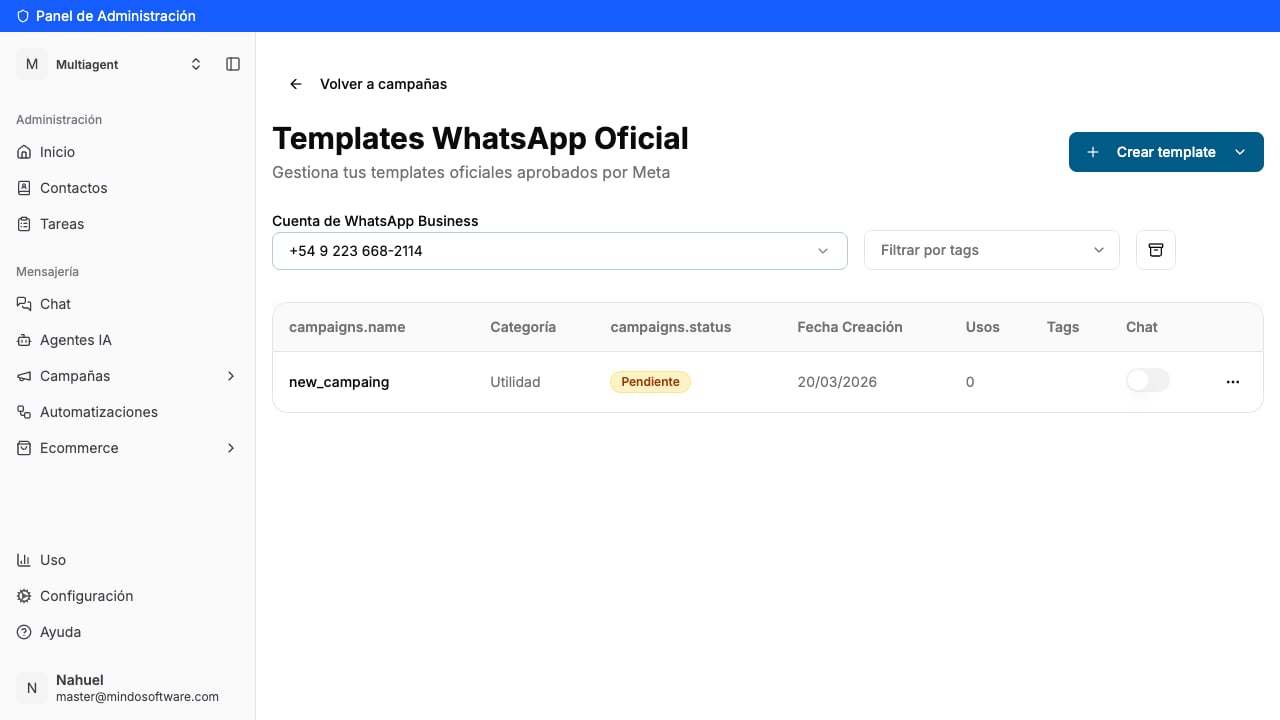
From Campaigns, open the official templates section. You’ll see the list of your templates and, at the top right, the Create template button.
List of official templates
2
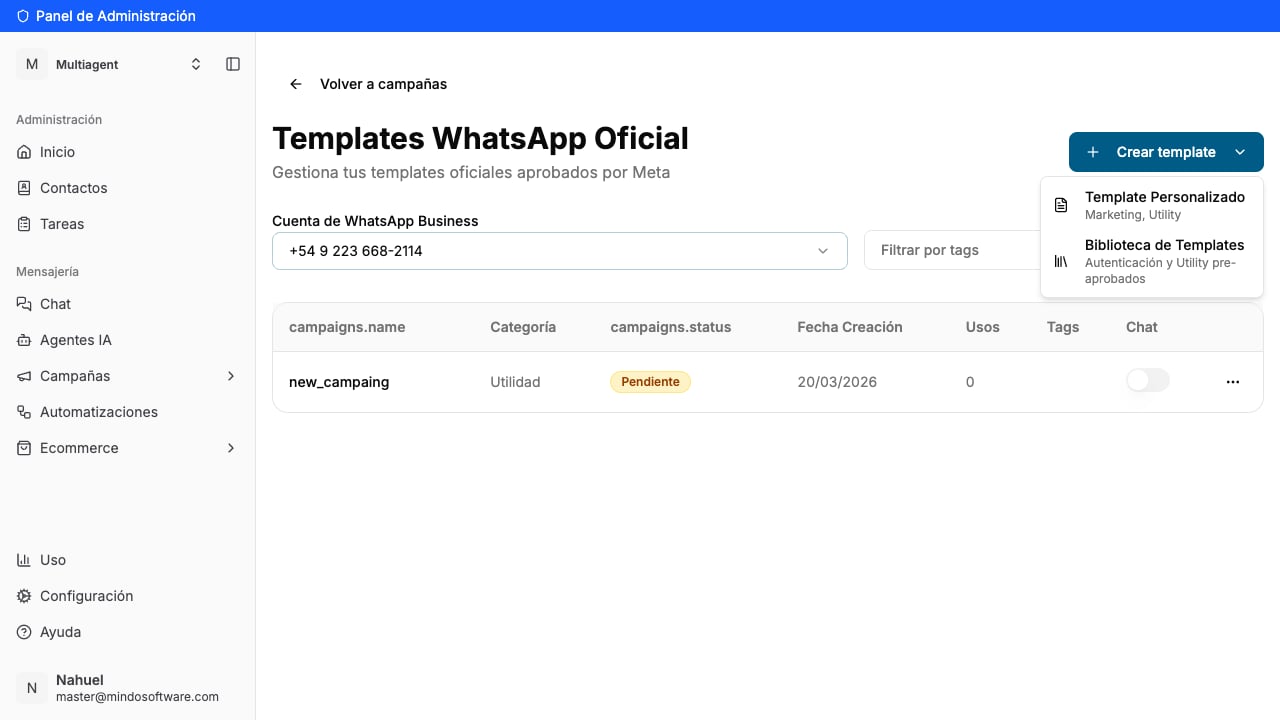
Tap Create template and choose the type
When you tap Create template, two options appear:
Custom Template: you build it from scratch (Marketing or Utility).
Template Library: you pick one already pre-approved by Meta.
In this example we choose Custom Template.
Choose between custom template or library
3
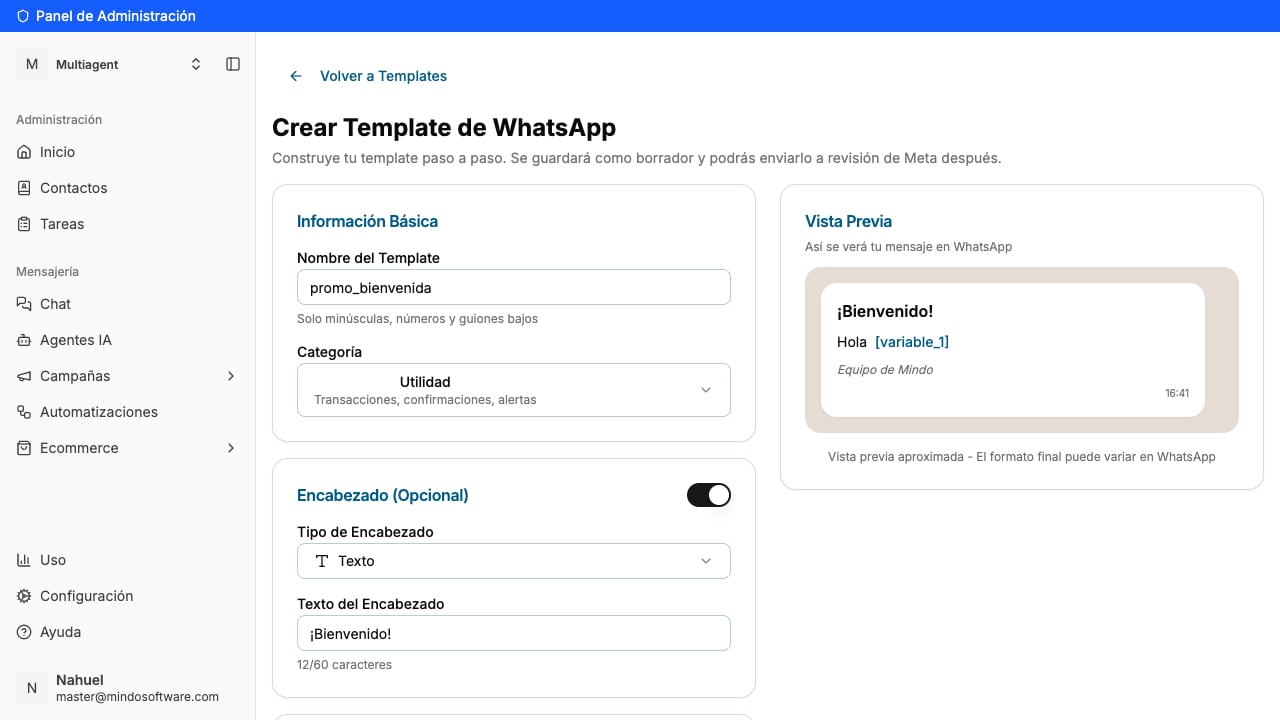
Fill in the basic information
Give it a name (lowercase, numbers and underscores only, for example promo_bienvenida) and choose the category (Utility or Marketing). On the right, the Preview shows you live how the message will look on WhatsApp.
Name, category and live preview
4
Add a header (optional)
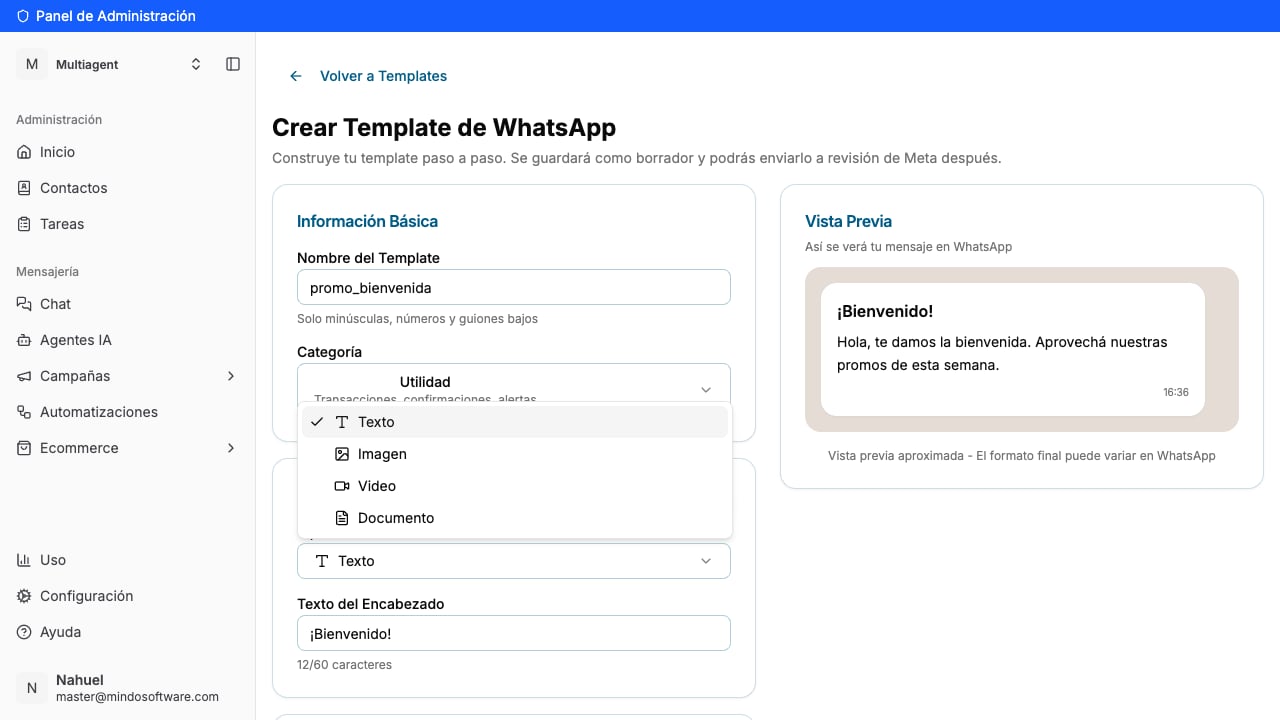
Turn on the Header switch and choose the type:
Text: a short title (up to 60 characters), for example “Welcome!”.
Image, Video or Document: if you want the message to start with a file.
The header appears in bold at the very top of the message.
Configure the template header
5
Write the body, add variables and the footer
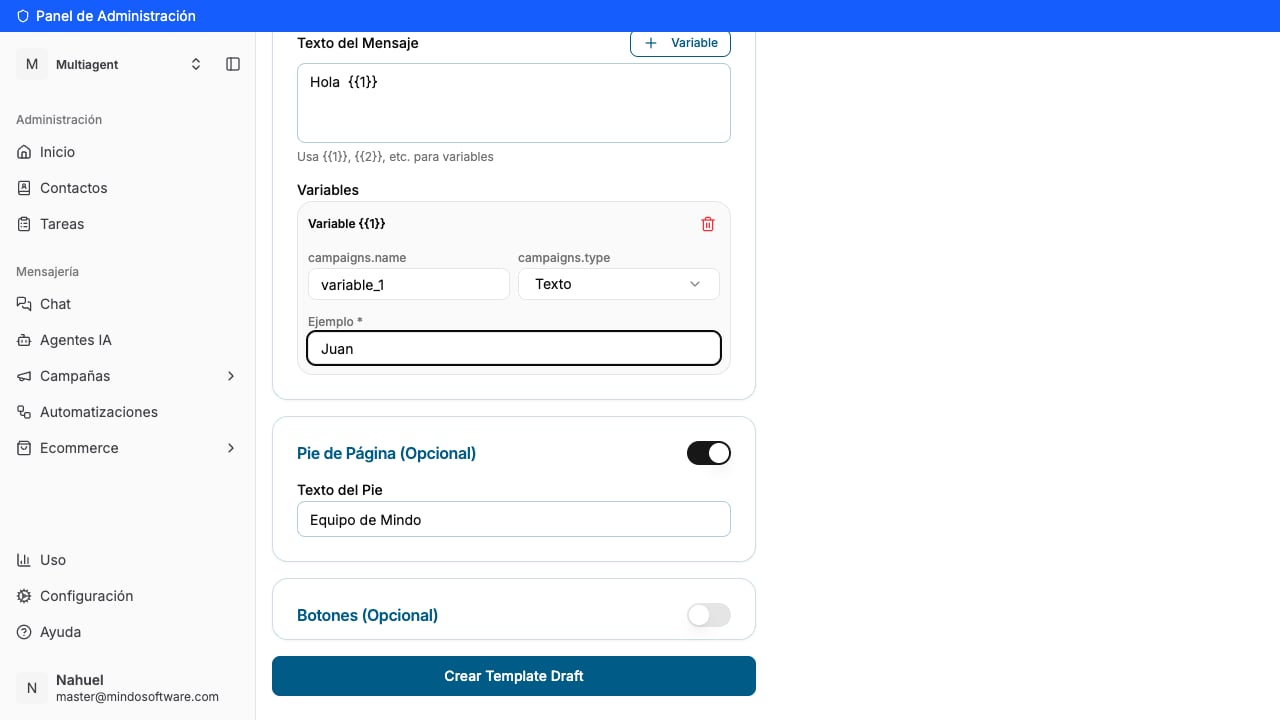
In Message Body, write the main text. If you want a part to be filled in later (like the customer’s name), tap the Variable button: a {{1}} is inserted and an Example field appears where you must enter a sample value (for example “Juan”), which WhatsApp uses to review the template.Further down, turn on the Footer and write its text (for example “Mindo Team”). It’s a small line that appears in gray at the end of the message.
Body with a {{1}} variable and footer
6
Add buttons (optional)
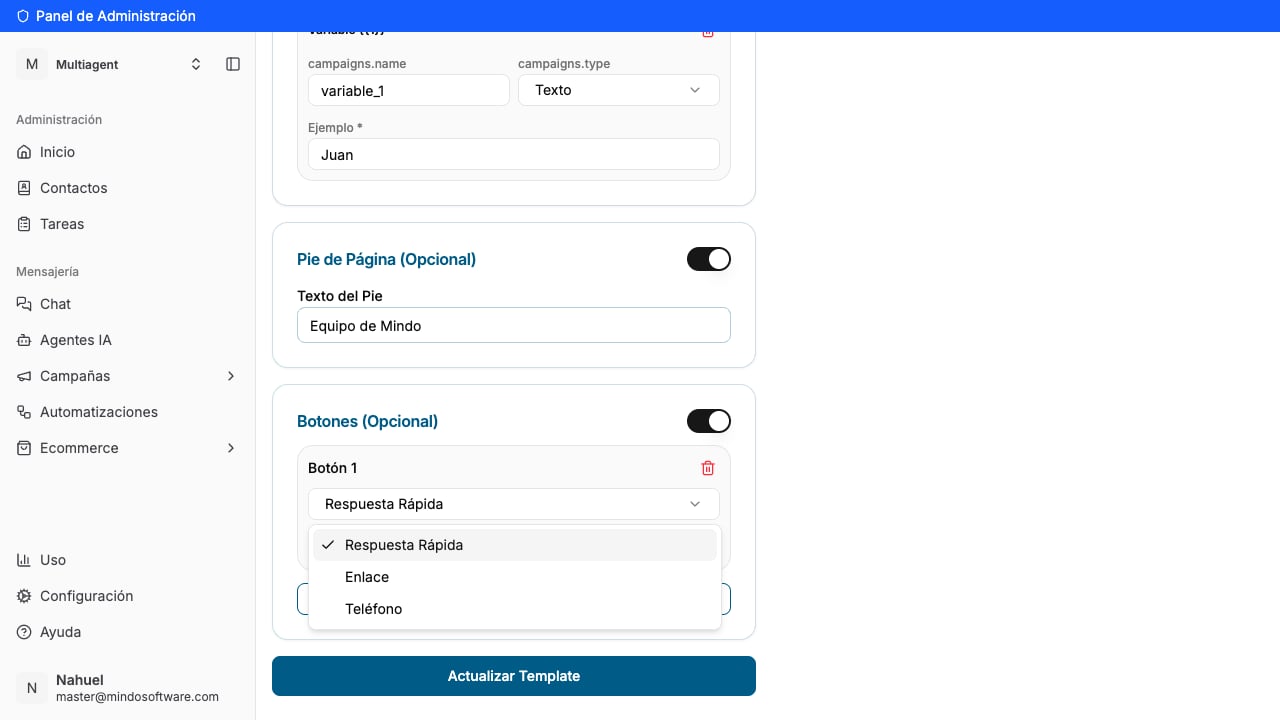
Turn on the Buttons section and tap Add Button. For each button you choose the type:
Quick Reply: the customer replies with a tap (for example, “See deals”).
Link: opens a web page (you set the text and the URL).
Phone: calls a number.
Write the button text and, when everything’s ready, tap Create Template Draft.
Add buttons to the template
7
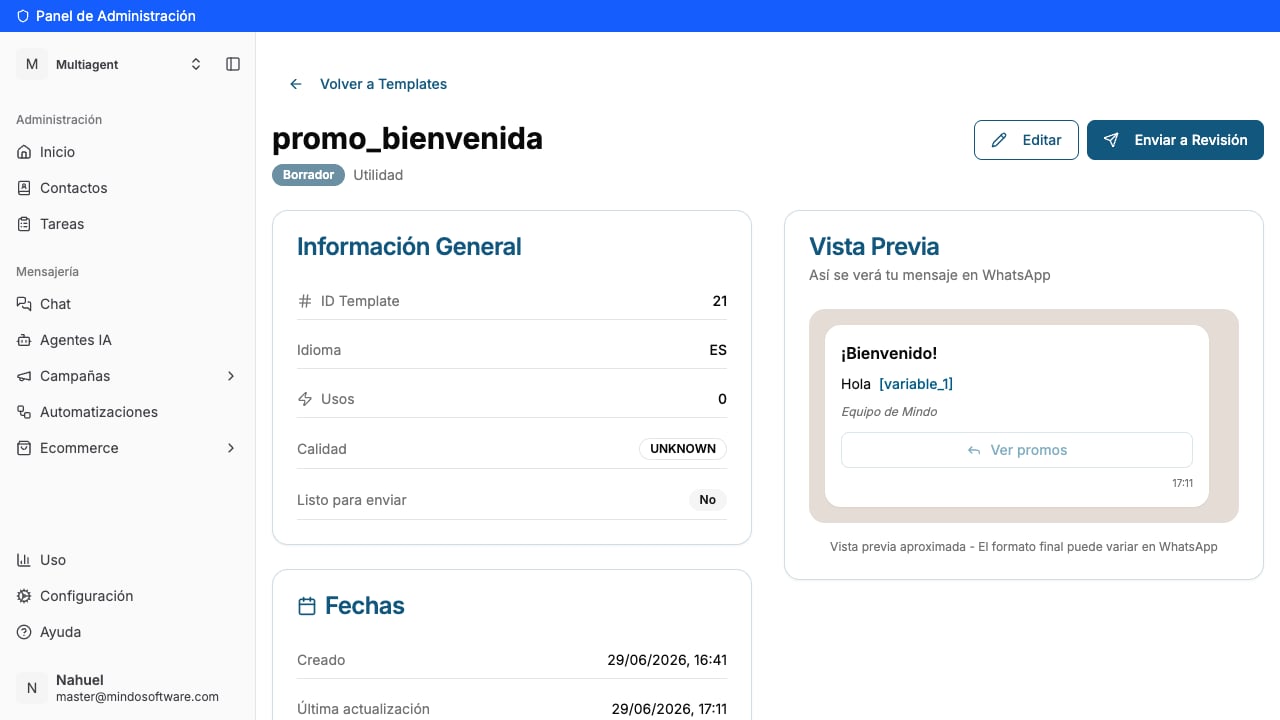
Done! Your template is saved as a draft
The template is saved with the Draft status. In the preview you’ll see the header in bold at the top, the body in the middle, the footer in gray at the bottom and the button at the end. From here you can Edit it or, when it’s ready, tap Submit for Review to send it to WhatsApp. Once Meta approves it, you’ll be able to use it in your chats and campaigns.
You’ll see the template with the Draft label and its preview with all its parts. After submitting it for review, its status changes to Pending and, once WhatsApp approves it, to Approved.
When you want the message to be eye-catching: a product photo, a promotion banner or a document (for example, a PDF with an invoice or catalog).
What button types can I add?
Three: Quick Reply (the customer replies with a tap), Link (opens a web page) and Phone (calls a number). Buttons are also optional.
What are the {{1}} variables for?
They’re parts that change on each send (a name, a date, an amount). You insert them with the Variable button and, for each one, you load an example so WhatsApp understands what it’s about.
Why do I have to wait for approval?
All templates are reviewed by WhatsApp (Meta) before they can be used, to prevent spam. It usually takes from a few minutes to a few hours.
Do I have to submit it for review right away?
No. It stays saved as a Draft and you can keep editing it. You submit it for review only when it’s ready.
Go to Official WhatsApp Templates
Create your WhatsApp templates from the Mindo platform.