How to send a WhatsApp template right from the conversation when the 24-hour window has closed, without going through Campaigns
On WhatsApp, if more than 24 hours have passed since your customer’s last message, you can no longer send a free-form message: WhatsApp only lets you reopen the conversation with an approved template. When that happens, Mindo shows a banner and puts your templates one click away, right inside the chat. In this guide you’ll learn how to use that shortcut, and also how to create a new template or choose which ones appear, without leaving the conversation.
Templates must be approved by WhatsApp (Meta) before they can be sent. If you want to learn how to build one from scratch, check the Create a WhatsApp template guide.
Open the chat: you'll see the closed-window banner
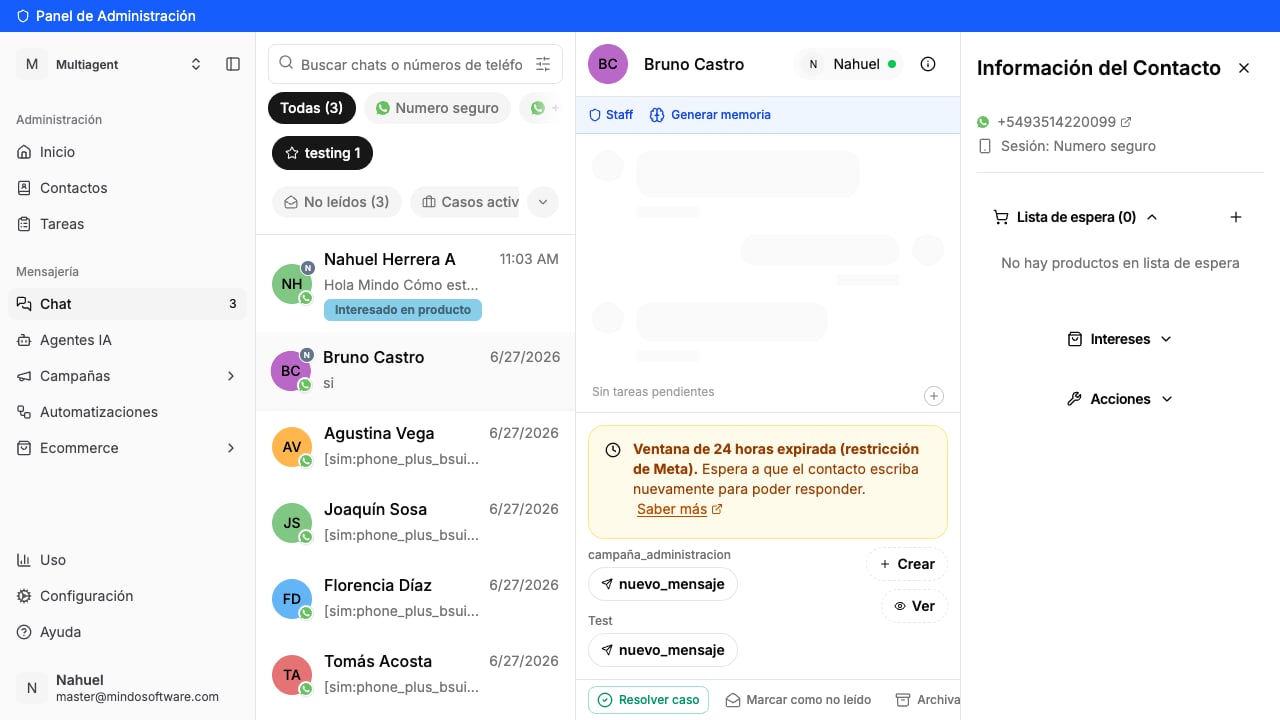
When you open a conversation where 24 hours have already passed, a banner appears below the messages: “24-hour window expired (Meta restriction)”. Right below it are your templates ready to send (grouped by label, such as campaña_administracion or Test), and on the right the Create and View buttons.To send, simply tap the template you want to use (for example nuevo_mensaje).
Closed-window banner with templates handy in the chat
2
Fill in the fields and send
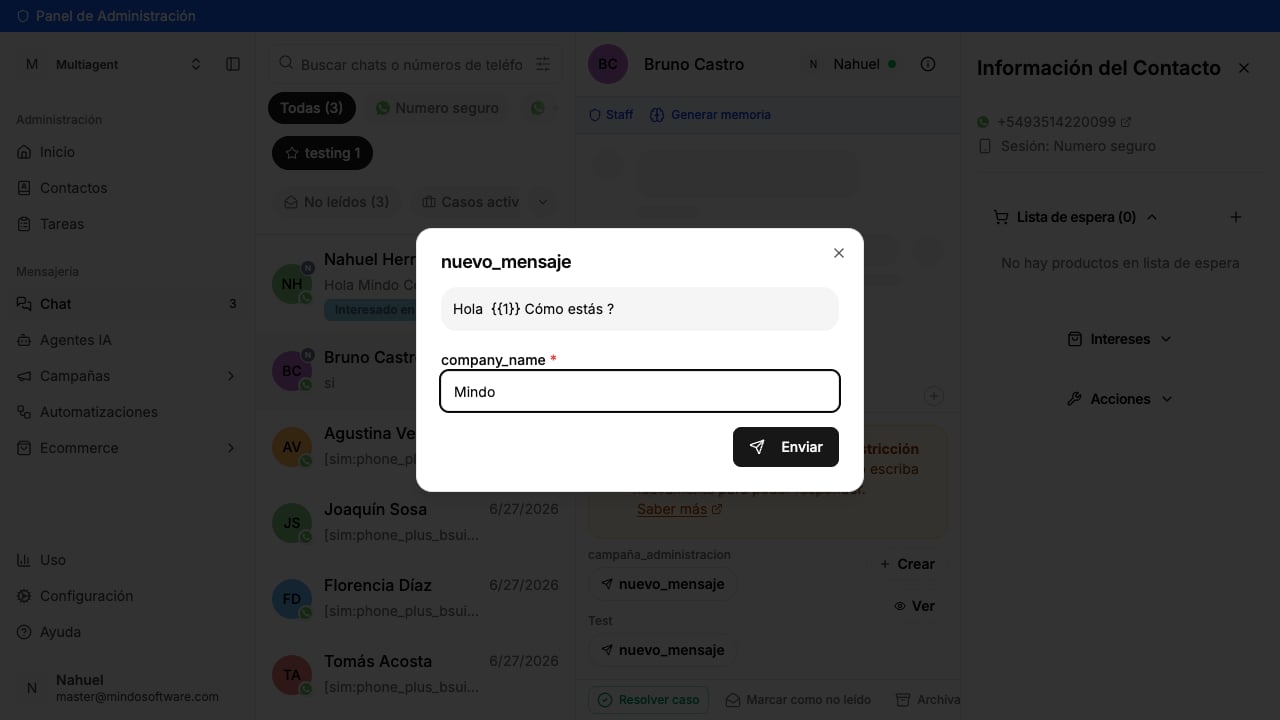
If the template has parts to fill in (a name, your company, a date…), a form asks for them. At the top you’ll see a preview of how the message will look. Fill in the fields and tap Send.
Form with the template variables and the preview
3
Done! The template was sent
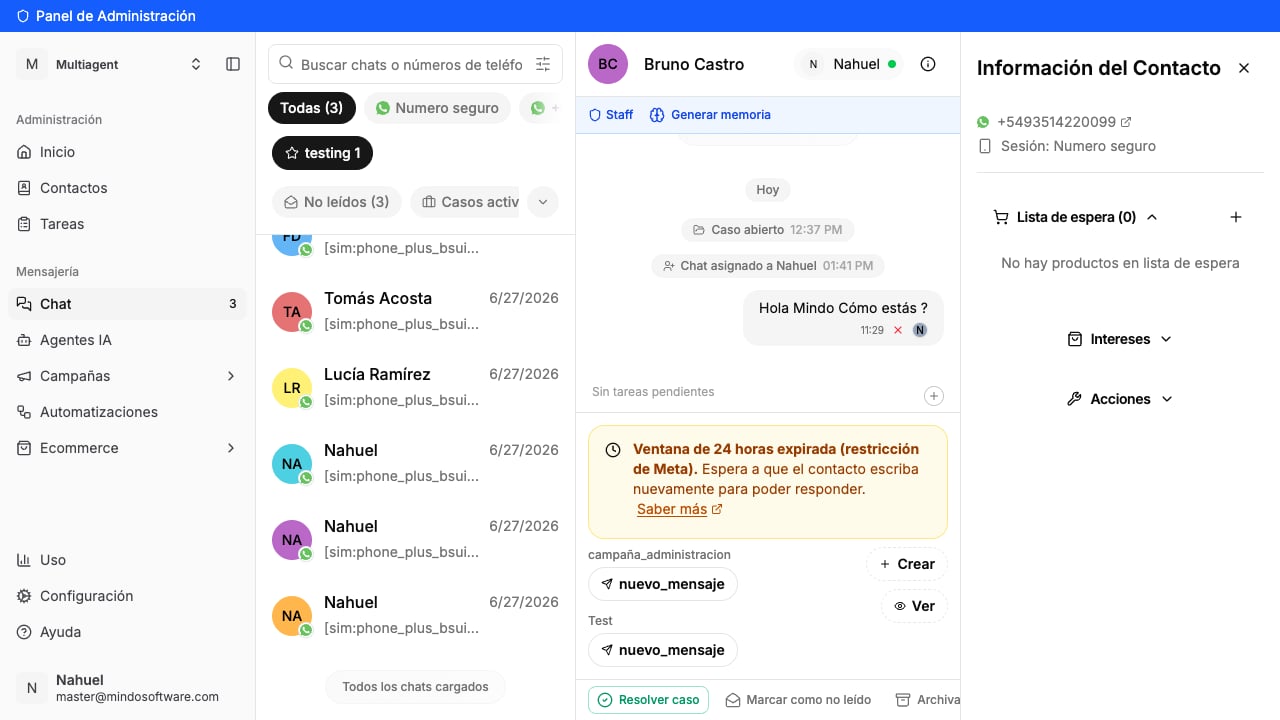
The message appears in the conversation with the fields already filled in. When the customer replies, the window reopens and you can write freely again.
The sent template inside the chat
4
View: choose which templates show up in the chat
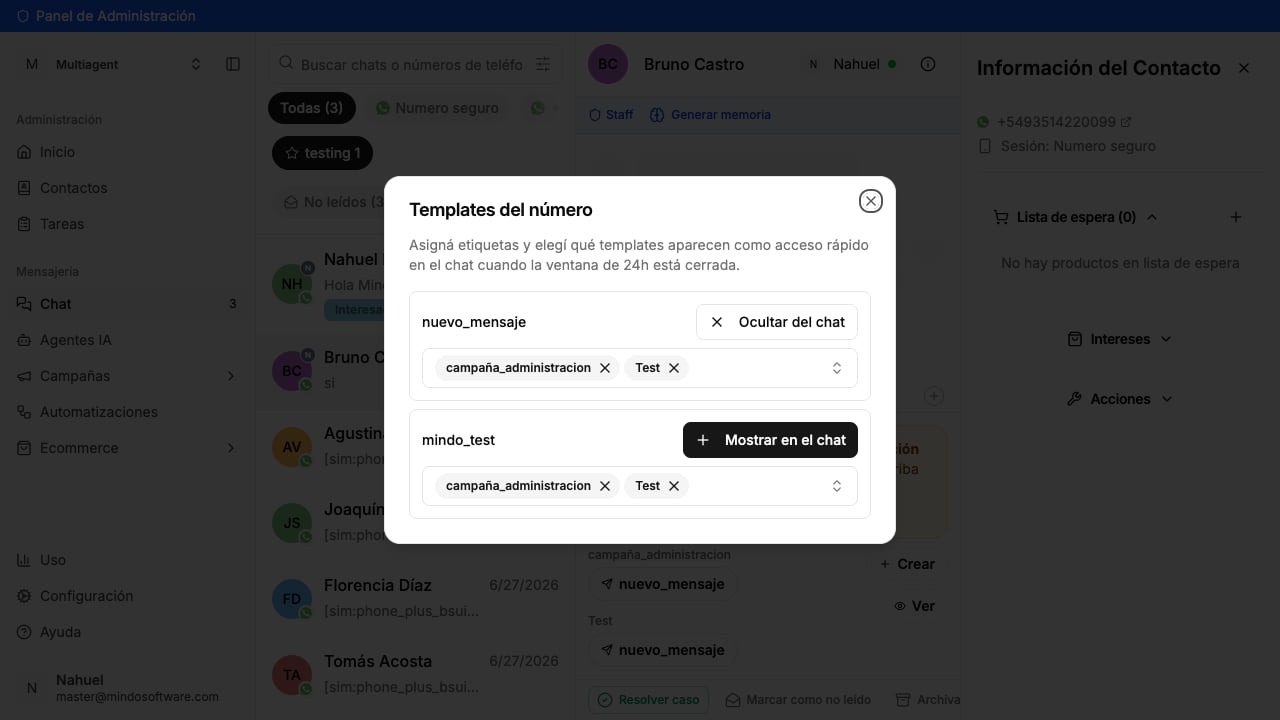
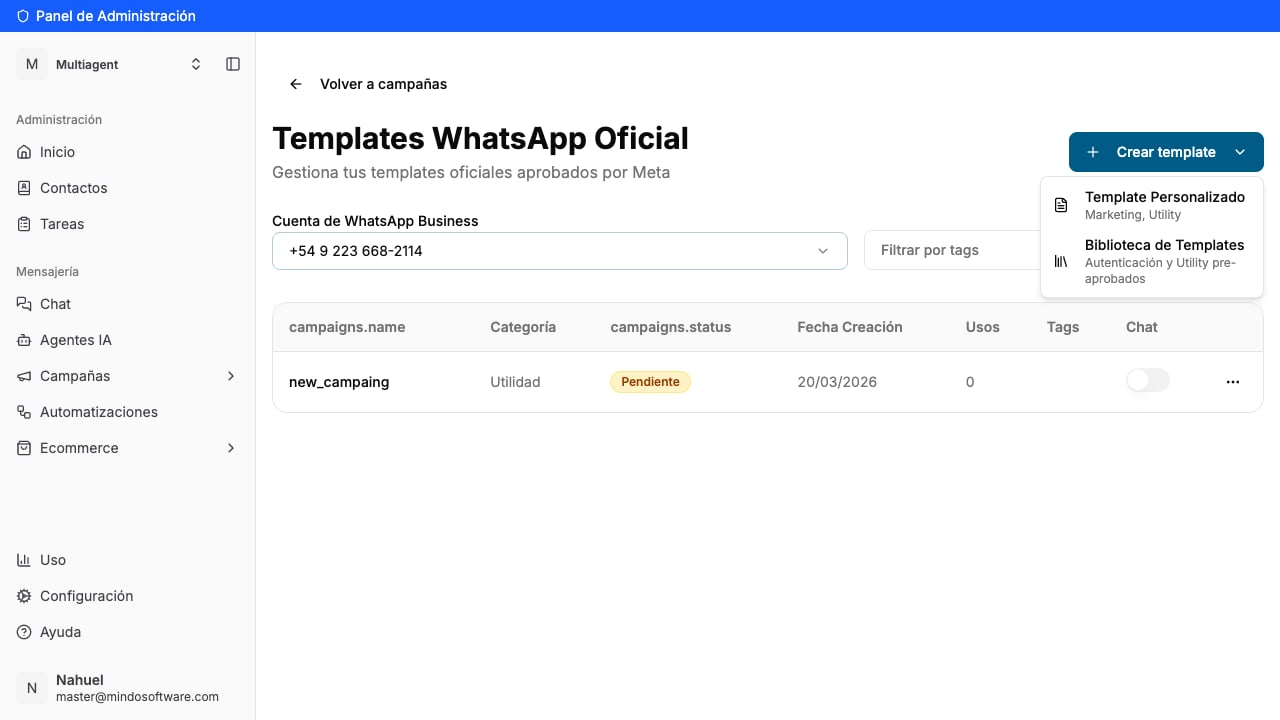
The View button opens the list of templates for your number. There you decide which ones you want handy in the chat (with Show / Hide from chat) and you add labels to group them. That way, in the closed window you only see the ones you use most.
Choose which templates show in the chat and group them by label
5
Create: build a new template without leaving the chat
Don’t have the template you need? The Create button takes you straight to creating a new one (custom or from a library of pre-approved templates), without losing track of the conversation.
You’ll see the template message inside the chat, on the side of the messages you send, with the time. It will also show up as the last message in the chat list.
It’s a WhatsApp rule: 24 hours after the customer’s last message, the “window” closes and you can only reopen it with an approved template. When the person replies, it reopens and you can write freely again. More detail in the The 24-hour window guide.
Do I have to go to Campaigns to send a template to a single person?
No. That was the long way. Now, when the window is closed, you have the templates directly in the chat: you tap them and they’re sent.
What are the labels for (campaña_administracion, Test…)?
They group your templates and let you choose which ones to show in the chat. You configure them from View. It’s optional, but it helps keep the ones you use most organized.
I tapped Create but the template doesn't appear yet
New templates have to be approved by WhatsApp before they can be used, and that can take a while. Once approved, you enable it for the chat from View.
I sent the template but the customer doesn't reply, can I keep writing?
Until they reply you’re still within the 24-hour limit, so you’d have to use another template. When they reply, the conversation reopens.
Go to chat
Send templates straight from the conversation in the Mindo platform.