Automatic follow-up — Let your agent re-engage idle conversations
How to enable and configure Follow-ups so your AI agent automatically messages back the customers whose conversation went quiet.
Automatic follow-up (the Follow-ups section) makes your agent message a customer again when the conversation goes idle —for example, someone asked about a product and never replied. That way you don’t lose sales opportunities without having to watch every chat.
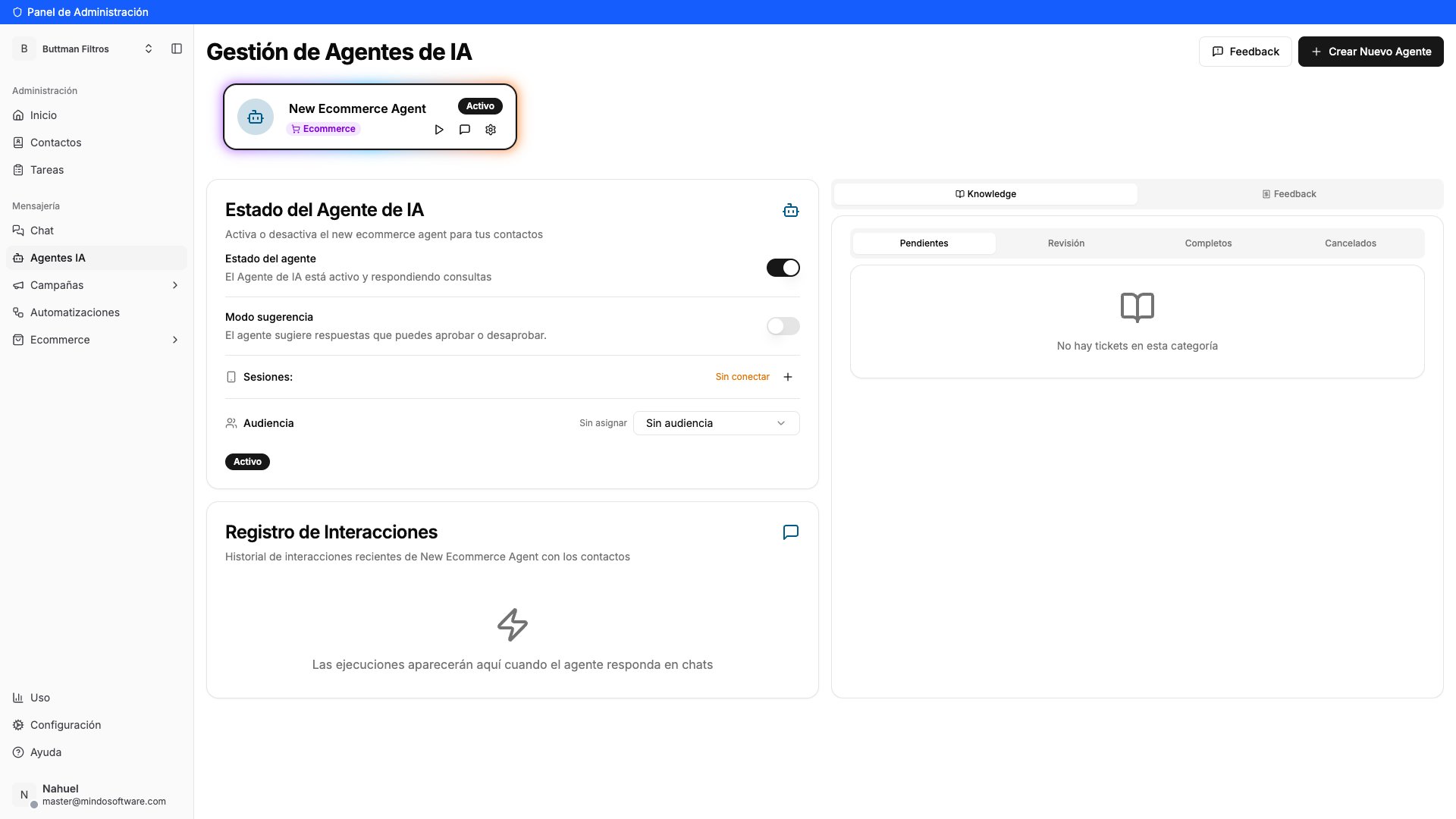
Go to the AI Agents section from the left menu. On your agent’s card, click the gear icon to open its settings.
AI Agents section with the active agent
2
Go to the Capabilities tab
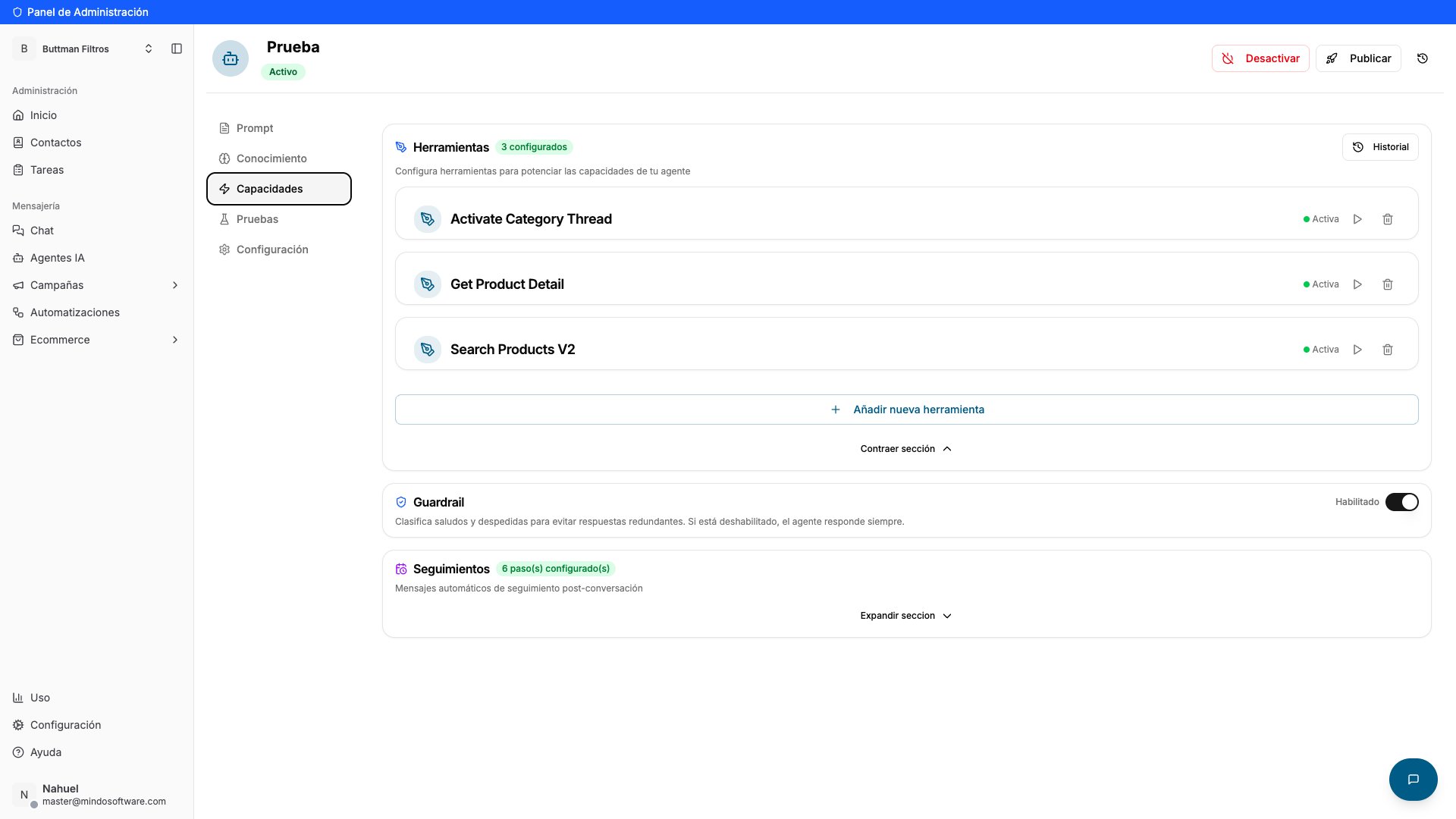
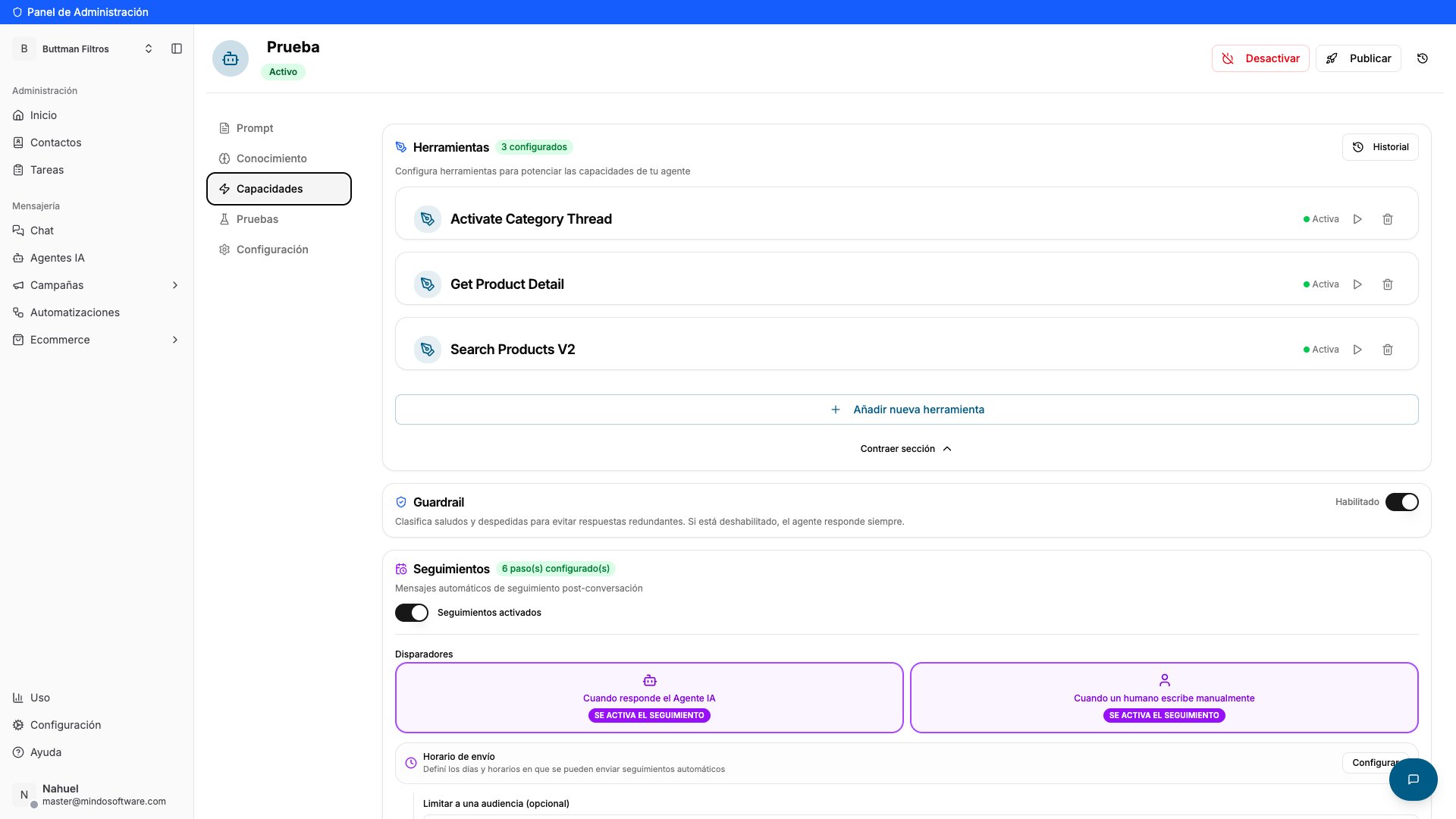
Inside the settings, open the Capabilities tab. Scroll down to the Follow-ups section (“Automatic follow-up messages post-conversation”).
Capabilities tab with the Follow-ups section
3
Enable and configure the follow-up
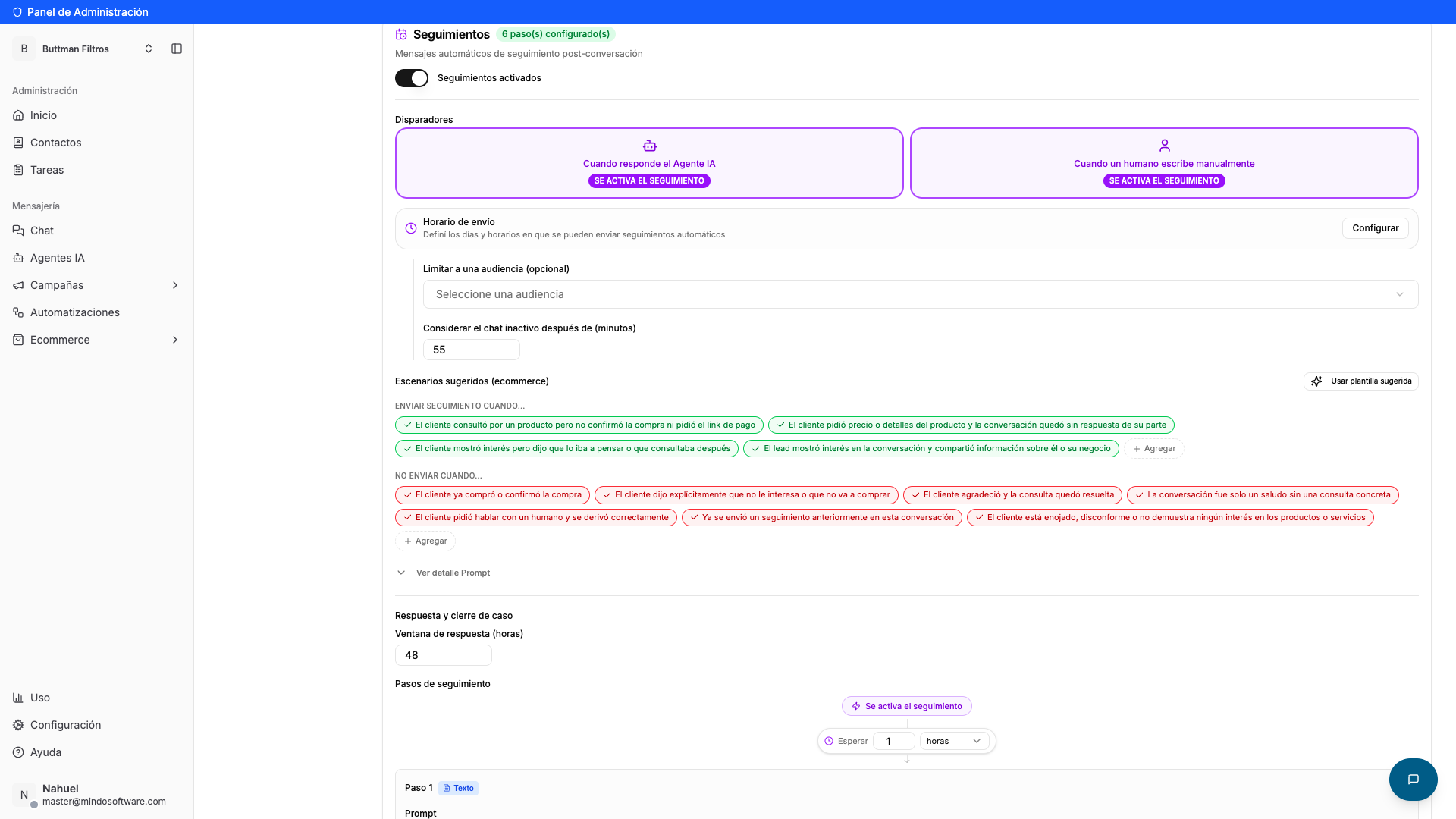
Turn on the Follow-ups enabled switch.
Choose the trigger: when the follow-up fires —when the agent replies or when a teammate writes manually.
In Consider chat inactive after (minutes), set how many minutes of silence must pass before the conversation is treated as idle.
Optional: define in which situations to send the follow-up (green scenarios) and in which not (red scenarios). You can also limit it to an audience and set a sending schedule.
Enable Follow-ups, triggers, inactivity time and scenarios
4
Review the follow-up steps
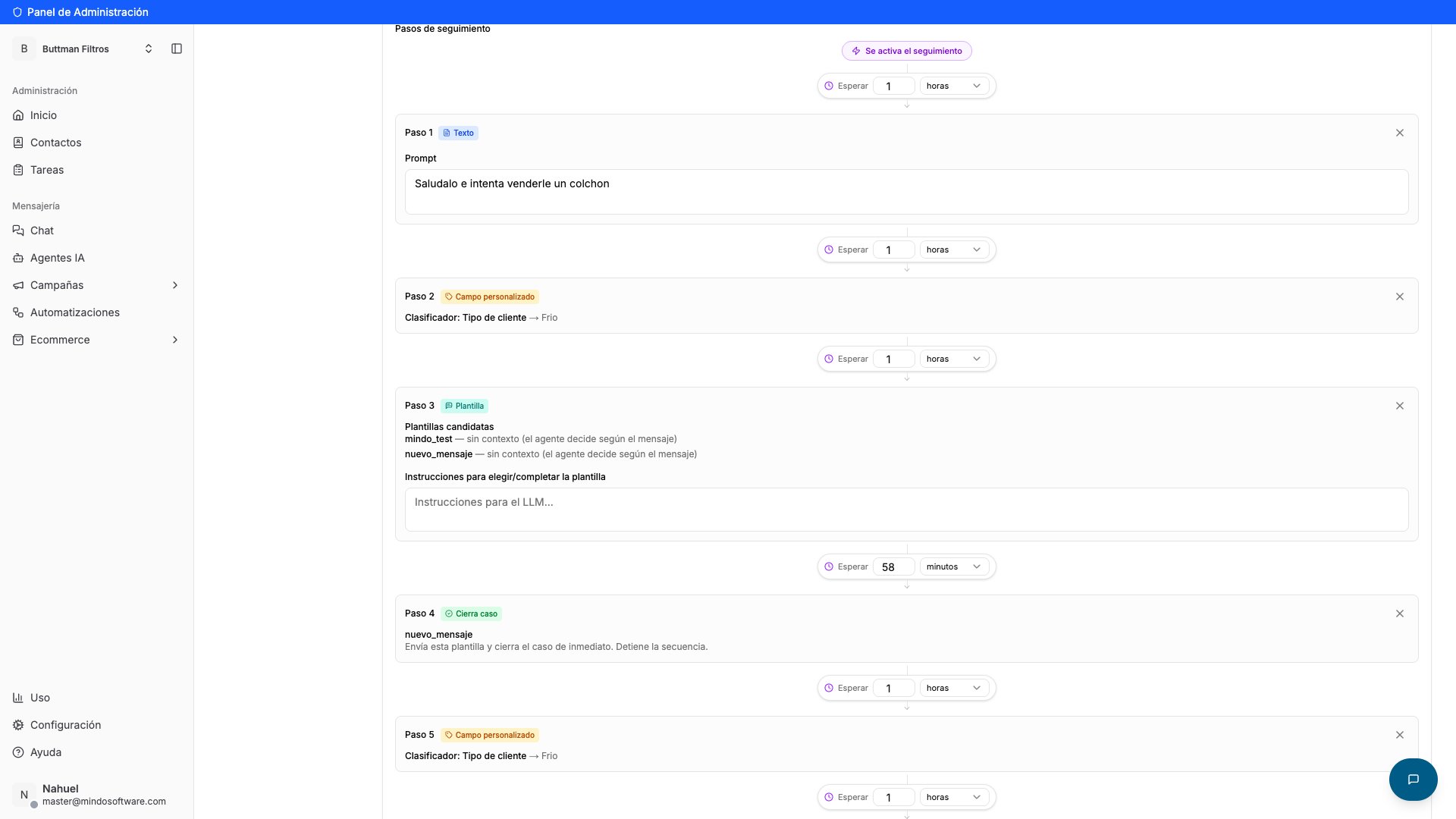
In Follow-up steps you see the sequence of messages the agent will send. Each step starts with a wait (for example, wait 1 hour) and an action: send a text, use a template, classify the customer or close the case. You can edit each step or add new ones.
The follow-up step sequence
5
Publish your changes
When you’re done, click Publish at the top right to save. From that moment the follow-up is active.
Your agent will re-engage only the conversations that went unanswered, following the step sequence you configured. You don’t need to do anything else: the follow-up runs automatically every time a chat goes idle.
Not necessarily. With the green and red scenarios you decide when to send the follow-up and when not to (for example, don’t send it if the customer already bought or said they’re not interested).
How long does it wait before writing?
Whatever you set in “Consider chat inactive after (minutes)”. Only after that silence period is the conversation treated as idle and the follow-up begins.
Can I change the messages it sends?
Yes. Every step in the sequence is editable: you can change the text, pick a template, adjust the wait times, or add and remove steps.
Does the follow-up stop if the customer replies?
Yes. The follow-up is meant for idle conversations; if the customer writes back, the conversation is no longer idle.
Are the changes saved automatically?
No: remember to click Publish when you finish so the configuration becomes active.
{"docsConfig":{"theme":"mint","$schema":"https://mintlify.com/docs.json","name":"Mindo API","colors":{"primary":"#015986","light":"#0180C2","dark":"#015986"},"logo":{"light":"https://mintcdn.com/mindo/HbrvI2TqGxY8Lk5U/logo/mindo-logo.webp?fit=max\u0026auto=format\u0026n=HbrvI2TqGxY8Lk5U\u0026q=85\u0026s=334bae8ee8ece773bf97cfba07e87ce3","dark":"https://mintlify.s3.us-west-1.amazonaws.com/mindo/logo/mindo-logo-dark.png"},"favicon":"https://mintcdn.com/mindo/4vmlT8MW6I1YSIfa/favicon.ico?fit=max\u0026auto=format\u0026n=4vmlT8MW6I1YSIfa\u0026q=85\u0026s=ee34bfdef3daad04a2689904113e97d5","navbar":{"links":[{"href":"https://wa.me/5492235351858","label":"Soporte"}],"primary":{"type":"button","label":"Dashboard","href":"https://app.mindosoftware.com"}},"footer":{"socials":{"website":"https://mindosoftware.com","linkedin":"https://linkedin.com/company/mindosoftware"}},"contextual":{"options":["copy","view","chatgpt","claude"],"display":"header"},"styling":{"latex":false},"navigation":{"languages":[{"language":"es","default":true,"href":""},{"language":"en","href":"en"},{"language":"pt-BR","href":"pt"}]}},"deployment":{"deploymentMetadataValue":{"subdomain":"mindo","hasAudioNarration":false,"actualSubdomain":"mindo","customDomains":["docs.mindosoftware.com"],"gitSource":{"type":"github","owner":"agusmcinnes","repo":"docs","deployBranch":"main","contentDirectory":"","isPrivate":true,"mountPath":"","label":""},"chroma":{"liveDeploymentHistoryId":"6ac2eb13af30088b4b1c0158","collectionId":"bdd320fb-cc79-40f4-886d-aa3f7d16a8e1","schemaVersion":"v3","latestBuiltDeploymentHistoryId":"6ac2eb13af30088b4b1c0158"},"entitlements":{},"buildId":"6ac2eb13af30088b4b1c0158","clientVersion":"0.0.4044","searchFilterCounts":[{"language":"es","tag":"Documentación","count":37},{"language":"en","tag":"Documentation","count":29},{"language":"pt-BR","tag":"Documentação","count":29},{"language":"en","tag":"Guides","count":20},{"language":"pt-BR","tag":"Guias","count":20},{"language":"es","tag":"API Reference","count":16},{"language":"en","tag":"API Reference","count":14},{"language":"pt-BR","tag":"API Reference","count":14},{"language":"es","tag":"Agente de IA","count":10},{"language":"es","tag":"Chats y campañas","count":7},{"language":"en","tag":"WhatsApp","count":7},{"language":"pt-BR","tag":"WhatsApp","count":7},{"language":"es","tag":"WhatsApp Business","count":6},{"language":"es","tag":"Comenzar","count":5},{"language":"es","tag":"Canales y conexiones","count":5},{"language":"es","tag":"Cuenta y equipo","count":5},{"language":"es","tag":"Envío masivo","count":4},{"language":"en","tag":"Bulk sending","count":4},{"language":"en","tag":"Get started","count":4},{"language":"pt-BR","tag":"Envio em massa","count":4},{"language":"pt-BR","tag":"Começar","count":4},{"language":"es","tag":"Contactos","count":3},{"language":"en","tag":"Business info","count":3},{"language":"pt-BR","tag":"Informações do negócio","count":3},{"language":"en","tag":"Messages","count":2},{"language":"pt-BR","tag":"Mensagens","count":2},{"language":"en","tag":"Contacts","count":1},{"language":"en","tag":"Business accounts","count":1},{"language":"pt-BR","tag":"Contatos","count":1},{"language":"pt-BR","tag":"Contas de negócio","count":1}]},"assistantConfig":{"enableAskAiButton":false,"enableStarterQuestions":false,"enableAskAiSearchBar":true},"basePath":"","hasChatPermissions":false,"hasWebMcpPermissions":false,"toggles":[{"name":"kill-isr","enabled":true,"variant":{"name":"disabled","enabled":false,"feature_enabled":true},"impressionData":false},{"name":"agent-mintlify-slack","enabled":true,"variant":{"name":"disabled","enabled":false,"feature_enabled":true},"impressionData":false},{"name":"agent-integrations-settings","enabled":true,"variant":{"name":"disabled","enabled":false,"feature_enabled":true},"impressionData":false},{"name":"automations-pr-grouping","enabled":true,"variant":{"name":"disabled","enabled":false,"feature_enabled":true},"impressionData":false},{"name":"custom-prefix","enabled":true,"variant":{"name":"disabled","enabled":false,"feature_enabled":true},"impressionData":false},{"name":"analytics-v7","enabled":true,"variant":{"name":"disabled","enabled":false,"feature_enabled":true},"impressionData":false},{"name":"user-flows-analytics","enabled":true,"variant":{"name":"disabled","enabled":false,"feature_enabled":true},"impressionData":false},{"name":"no-publish-flow","enabled":true,"variant":{"name":"disabled","enabled":false,"feature_enabled":true},"impressionData":false},{"name":"workos-onboarding","enabled":true,"variant":{"name":"disabled","enabled":false,"feature_enabled":true},"impressionData":false},{"name":"llms-txt-v2","enabled":true,"variant":{"name":"disabled","enabled":false,"feature_enabled":true},"impressionData":false},{"name":"snapshot-serving-live","enabled":true,"variant":{"name":"disabled","enabled":false,"feature_enabled":true},"impressionData":false},{"name":"stripTemperatureMiddleware","enabled":true,"variant":{"name":"disabled","enabled":false,"feature_enabled":true},"impressionData":false},{"name":"support-platform-pylon-zendesk","enabled":true,"variant":{"name":"disabled","enabled":false,"feature_enabled":true},"impressionData":false},{"name":"snapshot-serving","enabled":true,"variant":{"name":"disabled","enabled":false,"feature_enabled":true},"impressionData":false},{"name":"instant-rollback","enabled":true,"variant":{"name":"disabled","enabled":false,"feature_enabled":true},"impressionData":false},{"name":"granular-notifications-server","enabled":true,"variant":{"name":"disabled","enabled":false,"feature_enabled":true},"impressionData":false},{"name":"granular-notifications","enabled":true,"variant":{"name":"disabled","enabled":false,"feature_enabled":true},"impressionData":false},{"name":"automations-fable","enabled":true,"variant":{"name":"disabled","enabled":false,"feature_enabled":true},"impressionData":false},{"name":"fixed-ai-action-pricing","enabled":true,"variant":{"name":"disabled","enabled":false,"feature_enabled":true},"impressionData":false},{"name":"automation-resolve-merge-conflict","enabled":true,"variant":{"name":"disabled","enabled":false,"feature_enabled":true},"impressionData":false},{"name":"scoped-publishing","enabled":true,"variant":{"name":"disabled","enabled":false,"feature_enabled":true},"impressionData":false},{"name":"mintql","enabled":true,"variant":{"name":"disabled","enabled":false,"feature_enabled":true},"impressionData":false},{"name":"page-level-analytics","enabled":true,"variant":{"name":"disabled","enabled":false,"feature_enabled":true},"impressionData":false},{"name":"editor-version-history-v2","enabled":true,"variant":{"name":"disabled","enabled":false,"feature_enabled":true},"impressionData":false},{"name":"billing-page-v2","enabled":true,"variant":{"name":"disabled","enabled":false,"feature_enabled":true},"impressionData":false},{"name":"full-page-search","enabled":true,"variant":{"name":"disabled","enabled":false,"feature_enabled":true},"impressionData":false},{"name":"workspace-projects","enabled":true,"variant":{"name":"disabled","enabled":false,"feature_enabled":true},"impressionData":false},{"name":"assistant-v5","enabled":true,"variant":{"name":"disabled","enabled":false,"feature_enabled":true},"impressionData":false},{"name":"byok-sep-25","enabled":true,"variant":{"name":"disabled","enabled":false,"feature_enabled":true},"impressionData":false},{"name":"fork-pr-previews","enabled":true,"variant":{"name":"disabled","enabled":false,"feature_enabled":true},"impressionData":false},{"name":"revalidation-jwt","enabled":true,"variant":{"name":"disabled","enabled":false,"feature_enabled":true},"impressionData":false},{"name":"vite-origin","enabled":true,"variant":{"name":"disabled","enabled":false,"feature_enabled":true},"impressionData":false},{"name":"billing-updated-9-15","enabled":true,"variant":{"name":"disabled","enabled":false,"feature_enabled":true},"impressionData":false},{"name":"workos-sso-scim","enabled":true,"variant":{"name":"disabled","enabled":false,"feature_enabled":true},"impressionData":false},{"name":"hobby-abuse-scan","enabled":true,"variant":{"name":"disabled","enabled":false,"feature_enabled":true},"impressionData":false},{"name":"dashboard-inbox","enabled":true,"variant":{"name":"disabled","enabled":false,"feature_enabled":true},"impressionData":false},{"name":"workos-signup","enabled":true,"variant":{"name":"disabled","enabled":false,"feature_enabled":true},"impressionData":false},{"name":"turbopuffer-dual-write","enabled":true,"variant":{"name":"disabled","enabled":false,"feature_enabled":true},"impressionData":false},{"name":"workos-enabled","enabled":true,"variant":{"name":"disabled","enabled":false,"feature_enabled":true},"impressionData":false},{"name":"approve-review-flow","enabled":true,"variant":{"name":"disabled","enabled":false,"feature_enabled":true},"impressionData":false},{"name":"sso-setup-deadline-banner","enabled":true,"variant":{"name":"disabled","enabled":false,"feature_enabled":true},"impressionData":false}],"googleFontsInlined":false},"customCss":[],"page":{"pagePath":"en/guias/seguimiento-automatico","slug":"/en/guias/seguimiento-automatico","pageMetadata":{"title":"Automatic follow-up — Let your agent re-engage idle conversations","description":"How to enable and configure Follow-ups so your AI agent automatically messages back the customers whose conversation went quiet.","href":"/en/guias/seguimiento-automatico"},"description":{"compiledSource":"\"use strict\";\nconst {jsx: _jsx} = arguments[0];\nconst {useMDXComponents: _provideComponents} = arguments[0];\nfunction _createMdxContent(props) {\n const _components = {\n p: \"p\",\n ..._provideComponents(),\n ...props.components\n };\n return _jsx(_components.p, {\n children: \"How to enable and configure Follow-ups so your AI agent automatically messages back the customers whose conversation went quiet.\"\n });\n}\nfunction MDXContent(props = {}) {\n const {wrapper: MDXLayout} = {\n ..._provideComponents(),\n ...props.components\n };\n return MDXLayout ? _jsx(MDXLayout, {\n ...props,\n children: _jsx(_createMdxContent, {\n ...props\n })\n }) : _createMdxContent(props);\n}\nreturn {\n default: MDXContent\n};\n","frontmatter":{},"scope":{}},"pageType":"default","mdx":{"mdxSource":{"compiledSource":"\"use strict\";const{Fragment:_Fragment,jsx:_jsx,jsxs:_jsxs}=arguments[0];const{useMDXComponents:_provideComponents}=arguments[0];function _createMdxContent(props){const _components={li:`li`,p:`p`,strong:`strong`,ul:`ul`,..._provideComponents(),...props.components},{Accordion,AccordionGroup,Frame,Heading,OptimizedFrame,OptimizedImage,Step,Steps}=_components;if(!Accordion)_missingMdxReference(`Accordion`,true);if(!AccordionGroup)_missingMdxReference(`AccordionGroup`,true);if(!Frame)_missingMdxReference(`Frame`,true);if(!Heading)_missingMdxReference(`Heading`,true);if(!OptimizedFrame)_missingMdxReference(`OptimizedFrame`,true);if(!OptimizedImage)_missingMdxReference(`OptimizedImage`,true);if(!Step)_missingMdxReference(`Step`,true);if(!Steps)_missingMdxReference(`Steps`,true);return _jsxs(_Fragment,{children:[_jsxs(_components.p,{children:[_jsx(_components.strong,{children:`Automatic follow-up`}),` (the `,_jsx(_components.strong,{children:`Follow-ups`}),` section) makes your agent message a customer again when the conversation goes idle —for example, someone asked about a product and never replied. That way you don’t lose sales opportunities without having to watch every chat.`]}),`\n`,_jsx(Heading,{level:`2`,id:`demo-video`,children:`Demo video`}),`\n`,_jsx(OptimizedFrame,{width:`100%`,height:`400`,src:`https://www.youtube.com/embed/XsUvDSa34dw`,frameBorder:`0`,allow:`accelerometer; autoplay; clipboard-write; encrypted-media; gyroscope; picture-in-picture`,allowFullScreen:true}),`\n`,_jsx(Heading,{level:`2`,id:`before-you-start`,children:`Before you start`}),`\n`,_jsxs(_components.ul,{children:[`\n`,_jsxs(_components.li,{children:[`You need an `,_jsx(_components.strong,{children:`AI agent`}),` already created.`]}),`\n`,_jsx(_components.li,{children:`You’ll enable and configure follow-ups from that agent’s settings.`}),`\n`]}),`\n`,_jsx(Heading,{level:`2`,id:`steps`,children:`Steps`}),`\n`,_jsxs(Steps,{children:[_jsxs(Step,{title:`Open your agent's settings`,children:[_jsxs(_components.p,{children:[`Go to the `,_jsx(_components.strong,{children:`AI Agents`}),` section from the left menu. On your agent’s card, click the `,_jsx(_components.strong,{children:`gear`}),` icon to open its settings.`]}),_jsx(Frame,{caption:`AI Agents section with the active agent`,children:_jsx(OptimizedImage,{src:`https://mintcdn.com/mindo/MVDoQFUwAygE_ajA/images/seguimiento-automatico-01-agentes.png?fit=max\u0026auto=format\u0026n=MVDoQFUwAygE_ajA\u0026q=85\u0026s=1118ba90e399010e8a883462d44a2028`,alt:`AI Agents screen showing the agent with the gear icon to open settings`,\"data-og-width\":`1920`,width:`1920`,\"data-og-height\":`1080`,height:`1080`,\"data-path\":`images/seguimiento-automatico-01-agentes.png`,\"data-optimize\":`true`,\"data-opv\":`3`,srcset:`https://mintcdn.com/mindo/MVDoQFUwAygE_ajA/images/seguimiento-automatico-01-agentes.png?w=280\u0026fit=max\u0026auto=format\u0026n=MVDoQFUwAygE_ajA\u0026q=85\u0026s=7ec9591e46c8ff80de1b898da465fe74 280w, https://mintcdn.com/mindo/MVDoQFUwAygE_ajA/images/seguimiento-automatico-01-agentes.png?w=560\u0026fit=max\u0026auto=format\u0026n=MVDoQFUwAygE_ajA\u0026q=85\u0026s=6d90ef1fb87d253aa2e9b6b502d21bfb 560w, https://mintcdn.com/mindo/MVDoQFUwAygE_ajA/images/seguimiento-automatico-01-agentes.png?w=840\u0026fit=max\u0026auto=format\u0026n=MVDoQFUwAygE_ajA\u0026q=85\u0026s=63de24d5e5125208e0ba3632e9ae8211 840w, https://mintcdn.com/mindo/MVDoQFUwAygE_ajA/images/seguimiento-automatico-01-agentes.png?w=1100\u0026fit=max\u0026auto=format\u0026n=MVDoQFUwAygE_ajA\u0026q=85\u0026s=3efbc25acaae94cc05e88a56d3cdf8d9 1100w, https://mintcdn.com/mindo/MVDoQFUwAygE_ajA/images/seguimiento-automatico-01-agentes.png?w=1650\u0026fit=max\u0026auto=format\u0026n=MVDoQFUwAygE_ajA\u0026q=85\u0026s=a26fa307c29c6aeb160e28084f0e3208 1650w, https://mintcdn.com/mindo/MVDoQFUwAygE_ajA/images/seguimiento-automatico-01-agentes.png?w=2500\u0026fit=max\u0026auto=format\u0026n=MVDoQFUwAygE_ajA\u0026q=85\u0026s=f6b6338611ca8a2d8126f0efcbc3c2a1 2500w`})})]}),_jsxs(Step,{title:`Go to the Capabilities tab`,children:[_jsxs(_components.p,{children:[`Inside the settings, open the `,_jsx(_components.strong,{children:`Capabilities`}),` tab. Scroll down to the `,_jsx(_components.strong,{children:`Follow-ups`}),` section (“Automatic follow-up messages post-conversation”).`]}),_jsx(Frame,{caption:`Capabilities tab with the Follow-ups section`,children:_jsx(OptimizedImage,{src:`https://mintcdn.com/mindo/MVDoQFUwAygE_ajA/images/seguimiento-automatico-02-capacidades.png?fit=max\u0026auto=format\u0026n=MVDoQFUwAygE_ajA\u0026q=85\u0026s=b9c88366854c7f2dd9cc161a8bc37664`,alt:`Capabilities tab showing the Follow-ups section`,\"data-og-width\":`1920`,width:`1920`,\"data-og-height\":`1080`,height:`1080`,\"data-path\":`images/seguimiento-automatico-02-capacidades.png`,\"data-optimize\":`true`,\"data-opv\":`3`,srcset:`https://mintcdn.com/mindo/MVDoQFUwAygE_ajA/images/seguimiento-automatico-02-capacidades.png?w=280\u0026fit=max\u0026auto=format\u0026n=MVDoQFUwAygE_ajA\u0026q=85\u0026s=992a6c1e495607aa85979820ecf32745 280w, https://mintcdn.com/mindo/MVDoQFUwAygE_ajA/images/seguimiento-automatico-02-capacidades.png?w=560\u0026fit=max\u0026auto=format\u0026n=MVDoQFUwAygE_ajA\u0026q=85\u0026s=7fa7a81d8924852d9e93aefecdfe63e0 560w, https://mintcdn.com/mindo/MVDoQFUwAygE_ajA/images/seguimiento-automatico-02-capacidades.png?w=840\u0026fit=max\u0026auto=format\u0026n=MVDoQFUwAygE_ajA\u0026q=85\u0026s=15bed59bcf3c996dfd52292097ba498a 840w, https://mintcdn.com/mindo/MVDoQFUwAygE_ajA/images/seguimiento-automatico-02-capacidades.png?w=1100\u0026fit=max\u0026auto=format\u0026n=MVDoQFUwAygE_ajA\u0026q=85\u0026s=33bfb29361c244b30880e0d243a764c4 1100w, https://mintcdn.com/mindo/MVDoQFUwAygE_ajA/images/seguimiento-automatico-02-capacidades.png?w=1650\u0026fit=max\u0026auto=format\u0026n=MVDoQFUwAygE_ajA\u0026q=85\u0026s=ed5c42bbc5bc1f7d5edf2a48f57c5476 1650w, https://mintcdn.com/mindo/MVDoQFUwAygE_ajA/images/seguimiento-automatico-02-capacidades.png?w=2500\u0026fit=max\u0026auto=format\u0026n=MVDoQFUwAygE_ajA\u0026q=85\u0026s=83fcde9b089e31d70532ca1f6a70ce6d 2500w`})})]}),_jsxs(Step,{title:`Enable and configure the follow-up`,children:[_jsxs(_components.ul,{children:[`\n`,_jsxs(_components.li,{children:[`Turn on the `,_jsx(_components.strong,{children:`Follow-ups enabled`}),` switch.`]}),`\n`,_jsxs(_components.li,{children:[`Choose the `,_jsx(_components.strong,{children:`trigger`}),`: when the follow-up fires —when the agent replies or when a teammate writes manually.`]}),`\n`,_jsxs(_components.li,{children:[`In `,_jsx(_components.strong,{children:`Consider chat inactive after (minutes)`}),`, set how many minutes of silence must pass before the conversation is treated as idle.`]}),`\n`,_jsxs(_components.li,{children:[`Optional: define in which situations to `,_jsx(_components.strong,{children:`send`}),` the follow-up (green scenarios) and in which `,_jsx(_components.strong,{children:`not`}),` (red scenarios). You can also limit it to an audience and set a sending schedule.`]}),`\n`]}),_jsx(Frame,{caption:`Enable Follow-ups, triggers, inactivity time and scenarios`,children:_jsx(OptimizedImage,{src:`https://mintcdn.com/mindo/MVDoQFUwAygE_ajA/images/seguimiento-automatico-03-activar.png?fit=max\u0026auto=format\u0026n=MVDoQFUwAygE_ajA\u0026q=85\u0026s=ef6a7232868f3c66a529ad1162895582`,alt:`Follow-ups section with the switch, triggers, inactivity time and green/red scenarios`,\"data-og-width\":`1920`,width:`1920`,\"data-og-height\":`1080`,height:`1080`,\"data-path\":`images/seguimiento-automatico-03-activar.png`,\"data-optimize\":`true`,\"data-opv\":`3`,srcset:`https://mintcdn.com/mindo/MVDoQFUwAygE_ajA/images/seguimiento-automatico-03-activar.png?w=280\u0026fit=max\u0026auto=format\u0026n=MVDoQFUwAygE_ajA\u0026q=85\u0026s=46e5751d8c7320cf6341865b51345d97 280w, https://mintcdn.com/mindo/MVDoQFUwAygE_ajA/images/seguimiento-automatico-03-activar.png?w=560\u0026fit=max\u0026auto=format\u0026n=MVDoQFUwAygE_ajA\u0026q=85\u0026s=65bd68eb48ab2dc929f56c7c18e3455b 560w, https://mintcdn.com/mindo/MVDoQFUwAygE_ajA/images/seguimiento-automatico-03-activar.png?w=840\u0026fit=max\u0026auto=format\u0026n=MVDoQFUwAygE_ajA\u0026q=85\u0026s=cc8b759aa40c21c0296d56020c023f10 840w, https://mintcdn.com/mindo/MVDoQFUwAygE_ajA/images/seguimiento-automatico-03-activar.png?w=1100\u0026fit=max\u0026auto=format\u0026n=MVDoQFUwAygE_ajA\u0026q=85\u0026s=47be6f691bdace8991b0e99ae01eb2f3 1100w, https://mintcdn.com/mindo/MVDoQFUwAygE_ajA/images/seguimiento-automatico-03-activar.png?w=1650\u0026fit=max\u0026auto=format\u0026n=MVDoQFUwAygE_ajA\u0026q=85\u0026s=fcc46282c30d36518406f882b6afb40b 1650w, https://mintcdn.com/mindo/MVDoQFUwAygE_ajA/images/seguimiento-automatico-03-activar.png?w=2500\u0026fit=max\u0026auto=format\u0026n=MVDoQFUwAygE_ajA\u0026q=85\u0026s=67e0a8d672875cd3cebd529db9cd23e5 2500w`})})]}),_jsxs(Step,{title:`Review the follow-up steps`,children:[_jsxs(_components.p,{children:[`In `,_jsx(_components.strong,{children:`Follow-up steps`}),` you see the sequence of messages the agent will send. Each step starts with a `,_jsx(_components.strong,{children:`wait`}),` (for example, wait 1 hour) and an `,_jsx(_components.strong,{children:`action`}),`: send a text, use a template, classify the customer or close the case. You can edit each step or add new ones.`]}),_jsx(Frame,{caption:`The follow-up step sequence`,children:_jsx(OptimizedImage,{src:`https://mintcdn.com/mindo/MVDoQFUwAygE_ajA/images/seguimiento-automatico-04-pasos.png?fit=max\u0026auto=format\u0026n=MVDoQFUwAygE_ajA\u0026q=85\u0026s=faaaf84b2bf5301831eef6e0081ba1dc`,alt:`List of follow-up steps with waits and actions (text, template, close case)`,\"data-og-width\":`1920`,width:`1920`,\"data-og-height\":`1080`,height:`1080`,\"data-path\":`images/seguimiento-automatico-04-pasos.png`,\"data-optimize\":`true`,\"data-opv\":`3`,srcset:`https://mintcdn.com/mindo/MVDoQFUwAygE_ajA/images/seguimiento-automatico-04-pasos.png?w=280\u0026fit=max\u0026auto=format\u0026n=MVDoQFUwAygE_ajA\u0026q=85\u0026s=7571adb15ccdf494ee011d88a47988f1 280w, https://mintcdn.com/mindo/MVDoQFUwAygE_ajA/images/seguimiento-automatico-04-pasos.png?w=560\u0026fit=max\u0026auto=format\u0026n=MVDoQFUwAygE_ajA\u0026q=85\u0026s=d0d281cfde367b38825bcd5b1a4fe0ab 560w, https://mintcdn.com/mindo/MVDoQFUwAygE_ajA/images/seguimiento-automatico-04-pasos.png?w=840\u0026fit=max\u0026auto=format\u0026n=MVDoQFUwAygE_ajA\u0026q=85\u0026s=e9db99b4bc470df637ac08685e967e31 840w, https://mintcdn.com/mindo/MVDoQFUwAygE_ajA/images/seguimiento-automatico-04-pasos.png?w=1100\u0026fit=max\u0026auto=format\u0026n=MVDoQFUwAygE_ajA\u0026q=85\u0026s=c8a9c00191202dd831317143e90e959f 1100w, https://mintcdn.com/mindo/MVDoQFUwAygE_ajA/images/seguimiento-automatico-04-pasos.png?w=1650\u0026fit=max\u0026auto=format\u0026n=MVDoQFUwAygE_ajA\u0026q=85\u0026s=b48654fa16b7f82a3017f22358614e22 1650w, https://mintcdn.com/mindo/MVDoQFUwAygE_ajA/images/seguimiento-automatico-04-pasos.png?w=2500\u0026fit=max\u0026auto=format\u0026n=MVDoQFUwAygE_ajA\u0026q=85\u0026s=799cfdad106c2d520b35cab1c7974124 2500w`})})]}),_jsxs(Step,{title:`Publish your changes`,children:[_jsxs(_components.p,{children:[`When you’re done, click `,_jsx(_components.strong,{children:`Publish`}),` at the top right to save. From that moment the follow-up is active.`]}),_jsx(Frame,{caption:`Publish button to save the changes`,children:_jsx(OptimizedImage,{src:`https://mintcdn.com/mindo/MVDoQFUwAygE_ajA/images/seguimiento-automatico-05-publicar.png?fit=max\u0026auto=format\u0026n=MVDoQFUwAygE_ajA\u0026q=85\u0026s=bde384278ac28bcec93d4b1eba0e3a6a`,alt:`Publish button at the top right of the agent settings`,\"data-og-width\":`1920`,width:`1920`,\"data-og-height\":`1080`,height:`1080`,\"data-path\":`images/seguimiento-automatico-05-publicar.png`,\"data-optimize\":`true`,\"data-opv\":`3`,srcset:`https://mintcdn.com/mindo/MVDoQFUwAygE_ajA/images/seguimiento-automatico-05-publicar.png?w=280\u0026fit=max\u0026auto=format\u0026n=MVDoQFUwAygE_ajA\u0026q=85\u0026s=26418cd0c67927256395c63c73c64c2c 280w, https://mintcdn.com/mindo/MVDoQFUwAygE_ajA/images/seguimiento-automatico-05-publicar.png?w=560\u0026fit=max\u0026auto=format\u0026n=MVDoQFUwAygE_ajA\u0026q=85\u0026s=f98220f8d3dfed70fbe60da4d7114e55 560w, https://mintcdn.com/mindo/MVDoQFUwAygE_ajA/images/seguimiento-automatico-05-publicar.png?w=840\u0026fit=max\u0026auto=format\u0026n=MVDoQFUwAygE_ajA\u0026q=85\u0026s=34a72115260da3900c2504f211a0b4a6 840w, https://mintcdn.com/mindo/MVDoQFUwAygE_ajA/images/seguimiento-automatico-05-publicar.png?w=1100\u0026fit=max\u0026auto=format\u0026n=MVDoQFUwAygE_ajA\u0026q=85\u0026s=ee176f7d5fe2c81ad9cda16129abffc3 1100w, https://mintcdn.com/mindo/MVDoQFUwAygE_ajA/images/seguimiento-automatico-05-publicar.png?w=1650\u0026fit=max\u0026auto=format\u0026n=MVDoQFUwAygE_ajA\u0026q=85\u0026s=b79955fd2cd7501cf3a7a593a35bd1ab 1650w, https://mintcdn.com/mindo/MVDoQFUwAygE_ajA/images/seguimiento-automatico-05-publicar.png?w=2500\u0026fit=max\u0026auto=format\u0026n=MVDoQFUwAygE_ajA\u0026q=85\u0026s=f82c04cc4a38cc6679b881f3f142d75e 2500w`})})]})]}),`\n`,_jsx(Heading,{level:`2`,id:`result`,children:`Result`}),`\n`,_jsxs(_components.p,{children:[`Your agent will re-engage `,_jsx(_components.strong,{children:`only`}),` the conversations that went unanswered, following the step sequence you configured. You don’t need to do anything else: the follow-up runs automatically every time a chat goes idle.`]}),`\n`,_jsx(Heading,{level:`2`,id:`faq`,children:`FAQ`}),`\n`,_jsxs(AccordionGroup,{children:[_jsx(Accordion,{title:`Will it message everyone who doesn't reply?`,id:`will-it-message-everyone-who-doesnt-reply`,children:_jsx(_components.p,{children:`Not necessarily. With the green and red scenarios you decide when to send the follow-up and when not to (for example, don’t send it if the customer already bought or said they’re not interested).`})}),_jsx(Accordion,{title:`How long does it wait before writing?`,id:`how-long-does-it-wait-before-writing`,children:_jsx(_components.p,{children:`Whatever you set in “Consider chat inactive after (minutes)”. Only after that silence period is the conversation treated as idle and the follow-up begins.`})}),_jsx(Accordion,{title:`Can I change the messages it sends?`,id:`can-i-change-the-messages-it-sends`,children:_jsx(_components.p,{children:`Yes. Every step in the sequence is editable: you can change the text, pick a template, adjust the wait times, or add and remove steps.`})}),_jsx(Accordion,{title:`Does the follow-up stop if the customer replies?`,id:`does-the-follow-up-stop-if-the-customer-replies`,children:_jsx(_components.p,{children:`Yes. The follow-up is meant for idle conversations; if the customer writes back, the conversation is no longer idle.`})}),_jsx(Accordion,{title:`Are the changes saved automatically?`,id:`are-the-changes-saved-automatically`,children:_jsxs(_components.p,{children:[`No: remember to click `,_jsx(_components.strong,{children:`Publish`}),` when you finish so the configuration becomes active.`]})})]})]})}function MDXContent(props={}){const{wrapper:MDXLayout}={..._provideComponents(),...props.components};return MDXLayout?_jsx(MDXLayout,{...props,children:_jsx(_createMdxContent,{...props})}):_createMdxContent(props)}return{default:MDXContent};function _missingMdxReference(id,component){throw new Error(`Expected `+(component?`component`:`object`)+\" `\"+id+\"` to be defined: you likely forgot to import, pass, or provide it.\")}","frontmatter":{},"scope":{"config":{},"pageMetadata":{"title":"Automatic follow-up — Let your agent re-engage idle conversations","description":"How to enable and configure Follow-ups so your AI agent automatically messages back the customers whose conversation went quiet.","href":"/en/guias/seguimiento-automatico"}}},"mdxSourceWithNoJs":null},"mdxExtracts":{"tableOfContents":[{"title":"Demo video","slug":"demo-video","depth":2,"children":[]},{"title":"Before you start","slug":"before-you-start","depth":2,"children":[]},{"title":"Steps","slug":"steps","depth":2,"children":[]},{"title":"Result","slug":"result","depth":2,"children":[]},{"title":"FAQ","slug":"faq","depth":2,"children":[]}],"codeExamples":{}},"jsLinks":[],"subdomain":"mindo","siteName":"Mindo API","title":"Automatic follow-up — Let your agent re-engage idle conversations - Mindo API","navMaps":{"firstHrefInVersion":{},"firstHrefInLanguage":{"es":{"href":"/guias/seguimiento-automatico","matchLevel":1},"en":{"href":"/en/guias/seguimiento-automatico","matchLevel":0},"pt-BR":{"href":"/pt/guias/seguimiento-automatico","matchLevel":1}}},"lastModified":"2026-07-23T21:36:56.216Z","originalFileLocation":"en/guias/seguimiento-automatico.mdx","locale":"en"},"headHtml":"\u003cscript data-mint-head>(function(){var d=document.documentElement,p=null;if(!p){try{p=localStorage.getItem(\"isDarkMode\")}catch(e){}if(p==='true')p='dark';else if(p==='false')p='light';if(p!=='light'\u0026\u0026p!=='dark'\u0026\u0026p!=='system')p=\"system\"}var r=p==='system'?(matchMedia(\"(prefers-color-scheme: dark)\").matches?'dark':'light'):p;d.classList.remove(r==='dark'?'light':'dark');d.classList.add(r);d.setAttribute(\"data-theme-preference\",p)})();\u003c/script>\u003cmeta data-mint-head name=\"description\" content=\"How to enable and configure Follow-ups so your AI agent automatically messages back the customers whose conversation went quiet.\">\u003cmeta data-mint-head name=\"application-name\" content=\"Mindo API\">\u003cmeta data-mint-head name=\"generator\" content=\"Mintlify\">\u003clink data-mint-head rel=\"icon\" type=\"image/png\" sizes=\"192x192\" href=\"/mintlify-assets/_mintlify/favicons/mindo/Ivi1Rm_UXX3eavTO/_generated/favicon/android-chrome-192x192.png\" media=\"(prefers-color-scheme: light)\">\u003clink data-mint-head rel=\"apple-touch-icon\" type=\"image/png\" sizes=\"180x180\" href=\"/mintlify-assets/_mintlify/favicons/mindo/Ivi1Rm_UXX3eavTO/_generated/favicon/apple-touch-icon.png\">\u003clink data-mint-head rel=\"icon\" type=\"image/png\" sizes=\"16x16\" href=\"/mintlify-assets/_mintlify/favicons/mindo/Ivi1Rm_UXX3eavTO/_generated/favicon/favicon-16x16.png\" media=\"(prefers-color-scheme: light)\">\u003clink data-mint-head rel=\"icon\" type=\"image/png\" sizes=\"32x32\" href=\"/mintlify-assets/_mintlify/favicons/mindo/Ivi1Rm_UXX3eavTO/_generated/favicon/favicon-32x32.png\" media=\"(prefers-color-scheme: light)\">\u003clink data-mint-head rel=\"shortcut icon\" type=\"image/x-icon\" href=\"/mintlify-assets/_mintlify/favicons/mindo/Ivi1Rm_UXX3eavTO/_generated/favicon/favicon.ico\" media=\"(prefers-color-scheme: light)\">\u003clink data-mint-head rel=\"icon\" type=\"image/png\" sizes=\"192x192\" href=\"/mintlify-assets/_mintlify/favicons/mindo/Ivi1Rm_UXX3eavTO/_generated/favicon-dark/android-chrome-192x192.png\" media=\"(prefers-color-scheme: dark)\">\u003clink data-mint-head rel=\"icon\" type=\"image/png\" sizes=\"16x16\" href=\"/mintlify-assets/_mintlify/favicons/mindo/Ivi1Rm_UXX3eavTO/_generated/favicon-dark/favicon-16x16.png\" media=\"(prefers-color-scheme: dark)\">\u003clink data-mint-head rel=\"icon\" type=\"image/png\" sizes=\"32x32\" href=\"/mintlify-assets/_mintlify/favicons/mindo/Ivi1Rm_UXX3eavTO/_generated/favicon-dark/favicon-32x32.png\" media=\"(prefers-color-scheme: dark)\">\u003clink data-mint-head rel=\"shortcut icon\" type=\"image/x-icon\" href=\"/mintlify-assets/_mintlify/favicons/mindo/Ivi1Rm_UXX3eavTO/_generated/favicon-dark/favicon.ico\" media=\"(prefers-color-scheme: dark)\">\u003cmeta data-mint-head property=\"og:title\" content=\"Automatic follow-up — Let your agent re-engage idle conversations - Mindo API\">\u003cmeta data-mint-head property=\"og:description\" content=\"How to enable and configure Follow-ups so your AI agent automatically messages back the customers whose conversation went quiet.\">\u003cmeta data-mint-head property=\"og:site_name\" content=\"Mindo API\">\u003cmeta data-mint-head property=\"og:url\" content=\"https://docs.mindosoftware.com/en/guias/seguimiento-automatico\">\u003cmeta data-mint-head property=\"og:type\" content=\"website\">\u003cmeta data-mint-head property=\"og:image\" content=\"https://mindo.mintlify.app/_mintlify/api/og/v2?division=Guides\u0026amp;title=Automatic+follow-up+%E2%80%94+Let+your+agent+re-engage+idle+conversations\u0026amp;description=How+to+enable+and+configure+Follow-ups+so+your+AI+agent+automatically+messages+back+the+customers+whose+conversation+went+quiet.\u0026amp;theme=c83a594864d9b52e05aba841\u0026amp;signature=87dc36bf4245a50c68d897f8fee3adb409ea8a8e4cb54848a1512a3ad3184efb\">\u003cmeta data-mint-head property=\"og:image:width\" content=\"1200\">\u003cmeta data-mint-head property=\"og:image:height\" content=\"630\">\u003cmeta data-mint-head name=\"twitter:card\" content=\"summary_large_image\">\u003cmeta data-mint-head name=\"twitter:title\" content=\"Automatic follow-up — Let your agent re-engage idle conversations - Mindo API\">\u003cmeta data-mint-head name=\"twitter:description\" content=\"How to enable and configure Follow-ups so your AI agent automatically messages back the customers whose conversation went quiet.\">\u003cmeta data-mint-head name=\"twitter:image\" content=\"https://mindo.mintlify.app/_mintlify/api/og/v2?division=Guides\u0026amp;title=Automatic+follow-up+%E2%80%94+Let+your+agent+re-engage+idle+conversations\u0026amp;description=How+to+enable+and+configure+Follow-ups+so+your+AI+agent+automatically+messages+back+the+customers+whose+conversation+went+quiet.\u0026amp;theme=c83a594864d9b52e05aba841\u0026amp;signature=87dc36bf4245a50c68d897f8fee3adb409ea8a8e4cb54848a1512a3ad3184efb\">\u003cmeta data-mint-head name=\"twitter:image:width\" content=\"1200\">\u003cmeta data-mint-head name=\"twitter:image:height\" content=\"630\">\u003cmeta data-mint-head name=\"msapplication-config\" content=\"/mintlify-assets/_mintlify/favicons/mindo/Ivi1Rm_UXX3eavTO/_generated/favicon/browserconfig.xml\">\u003cmeta data-mint-head name=\"apple-mobile-web-app-title\" content=\"Mindo API\">\u003cmeta data-mint-head name=\"msapplication-TileColor\" content=\"#015986\">\u003clink data-mint-head rel=\"canonical\" href=\"https://docs.mindosoftware.com/en/guias/seguimiento-automatico\">\u003clink data-mint-head rel=\"alternate\" type=\"application/xml\" href=\"/sitemap.xml\">\u003clink data-mint-head rel=\"alternate\" type=\"text/markdown\" href=\"/en/guias/seguimiento-automatico.md\">\u003clink data-mint-head rel=\"alternate\" hreflang=\"en\" href=\"https://docs.mindosoftware.com/en/guias/seguimiento-automatico\">\u003clink data-mint-head rel=\"alternate\" hreflang=\"es\" href=\"https://docs.mindosoftware.com/guias/seguimiento-automatico\">\u003clink data-mint-head rel=\"alternate\" hreflang=\"pt-BR\" href=\"https://docs.mindosoftware.com/pt/guias/seguimiento-automatico\">\u003clink data-mint-head rel=\"alternate\" hreflang=\"x-default\" href=\"https://docs.mindosoftware.com/guias/seguimiento-automatico\">\u003cscript data-mint-head type=\"application/ld+json\">{\"@context\":\"https://schema.org\",\"@graph\":[{\"@type\":\"Organization\",\"@id\":\"https://docs.mindosoftware.com/#organization\",\"name\":\"Mindo API\",\"url\":\"https://docs.mindosoftware.com\",\"logo\":{\"@type\":\"ImageObject\",\"url\":\"https://mintcdn.com/mindo/HbrvI2TqGxY8Lk5U/logo/mindo-logo.webp?fit=max\u0026auto=format\u0026n=HbrvI2TqGxY8Lk5U\u0026q=85\u0026s=334bae8ee8ece773bf97cfba07e87ce3\"}},{\"@type\":\"WebSite\",\"@id\":\"https://docs.mindosoftware.com#website\",\"name\":\"Mindo API\",\"url\":\"https://docs.mindosoftware.com\",\"publisher\":{\"@id\":\"https://docs.mindosoftware.com/#organization\"}},{\"@type\":\"WebPage\",\"@id\":\"https://docs.mindosoftware.com/en/guias/seguimiento-automatico#webpage\",\"url\":\"https://docs.mindosoftware.com/en/guias/seguimiento-automatico\",\"name\":\"Automatic follow-up — Let your agent re-engage idle conversations\",\"description\":\"How to enable and configure Follow-ups so your AI agent automatically messages back the customers whose conversation went quiet.\",\"dateModified\":\"2026-07-23T21:36:56.216Z\",\"isPartOf\":{\"@id\":\"https://docs.mindosoftware.com#website\"},\"breadcrumb\":{\"@id\":\"https://docs.mindosoftware.com/en/guias/seguimiento-automatico#breadcrumb\"}},{\"@type\":\"BreadcrumbList\",\"@id\":\"https://docs.mindosoftware.com/en/guias/seguimiento-automatico#breadcrumb\",\"itemListElement\":[{\"@type\":\"ListItem\",\"position\":1,\"name\":\"Guides\",\"item\":\"https://docs.mindosoftware.com/en/guias/registro-y-equipo\"},{\"@type\":\"ListItem\",\"position\":2,\"name\":\"Automatic follow-up — Let your agent re-engage idle conversations\",\"item\":\"https://docs.mindosoftware.com/en/guias/seguimiento-automatico\"}]},{\"@type\":[\"Article\",\"TechArticle\"],\"@id\":\"https://docs.mindosoftware.com/en/guias/seguimiento-automatico#article\",\"headline\":\"Automatic follow-up — Let your agent re-engage idle conversations\",\"name\":\"Automatic follow-up — Let your agent re-engage idle conversations\",\"description\":\"How to enable and configure Follow-ups so your AI agent automatically messages back the customers whose conversation went quiet.\",\"url\":\"https://docs.mindosoftware.com/en/guias/seguimiento-automatico\",\"mainEntityOfPage\":{\"@id\":\"https://docs.mindosoftware.com/en/guias/seguimiento-automatico#webpage\"},\"dateModified\":\"2026-07-23T21:36:56.216Z\",\"publisher\":{\"@id\":\"https://docs.mindosoftware.com/#organization\"},\"isPartOf\":{\"@id\":\"https://docs.mindosoftware.com#website\"}}]}\u003c/script>\u003cscript data-mint-head type=\"application/ld+json\">{\"@context\":\"https://schema.org\",\"@type\":\"WebSite\",\"name\":\"Mindo API\",\"creator\":{\"@type\":\"Organization\",\"name\":\"Mintlify\",\"url\":\"https://mintlify.com\"}}\u003c/script>","siteName":"Mindo API","nav":{"global":null,"languages":[{"language":"es","default":true,"pages":[{"title":"es","href":"/guias/seguimiento-automatico"}]},{"language":"en","tabs":[{"tab":"Documentation","groups":[{"group":"Get started","pages":[{"title":"Introduction","href":"/en"},{"title":"Overview","href":"/en/api-reference/introduccion"}]},{"group":"Guides","pages":[{"title":"Registration, business creation, and team invitations","href":"/en/guias/registro-y-equipo"},{"title":"Complete introductory interview","href":"/en/guias/contestar-encuesta"},{"title":"Mark chats as seen","href":"/en/guias/marcar-chat-como-visto"},{"title":"Complete test reviews","href":"/en/guias/completar-reviews"},{"title":"Create a message campaign","href":"/en/guias/campanas"},{"title":"Connect via coexistence","href":"/en/guias/conectar-coexistencia"},{"title":"Connect an API number","href":"/en/guias/conexion-whatsapp"},{"title":"Connect Instagram","href":"/en/guias/conexion-instagram"},{"title":"Create an AI agent — Complete guide","href":"/en/guias/crear-agente-ia"},{"title":"Web chat widget","href":"/en/guias/widget-web"},{"title":"Train the AI agent","href":"/en/guias/entrenar-agente-ia"},{"title":"Ad descriptions for the AI agent","href":"/en/guias/descripcion-anuncios"},{"title":"Suggestion mode","href":"/en/guias/modo-sugerencia"},{"title":"Turn the AI agent on and off","href":"/en/guias/encender-apagar-agente"},{"title":"Permanently pause the agent","href":"/en/guias/pausar-agente-permanente"},{"title":"Quick Chat — Test the AI agent and leave feedback","description":"How to use Quick Chat to test your AI agent, evaluate its responses, and leave positive or negative feedback that creates tickets for our team","href":"/en/guias/chat-rapido"},{"title":"Automatic follow-up — Let your agent re-engage idle conversations","href":"/en/guias/seguimiento-automatico"},{"title":"Import contacts","description":"How to bulk import contacts from an Excel or CSV file, or sync them from Google Contacts","href":"/en/guias/importacion-contactos"},{"title":"Branches and holidays","href":"/en/guias/sucursales-feriados"},{"title":"Reports dashboard — Build your own board","href":"/en/guias/tablero-dashboard"}]},{"group":"WhatsApp","pages":[{"title":"Add a credit card","href":"/en/guias/tarjeta-de-credito"},{"title":"WhatsApp Business API coexistence","href":"/en/guias/coexistencia"},{"title":"WhatsApp number quality","href":"/en/guias/calidad-numero"},{"title":"24-hour window","href":"/en/guias/ventana-24-horas"},{"title":"Create a WhatsApp template","href":"/en/guias/crear-template"},{"title":"Send templates from the chat","href":"/en/guias/templates-en-chat"},{"title":"Check WhatsApp Costs on Meta","href":"/en/guias/costos-whatsapp-meta"}]}]},{"tab":"API Reference","pages":[{"title":"API Reference","href":"/en/quickstart"}]},{"tab":"Changelog","pages":[{"title":"Changelog","href":"/en/changelog"}]}]},{"language":"pt-BR","pages":[{"title":"pt-BR","href":"/pt/guias/seguimiento-automatico"}]}]},"basePath":"","title":"Automatic follow-up — Let your agent re-engage idle conversations - Mindo API","buildId":"dpl_DeHjVRGfFnhYQwHnfC2pjeXXv8h9","deploymentId":"dpl_DeHjVRGfFnhYQwHnfC2pjeXXv8h9","dynamics":["07c022d89b","a74be98ba7"],"chunks":["Frame-DXXFP6nH.js","DynamicMarkdown-B54_zNBF.js","zoom-image-lightbox-BG6oD64b.js","lightbox-handle-r17bVUz3.js"]}